


AI tools can be used in the classroom for many different reasons. Teachers might use them to grade assignments faster, build lesson plans, generate practice questions, or translate materials for multilingual learners.
But in most cases, these needs vary depending on the classroom and the subject. For instance, a high school English teacher assigning weekly essays needs something very different from an elementary math teacher.
Special education teachers working with students with disabilities have far more varied needs than a typical classroom. Every student on your caseload has an individualized education program (IEP) specifying different goals, accommodations, and expectations.
Teachers need to do many things, including:
- Prepare the same lesson at several reading levels
- Modify assignments so each student can access the work
- Grade against expectations that change from one student to the next
- Track progress toward individual goals throughout the year
- Meet IEP paperwork deadlines set by federal law
This is why general-purpose AI tools like ChatGPT tend to disappoint special education teachers. Most of them assume the same lesson, rubric, and set of expectations for the whole class, so they can’t produce a passage at multiple reading levels, grade against a modified rubric, or connect anything back to a student’s IEP goals.
The best tools that are built specifically for special education handle these classroom requirements far better. In this guide, we’ll cover:
- Practical ways special education teachers can use AI in the classroom, from leveling one passage for the whole class to drafting present levels statements out of your observation notes.
- The 8 best AI tools for special education teachers, including our own, CoGrader, with honest input on what each one does well, what it costs, and where it falls short.
Updated for the 2026–2027 school year: We reviewed current features, pricing, and use cases for each tool so the recommendations reflect what special education teachers can actually use this year.
Looking for a way to grade assignments faster? Try CoGrader free today.
5 ways teachers can use AI in a special education classroom
If you’re still deciding whether artificial intelligence belongs in your classroom, it’s worth looking at what it actually does well. AI won’t replace your professional judgment or the relationships you build with students, but it can take over many of the repetitive tasks that fill your prep time.
From adapting reading materials to drafting IEP documentation, there are plenty of practical ways special education teachers are already using AI to work more efficiently.
Here are some ways special education teachers can implement AI in the classroom:
- Grading writing against modified expectations. AI grading tools can apply your rubric while adjusting how different criteria are weighted for each student, so feedback aligns with their learning goals rather than the general education standard.
- Leveling one text for the whole room. Take the same passage used in general education and generate versions at three or four reading levels while keeping the core content and discussion questions the same. This lets every student participate in the same lesson.
- Drafting present levels of performance. Paste in your observation notes and generate a measurable PLOP statement, turning notes like “gives up on multi-step problems” into language that’s ready to refine and include in documentation.
- Breaking a life skill into a task analysis. Enter a skill like packing a backpack, brushing teeth, or washing hands, and AI can generate a step-by-step task analysis that you can adjust to the student’s needs.
- Writing social stories for a specific event. Describe an upcoming fire drill, substitute teacher, field trip, or assembly, then use AI to draft a social story you can edit to match the student’s reading level, communication style, and needs.
AI works best as an assistant that speeds up repetitive tasks, not as a final decision-maker. This is especially true in special education, where professional judgment matters most. AI can help you create materials and draft documentation more efficiently, but your knowledge of each student’s goals, accommodations, and learning style is what makes those materials effective.
8 best AI tools for special education teachers
Below are the 8 best AI tools for special education teachers, covering grading, IEP writing, progress monitoring, differentiation, and data collection.
In our experience, no single tool does it all, so we’ve included an honest breakdown of what each one does well, what it costs, and where it falls short, helping you find the tool that best fits your caseload.
1. CoGrader
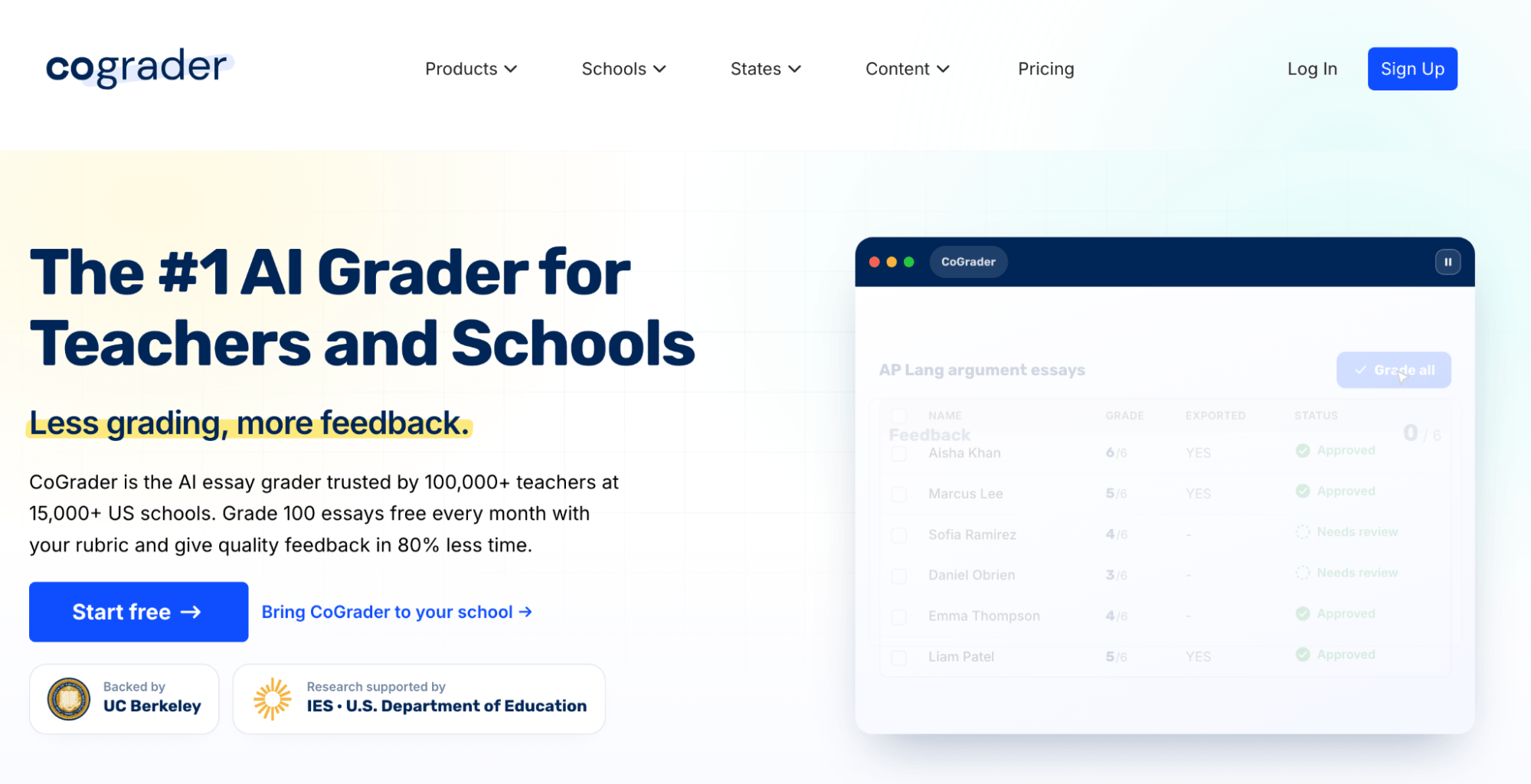
CoGrader is our own AI grading tool for essays and written assignments. You import a class set, attach your rubric, and CoGrader grades each submission while generating criterion-specific feedback for you to review.
For special education teachers, CoGrader can offer excellent flexibility. Students may have different goals, accommodations, and expectations, so CoGrader lets you adjust feedback for the individual learner instead of treating the whole class the same.
You can shorten or translate feedback, change the tone, add instructions, or apply accommodations before approving a grade. Class analytics also highlight shared strengths and learning gaps, helping you decide who may need enrichment, small-group reteaching, or more individualized support.
CoGrader speeds up the repetitive parts of grading while keeping the teacher in control.
“I love that CoGrader offers several different forms of feedback, which is really helpful since my students are in Special Education. The different levels of feedback like grow and glow, 3-2-1, etc., make it easier for them to understand.”
— Callie D, G2 review
Below, we’ll show how it can help special education teachers grade class sets, personalize feedback, and plan differentiated follow-up instruction.
Connect your LMS and import assignments in minutes
Special education teachers often manage work across multiple classes, grade levels, and student groups, so the administrative work around grading can add up quickly.
CoGrader connects directly to Google Classroom, Canvas, Schoology, DMAC, Microsoft, Brightspace, and Blackboard. Once connected, it can pull in your roster, assignment, prompt, and student submissions without requiring you to download and organize each file manually.
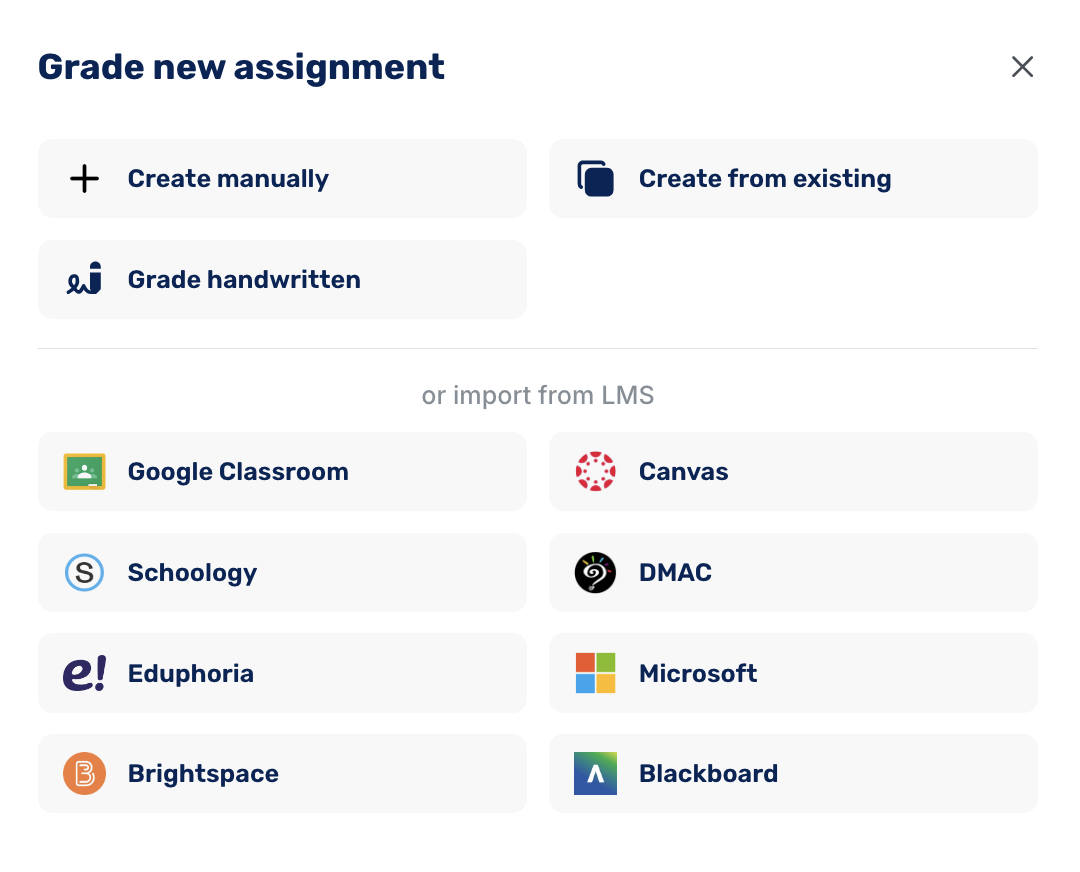
You can then choose the assignment settings, including:
- Grade level, such as Elementary, Middle School, or High School
- Rubric, including one you create yourself or already use with the class
- Feedback style based on how you want comments presented to students
- Additional grading instructions for anything CoGrader should consider when reviewing the work
This really comes in handy when you’re grading work for students who may be completing the same assignment with different supports or expectations. You can get the entire class into one grading workflow first, then make individual adjustments as you review each student’s submission.
There’s also space to add any source material students were expected to use, which gives CoGrader more context when reviewing the assignment.
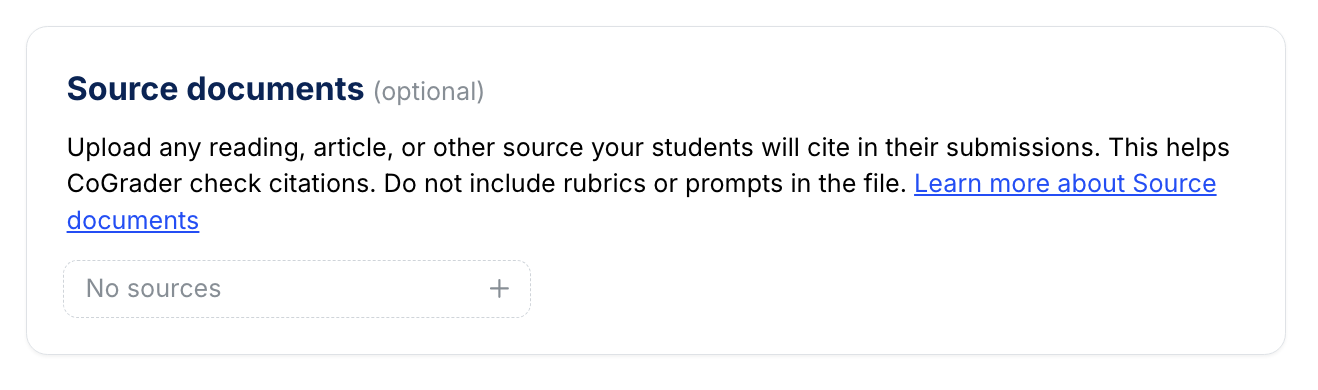
Once that’s in place, your class, submissions, and assignment details are ready to go. From there, you can define the rubric and grading criteria CoGrader should use for the batch.
Grade entire class sets at once with your rubric
Before CoGrader scores anything, you choose the rubric it should grade against. That’s especially important in special education, where the expectations for an assignment may need to reflect the skills, standards, or level of support you’re actually targeting with that group of students.
You can bring a rubric into CoGrader in a few different ways:
- Upload your own rubric as a PDF, image, Word document, spreadsheet, or other supported file. This works well if you already use a modified or teacher-created rubric for a particular assignment.
- Choose from the rubric library, which includes hundreds of frameworks organized by grade, subject, state, and curriculum.
- Build from standards by selecting the state, grade, subject, and standards you want students assessed against.
- Create one with AI by describing the assignment and the skills you want to measure.
Every rubric stays editable. You can change criteria, rewrite performance-level descriptions, adjust point values, or remove parts that don’t fit the assignment.
That gives special education teachers more control over what CoGrader is actually measuring. Instead of asking AI to decide what “good” work looks like, you establish the expectations first, and CoGrader uses those criteria when reviewing the submissions.
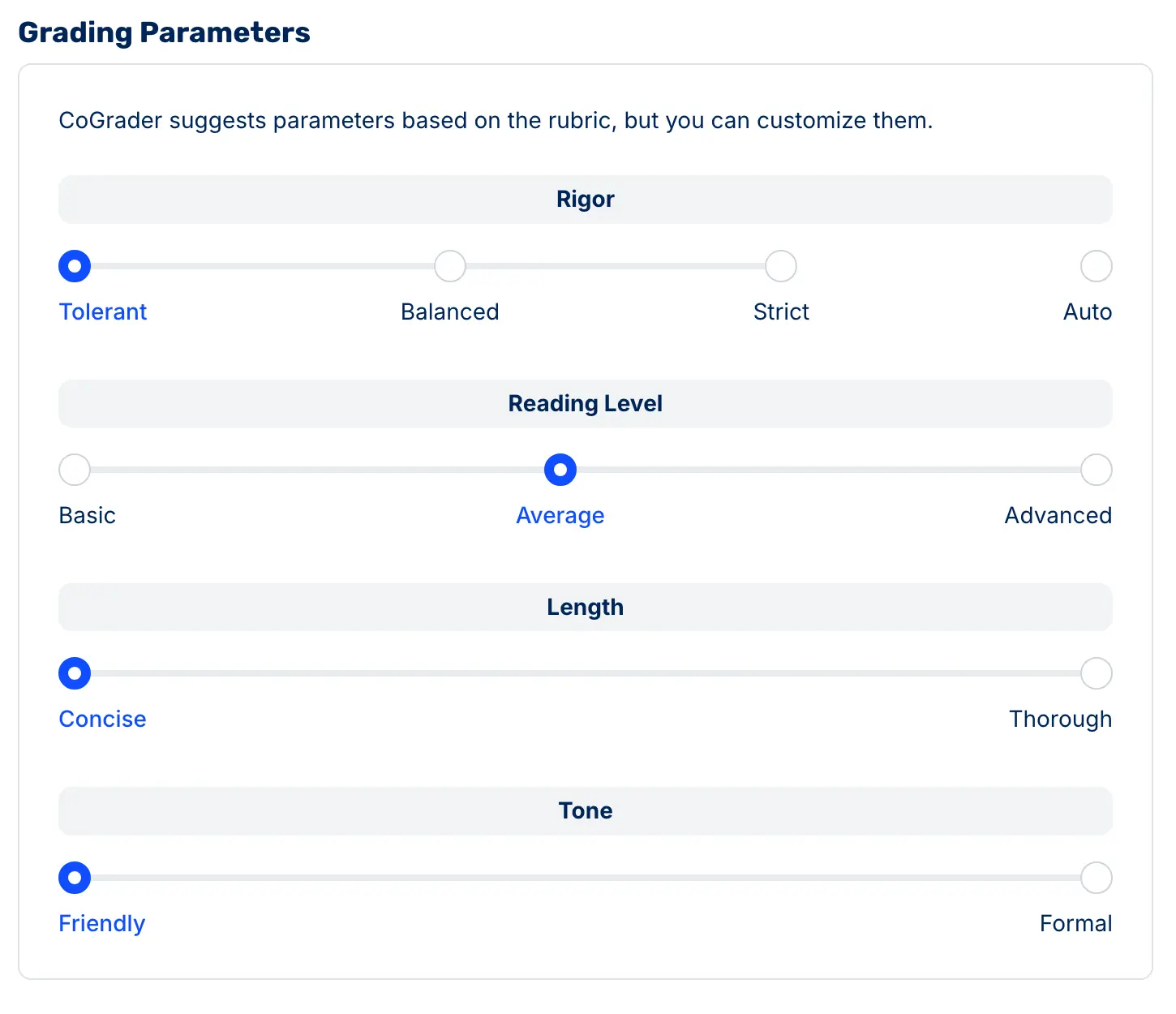
Once the rubric is ready, you can also choose how the grading should work. CoGrader lets you adjust additional settings, including:
- Rigor, from more tolerant to strict
- Reading level, from Basic to Advanced
- Feedback length and tone
- Feedback format, including Glow/Grow, 3-2-1, Two Stars and a Wish, and other options
- Advanced rules, such as whether to assign a score, use precision scoring, or change grammar strictness
These settings can be useful when you want the grading and feedback to better fit the age, reading level, or instructional goals of the students you’re working with.
When everything looks right, click Import and grade. CoGrader processes the full class set at once and returns each submission with a rubric score and draft feedback.
The important part is that nothing gets sent directly to students. Every submission is marked “Graded, needs review,” giving you a chance to check the score, read the feedback, and make any individual adjustments before approving it.
This lets teachers handle the repetitive first pass across an entire class at once while still keeping the individualized review that matters in a special education setting.
Customize feedback to each student’s needs
Special education teachers rarely want to give every student feedback in exactly the same way. One student may need shorter, more direct comments, while another may benefit from additional scaffolding, and another may need feedback adjusted around a specific learning disability or accommodation.
CoGrader lets you make those changes while reviewing each graded submission rather than forcing one feedback format across the entire class.
Every submission includes an overall feedback summary plus criterion-level comments tied to the student’s actual writing. For example, CoGrader might recognize that a student developed a strong central theme but still needs to add sensory details, improve sentence structure, or provide more specific evidence.
The rubric view explains each score and pulls examples directly from the student’s response, so feedback stays connected to what that particular student wrote rather than relying on generic comments.
Before anything is returned to the student, you review it in CoGrader’s three-panel grading view:
- Student work appears on the left, including highlighted passages connected to CoGrader’s comments.
- Feedback and rubric scores appear in the center, where you can review the reasoning behind each score and adjust the rubric level when needed.
- Customization controls appear on the right, where you can change how CoGrader communicates the feedback to that student.
This last step is what makes CoGrader such a helpful tool for a special education classroom. Teachers can give CoGrader additional instructions such as Make it shorter, Translate to, or Accommodate SLD, or type their own direction describing how the feedback should change.
That means you can keep grading against the assignment’s rubric while adapting how the feedback is delivered to make it more useful and accessible for the individual student.
You still have the final say. You can edit CoGrader’s comments, change rubric scores, add your own guidance, and review the student’s original work before selecting Approve.
Instead of generating the same style of AI feedback for every student, CoGrader gives special education teachers a faster starting point while leaving room to apply the accommodations, context, and professional judgment they already use for each learner.
Identify class-wide learning gaps with grading analytics and student insights
In a special education classroom, a class average only tells you so much. Two students can earn similar scores while struggling with completely different skills, and another student may need more individualized support than a small-group reteach can provide.
CoGrader’s class analytics help make those differences easier to spot after you grade an assignment.
The Overview gives you a quick snapshot of the class, including the average score, grade distribution, students who are ready for enrichment, students who may need reteaching, and students who haven’t submitted their work.
It also breaks results down by rubric criterion, which can help you see whether several students are struggling with the same skill or whether the gaps are more individualized.
From there, CoGrader organizes the results into different views:
- Patterns summarizes common strengths and areas for growth across the class, helping you identify skills that may be worth addressing with the whole group.
- Strengths shows which students are demonstrating particular skills successfully, so you can see who may be ready for enrichment or more challenging work.
- Areas for growth groups students around specific skill gaps and shows different levels of need, making it easier to identify candidates for targeted small-group instruction.
- Intensive support flags students whose performance may not fit neatly into one shared reteaching group. CoGrader explains why the student stands out and suggests next steps, such as starting with a one-on-one conversation before deciding what additional support makes sense.
This can be especially useful in special education. Instead of giving every student who struggled the same remediation activity, you can use the data to decide who needs a whole-class review, who could benefit from a targeted small group, and who may need a more individualized approach.
The Next Lesson view turns those patterns into differentiated lessons, including suggested enrichment, reteaching, and whole-class activities. Teachers can also select Create Teaching Slides to generate a presentation based on the class results.
So rather than manually reviewing every graded assignment to figure out what each group needs next, CoGrader gives you a starting point for differentiating the follow-up instruction based on how students actually performed.
CoGrader Pricing
CoGrader has four pricing options, ranging from a free plan for individual educators to custom packages for larger institutions:
- Starter (Free): Includes up to 150 student submissions each month, rubric creation and sharing, FERPA compliance, access to the help center, Google Classroom, Canvas, and Schoology integrations, handwritten grading, and 90 days of premium features.
- Standard ($15/month billed annually): Raises the monthly limit to 350 student submissions and adds grammar checking, a class performance dashboard, AI and plagiarism detection, and chat and email support with a 48-hour response time.
- Schools & Districts (Pricing based on size): Designed for organizations managing multiple educators. It includes unlimited student submissions, shared rubric libraries, bulk user management and admin controls, institution-wide analytics and reporting, onboarding and training, and priority support.
- Higher Ed & Enterprise (Custom pricing): Adds API access, a dedicated account manager, custom LMS and other integrations, configurable roles and permissions, tailored analytics and dashboards, custom training, and customized support SLAs.
Get started with CoGrader to try our AI grading tools for free.
2. Playground IEP
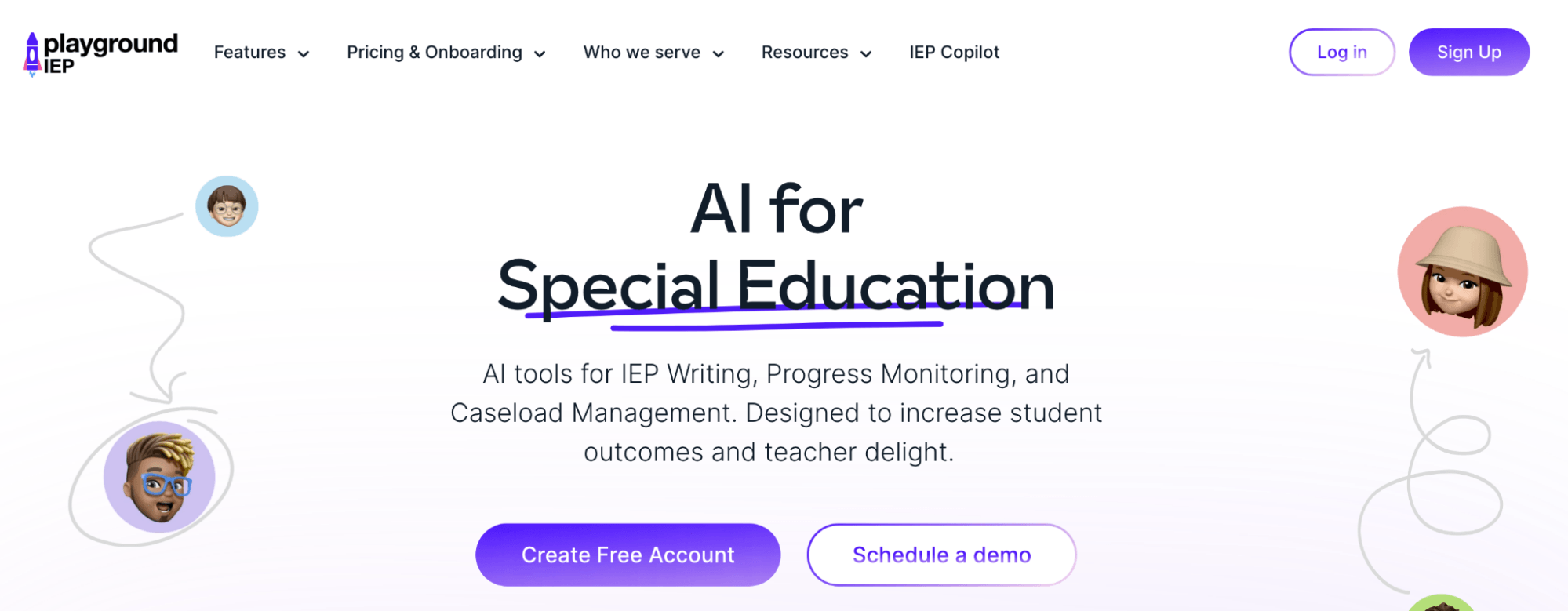
Playground IEP is a caseload management platform that works alongside your student information system and your IEP writing software. The tool gives case managers and special education teams a shared place to track IEP dates, service minutes, accommodations, and meeting schedules.
Teachers using this tool get personalized caseload dashboards, general education staff get one-page IEP snapshots they can open and use, and IEP meeting scheduling runs automatically with Google and Outlook calendar integration.
It also includes a set of free AI tools the company calls IEP CoPilot. The tools draft goals aligned to state standards, provide instant feedback on present levels statements, write behavior intervention plans, and generate progress monitoring assessments tied to IEP goals.
Key features
- AI goal writer aligned to standards in all 50 states
- Instant feedback on PLAAFP statements
- BIP drafting and progress monitoring assessment generation
- IEP snapshots that give general education teachers one-click, secure access to accommodations
- Automated IEP meeting and reevaluation scheduling with Google and Outlook calendar integration
- Advanced caseload dashboards
Pricing
The IEP CoPilot writing tools are free for individual teachers, with self-serve onboarding.
Caseload management, scheduling, and dashboards are sold through school and district subscriptions at custom pricing. The company runs in-person onboarding for both special education and general education staff as part of the rollout.
Limitations
Playground complements your IEP writing software rather than replacing it, so districts still maintain their compliance system of record separately. The free tier also covers generation tools only, so a school-level purchase is required if you need the caseload management features.
3. Goalbook Toolkit
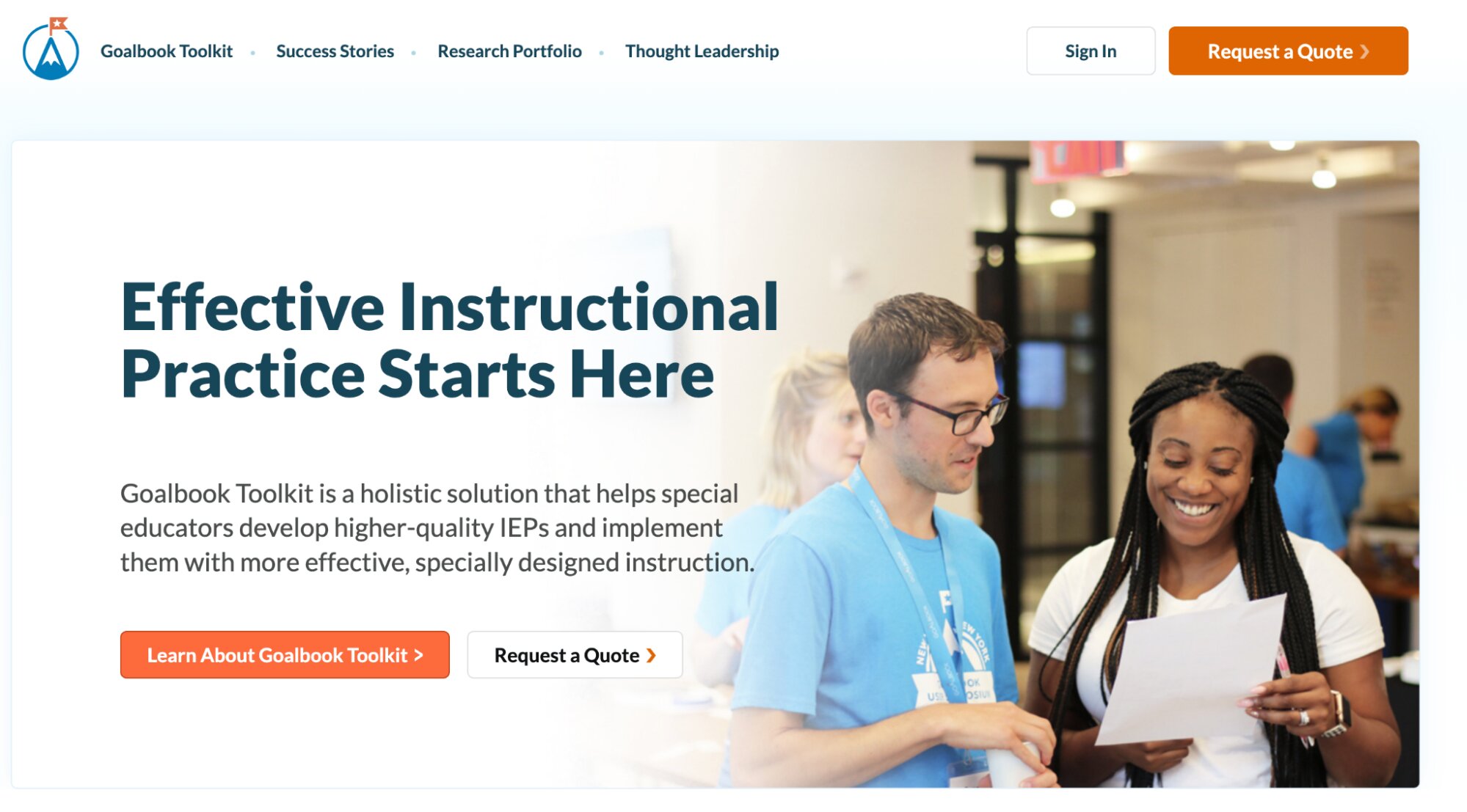
Goalbook Toolkit is a research-backed library of IEP goals, present levels frameworks, and instruction resources for special education teams. It can offer pre-written, standards-aligned goals, scaffolded support levels, and specially designed instruction strategies for special education teachers.
Teachers search the goal bank by grade, subject, standard, or skill area, then edit and save goals to their own library. Each goal comes pre-written at multiple levels of support using UDL strategies, and links to instructional resources and progress-monitoring assessments aligned to that skill.
Key features
- Goal and objective banks with thousands of pre-written, standards-aligned goals
- Scaffolded support levels for goals using UDL strategies
- Present levels frameworks for writing PLAAFP statements
- Specially designed instruction strategies and implementation tips linked to each goal
- Progress monitoring assessments aligned to each skill
- Goal banks for related services, including speech and occupational therapy
Pricing
Goalbook offers Toolkit through school and district memberships rather than individual licenses. A School Membership starts at $5,150 per year and covers full Toolkit access for educators at one school, plus dedicated support for instructional leaders.
District Membership is quote-based and adds professional development and implementation support across the district. New users can start with a 30-day free trial before committing.
Limitations
Goalbook writes strong goals well, but it’s built for school and district purchase. If you’re an individual teacher whose school doesn’t buy it, there’s no practical way to get access beyond the trial.
The AI is also conservative by design. It hands you a strong starting goal and expects you to do the individualizing, which is the legally correct workflow but slower than the generative tools that produce a finished-sounding draft in one pass.
4. Goblin Tools
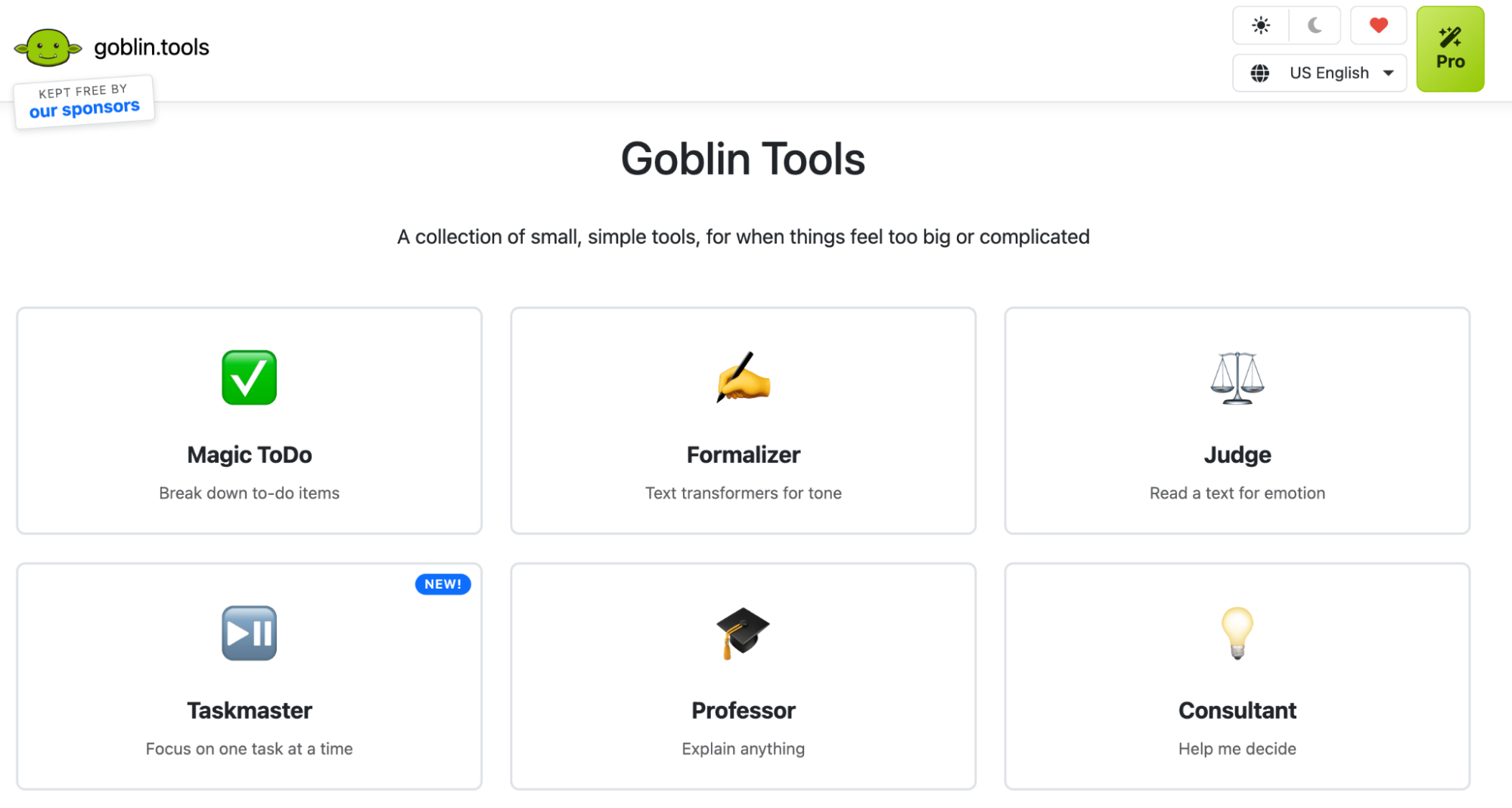
Goblin Tools is a free collection of small, single-purpose AI tools built for neurodivergent people. It can offer task breakdown, time estimation, and tone support for special education teachers who need executive function support so their students can actually run themselves.
Most of what makes school work hard for students with ADHD or autism is starting the task, knowing what step comes first, and judging how long it will take. Those are the exact problems this toolkit was built for.
The platform’s main tool is Magic ToDo, which breaks an overwhelming assignment into concrete sub-steps at an adjustable level of granularity, so “write my book report” becomes a checklist a student can start. Each tool replaces an accommodation an adult normally provides by hand, like chunking assignments or scripting communication, with something students can use independently in gen ed classes, at home, and after graduation.
Key features
- Magic ToDo: Breaks any assignment into step-by-step checklists, with an adjustable “spiciness” dial that controls how granular the steps get
- Estimator: Predicts how long a task will realistically take
- Judge: Analyzes the tone and intent behind a written message
- Formalizer: Rewrites text to be more formal, more polite, more concise, or simpler
- Compiler: Sorts an unstructured braindump into an organized, actionable task list
- Professor: Explains any concept in plain language at the comprehension level you choose
Pricing
Goblin Tools is still free to use on the web, with its core tools available without a subscription. It also offers Goblin Tools Pro for $3/month, with a one-week free trial.
Pro includes features like cross-device Magic ToDo syncing, access to your last 50 results, reusable templates, custom Formalizer tones, saved preferences, and shareable plans.
Limitations
Teachers will definitely save time in the classroom with Goblin Tools, but they should never enter personally identifiable information about a student, because Goblin Tools has no data privacy agreement covering student records. It’s best used as a tool students use for themselves rather than one you use on their behalf.
It is also a one-person project with no support team, no uptime guarantees, and no roadmap commitments, so build it into routines as a helpful supplement rather than a dependency.
5. FrenalyticsEDU
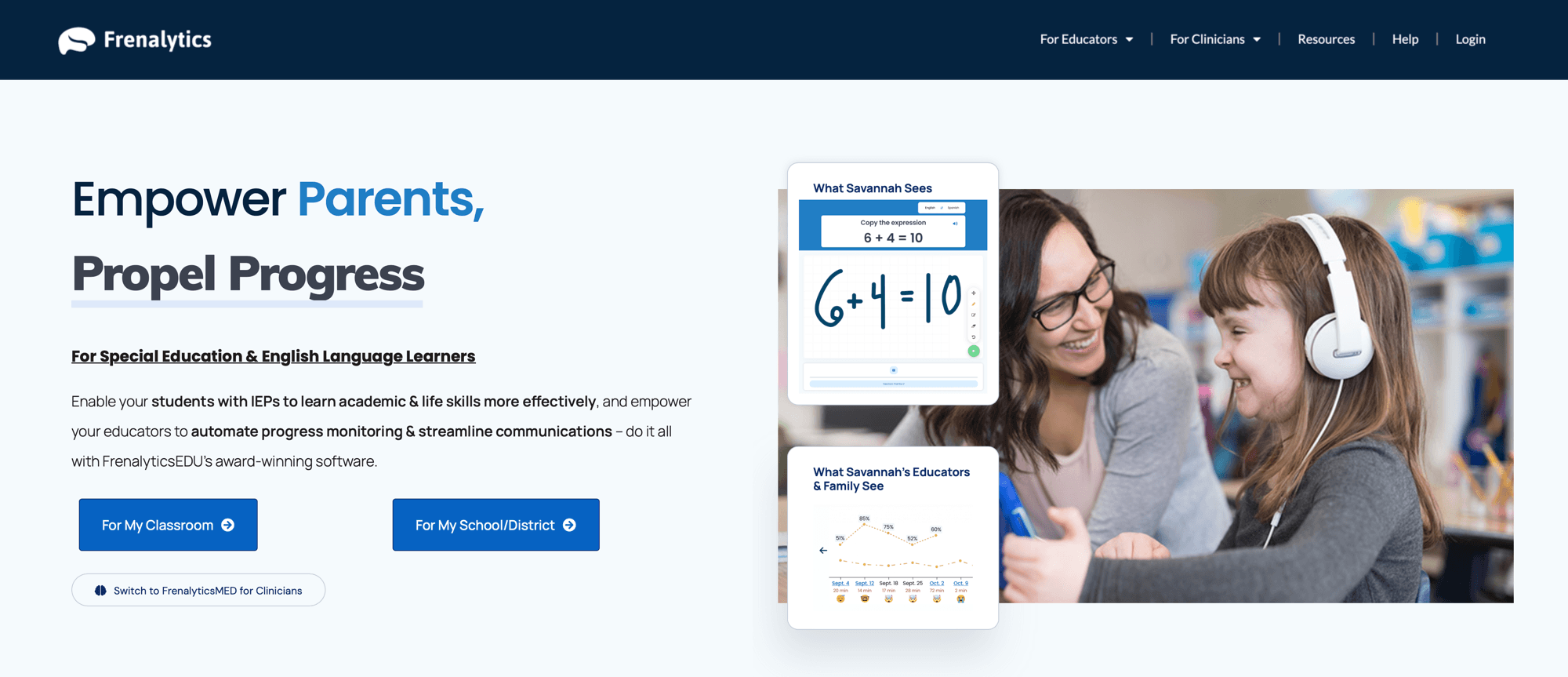
FrenalyticsEDU is a progress monitoring and personalized learning platform that brings together IEP data scattered across sticky notes, binders, and three different spreadsheets.
Students run gamified learning sessions, and the system automatically captures the data, including response accuracy, time per question, and session scores, then charts it against IEP goals. The Goals module connects goals, skills, data collection, and visualization in one workflow built around actual SPED caseloads.
Key features
- Automated data capture during student learning sessions
- Goals module linking IEP goals, skills, data collection, and progress visualization
- Standards-aligned content library across ELA, math, reading, SEL, and life skills
- Custom sections and questions using text, images, audio, and video, per student or per class
- Family accounts so parents can view progress between annual meetings
Pricing
Frenalytics Free covers 10 student profiles, one learning session per student per day, and limited performance stats. EDU Essentials runs $14.99/month and EDU Extras $16.99/month, both billed annually with a 2-week trial, adding student profiles, sessions, staff accounts, and, on Extras, the question-level stats that map cleanly to IEP goals.
Enterprise plans are available, but all pricing is custom.
Limitations
The content library skews toward life skills and foundational academics, which fits self-contained settings well and thins out for resource-room students working near grade level. The question-level data that makes the platform genuinely useful for IEP reporting also requires the most expensive individual tier.
6. Diffit
Diffit generates leveled versions of any reading material. Special education teachers can paste a topic, an article URL, a PDF, or a YouTube video, pick a grade level from roughly 2nd through 12th, and it returns an adapted passage with vocabulary, comprehension questions at specified depth-of-knowledge levels, and a summary.
For a co-taught class where the textbook chapter spans a six-grade reading range, it produces every version of tomorrow’s passage in the time it used to take to rewrite one. The platform can level text exceptionally well while keeping the scaffolds attached, so the vocabulary support, comprehension questions, and graphic organizers adjust alongside the passage instead of needing to be rebuilt for each version.
Key features
- Leveled passages from any topic, pasted text, URL, PDF, or YouTube video
- Instant reading level adjustment without regenerating the resource from scratch
- Automatic vocabulary lists, comprehension questions, and summaries with every passage
- Translation into 60+ languages with scaffolds carried across
- Premium exports to Google Docs, Slides, Forms, Classroom, and Microsoft 365, plus standards alignment
Pricing
- Basic (Free): Unlimited passage generation, leveling, comprehension questions, and vocabulary, with PDF export and access to content made in the last 90 days.
- Premium: $14.99/month, or $149.99/year. Includes exports to Google Docs, Slides, Forms, Classroom, and Microsoft 365, standards alignment, additional activity formats, and unlimited access to everything you’ve made.
- Diffit for Schools: Custom pricing. Flat annual rate based on enrollment, with premium access for all staff.
Limitations
Diffit can really only do one thing well. The platform doesn’t offer student-facing delivery, data collection, grading, or IEP connection, so it handles one part of your workflow rather than organizing it.
The export integrations most teachers actually want, including Google Classroom, require the paid tier. The free plan exports to PDF only, which adds a printing step.
7. AbleSpace
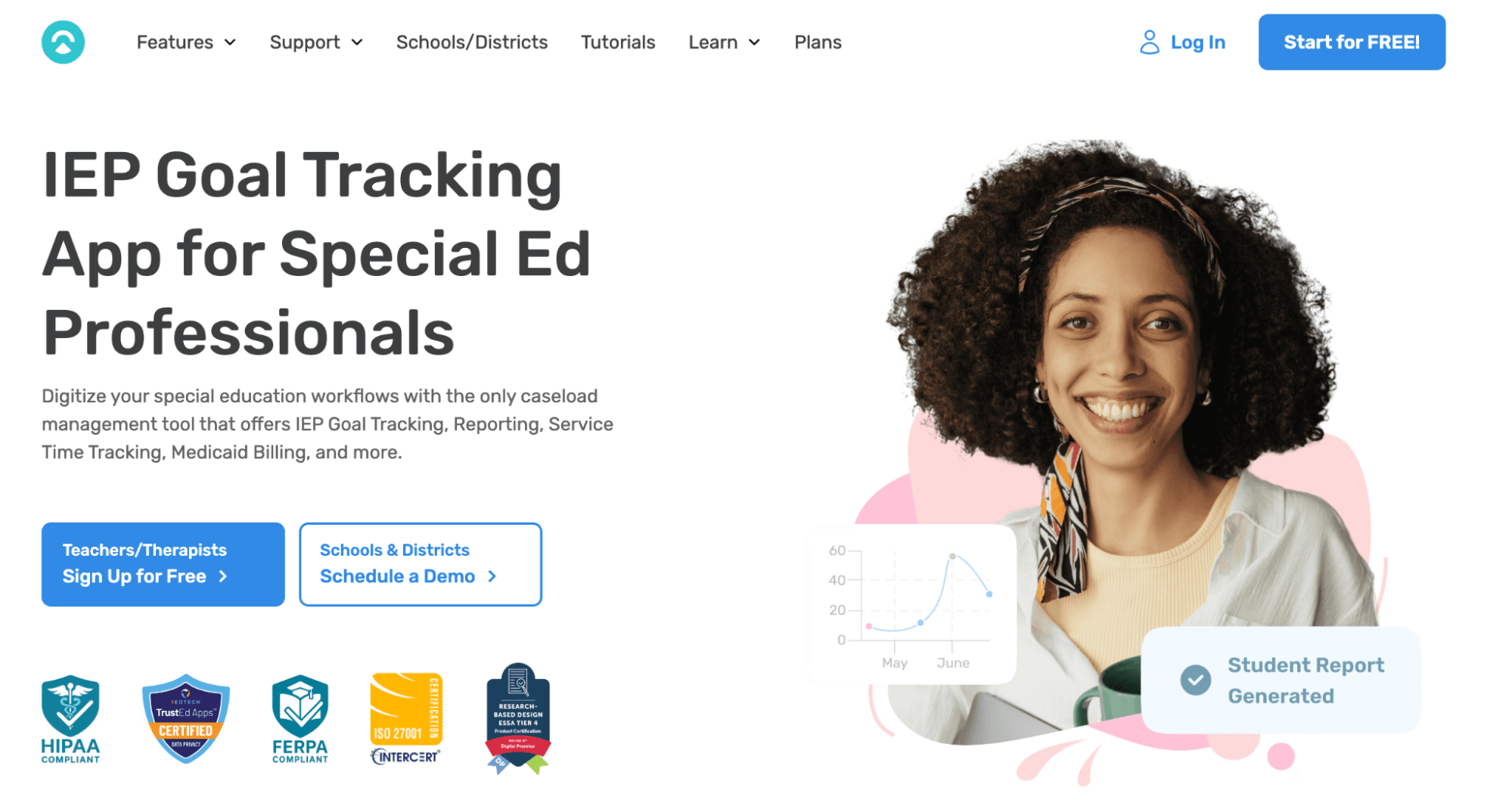
AbleSpace is a data collection and caseload management tool for school-based special education professionals. It replaces the binder of data sheets with one-click data capture across 10+ data types, including trials, frequency, duration, and percentage accuracy.
From there, it can auto-generate the graphs and progress reports you carry into the IEP meeting. It is built for the full IEP team, so paraprofessionals and related service providers can collect data on shared students.
For self-contained and resource settings, this is a helpful tool because it turns the constant, all-day data collection those classrooms require into something one team can actually keep up with.
Key features
- One-click data collection across 10+ data types, including trials, frequency, duration, and percentage accuracy
- 20+ auto-generated graphs and progress reports
- Paraprofessional and assistant accounts for shared data collection on the free plan
- Service time tracking with automatic Medicaid billing note generation on paid plans
- AI-assisted goal, strategy, and progress note drafting
- iOS and Android apps for data collection on the go
Pricing
The Ablespace free plan is generous, covering unlimited students, standard data tracking, reports and graphs, scheduling, service time tracking, and para collaboration, with a 1-month trial of the paid features. School, district, and enterprise plans are custom, adding admin portals, SSO, IEP system integrations, and training.
Limitations
The free tier omits the workflow conveniences that teachers can benefit from in large class sizes. This includes bulk-adding students and goals, archiving, student transfers, and collaboration with other teachers.
AbleSpace also measures progress rather than driving it. It tells you whether the intervention is working and leaves the instruction entirely to you.
8. Gradescope
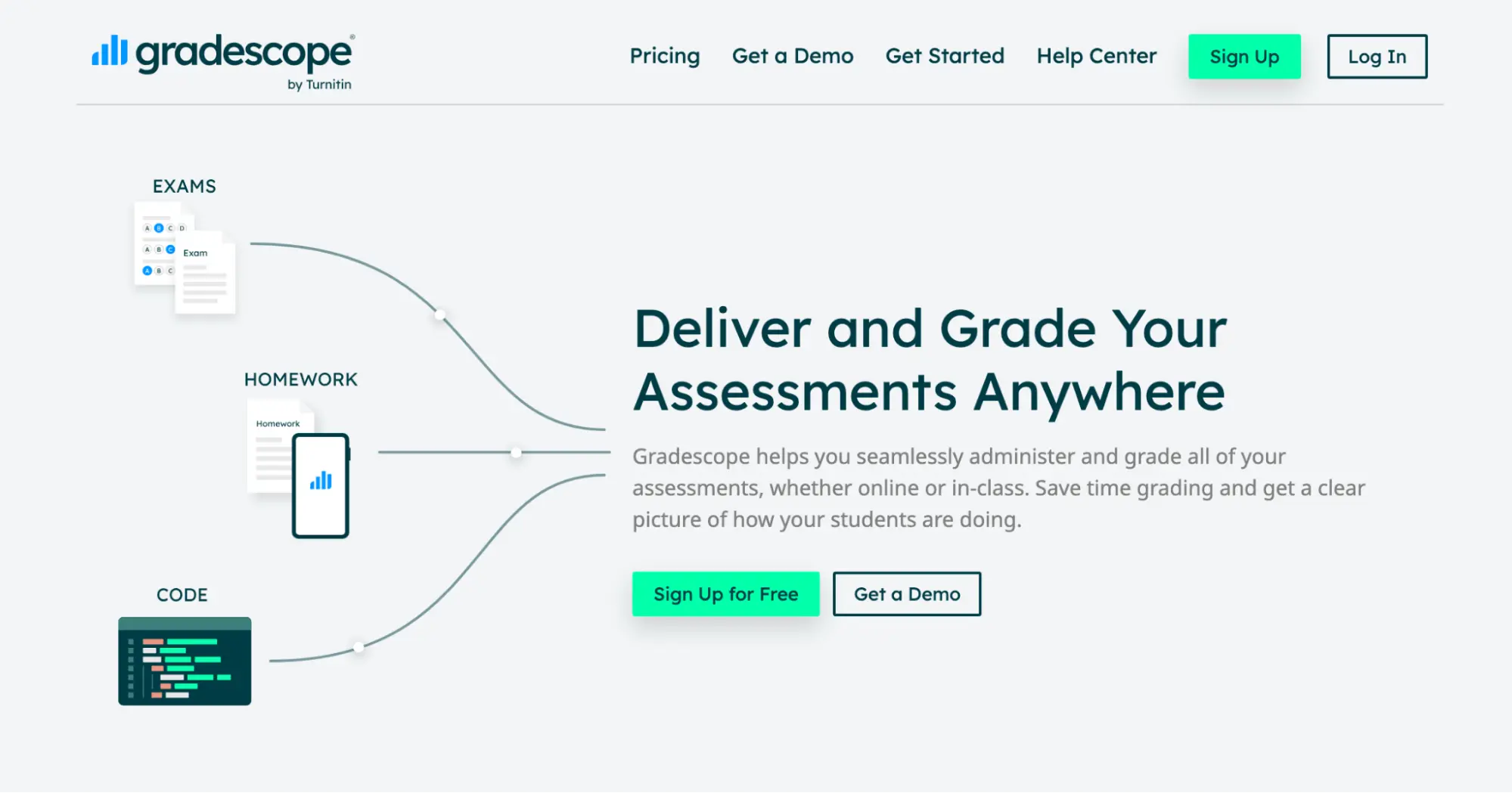
Gradescope handles more unique assignment types like handwritten and scanned student work. Students or teachers upload paper assessments through the mobile app or a scanner, and Gradescope organizes submissions by question, applies dynamic rubrics, and uses AI to group similar answers so you grade a cluster once.
For special education settings, this matters because plenty of students produce their best work on paper, whether by accommodation or preference, and modified paper assessments otherwise fall outside every AI grading option. With Gradescope, teachers can bring those submissions into one system.
Key features
- Grades handwritten, scanned, and paper-based work along with digital submissions
- AI-assisted answer grouping so similar responses get graded in batches
- Anonymous grading mode and multi-grader support with shared rubrics
- Dynamic rubrics with retroactive changes applied across all submissions
Pricing
Gradescope Basic is free. Institutional licensing with LMS integration and analytics is quoted directly.
Limitations
Gradescope does rubric-based grading well, but it’s mainly built for higher education problem sets and exams. So if you’re a K-12 teacher grading essays, you may want to consider other options. It also doesn’t handle written feedback well, because the output is a score and short comments rather than the narrative feedback writing instruction needs.
Make grading more manageable in special education
Special education teachers need more than a tool that simply produces grades faster. The real value comes from being able to save time without losing the flexibility and teacher judgment that individualized instruction requires.
If written assignments are taking up too much of your week, CoGrader can help you grade full class sets against your rubric, adapt feedback for different learners, identify shared skill gaps, and decide where students may need reteaching or more individualized support.
You still review every score and comment before anything reaches the student, so the technology speeds up the repetitive work without taking over the decisions that matter most.
Try CoGrader for free or request a custom quote for your school or district.