


If you’re a teacher looking for the best Chrome extensions, you’ve likely struggled with one or more of the following issues:
- Copying and pasting work, scores, and feedback between docs, gradebooks, and your LMS by hand
- Switching back and forth between a dozen tabs and screens to manage all the different apps you use for grading, planning, and everything else
- Finding a tool that actually integrates with your day-to-day instead of becoming one more thing to log into
The issue is that many tools can’t solve these problems because they aren’t available as Google Chrome extensions. This creates extra steps in your day, like uploading assignments by hand or pasting lesson plans into Docs.
That’s why this guide covers the best Chrome extensions for the everyday tasks teachers struggle with, including grading, feedback, lesson planning, classroom management, and student engagement. Here’s a brief look at all nine and how they compare, starting with our own AI grading tool, CoGrader.
| Tool | Best for | Key features | Free plan | Pricing |
|---|---|---|---|---|
| CoGrader | Grading essays and student writing | Rubric grading, class analytics, LMS integrations | Yes (100 submissions/mo) | $15/mo |
| Mote | Leaving voice feedback on student work | Voice comments, text-to-speech, transcription | Yes | $59.40/yr |
| InsertLearning | Building lessons quickly from webpages | Embedded questions, notes, Classroom sync | Yes (2 lessons) | $99/yr |
| Kami | Marking up PDFs and worksheets | Markup, voice notes, PDF split/merge | Yes | $149/yr |
| Read&Write | Helping students read and write better | Read-aloud, dictionaries, word prediction | No | $184/yr |
| MagicSchool AI | Planning lessons and admin tasks | 80+ generators, IEP support, Raina assistant | Yes | ~$8.33/mo |
| Brisk Teaching | Handling tasks inside Google tools | Feedback, quizzes, reading-level tools | Yes | Custom |
| Revision History | Monitoring student writing activity | Writing replay, paste detection, reports | Yes (150 docs/mo) | $2.67/mo |
| Edpuzzle | Making interactive videos students engage with | In-video questions, voiceover, tracking | Yes | $13.75/mo |
Start grading for free with CoGrader today.
What Types of Chrome Extensions Can Teachers Use in the Classroom?
Chrome extensions for teachers typically fall into specific categories depending on the task they help you handle, including:
- Grading and feedback: These tools tend to save the most time since evaluating student work and providing meaningful feedback can take up most teachers’ evenings and weekends. These extensions grade writing against your rubric, draft personalized comments, or let you leave quick voice feedback instead of typing it all out.
- Lesson planning and teaching materials: Building what you teach with, from lesson plans and leveled readings to slides, quizzes, and interactive activities. Tools in this group can turn a topic, webpage, or rough idea into classroom-ready material in a fraction of the time it would take to make it from scratch.
- Classroom management and productivity: Everything that quietly slows down your day, like switching between dozens of tabs or trying to record video lessons that would resonate better with students. These extensions help keep your workflow and your attention under control.
- Accessibility and student support: Making grade-level content accessible for every student, including those with IEPs, dyslexia, or English-language needs. Tools in this group add text-to-speech, dictionaries, word prediction, and reading support directly to the pages and documents students already use.
Not every teacher will need multiple tools or one for each use case. It entirely depends on how they spend their days and what tasks take up the most time in their classroom.
Many teachers see the biggest returns when they implement a tool for grading and feedback. With that in mind, we’ll introduce CoGrader, our very own AI essay grading tool, below.
CoGrader: AI Essay Grading for Teachers
CoGrader is an AI essay grader that gives teachers their time back without sacrificing the quality of feedback. It connects to the platforms you already use, grades student writing against your own rubric, and drafts personalized feedback for every student in a fraction of the time it takes.
If you’re using Canvas or Schoology, you can get direct access via a Chrome extension that grades right inside the gradebook. Google Classroom connects directly, so submissions pull in automatically.
The result is the same whether you teach in Canvas, Schoology, Google Classroom, or another LMS. You’ll spend less time on grading tasks and more time teaching and engaging with students.
Below, we’ll show you how to download the CoGrader Chrome extensions and explain the platform’s key features.
How to Use the CoGrader Chrome Extensions
Getting started takes a couple of minutes, and the exact setup depends on where you grade assignments and manage your classroom.
CoGrader supports Google Classroom, Canvas, Schoology, DMAC, Microsoft, Brightspace, and Blackboard. We offer dedicated Chrome extensions for Canvas and Schoology, so grading happens right inside the gradebook, and every other LMS connects directly within the CoGrader platform in your browser.
Either way, your classes, assignments, and submissions import in just a few steps.
Canvas
The Canvas extension can be added from the Chrome Web Store. After adding it and connecting your account, a CoGrader button will appear in Canvas.
Open any assignment, import submissions with one click, then grade and send feedback back to students without ever leaving the gradebook.
Note: Canvas integration is available on Schools & Districts plans.
Schoology
The Schoology extension installs the same way from the Chrome Web Store.
Once it’s connected, you can pull an assignment’s submissions into CoGrader directly from Schoology, grade against your rubric, and return scores and comments to students in place.
Note: Schoology integration is available on Schools & Districts plans.
Google Classroom
No extension is needed to integrate CoGrader with Google Classroom.
All you need to do is sign in to your account, click “Grade class +,” select the assignment type (essays or quizzes), and select Google Classroom.
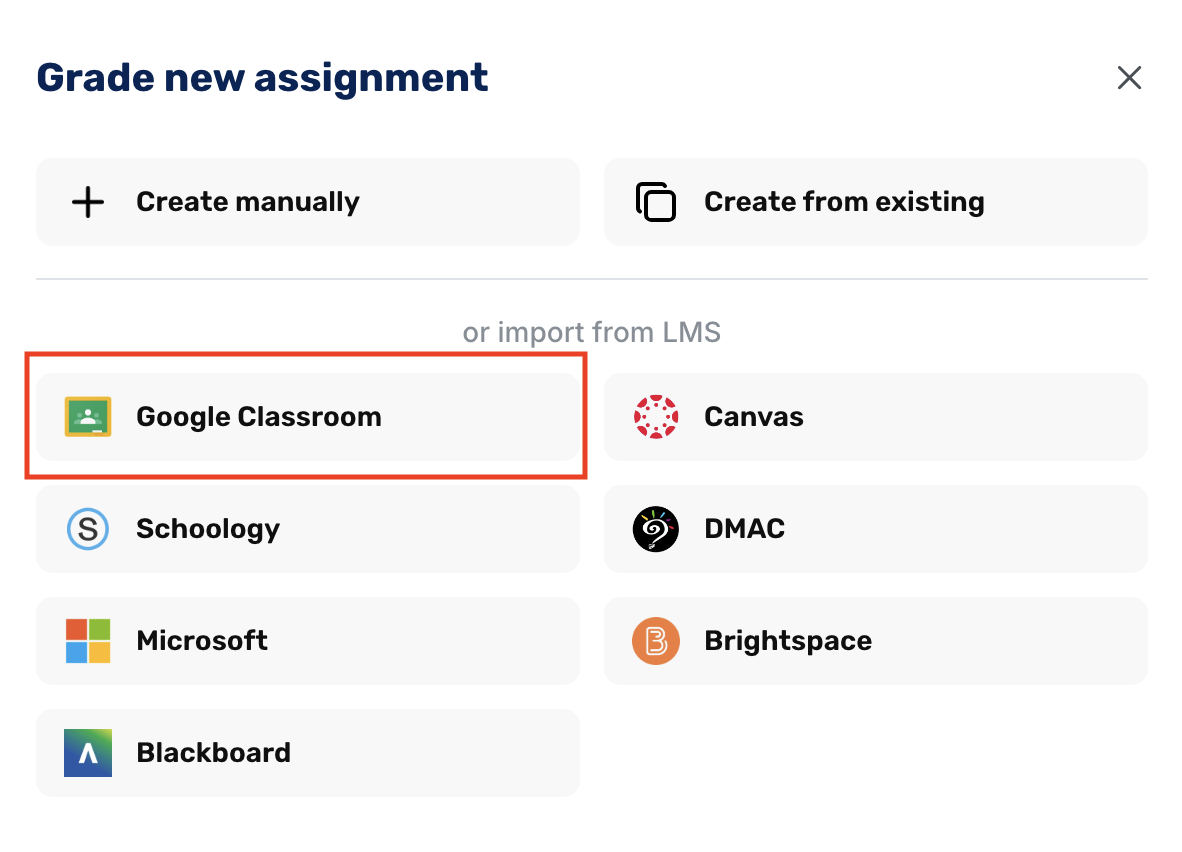
Note: Google Classroom integration is available on the Standard plan and above.
Other LMS platforms (DMAC, Microsoft, Brightspace, Blackboard)
Similar to Google Classroom, DMAC, Microsoft, Brightspace, and Blackboard connect directly inside the CoGrader platform in your browser.
Link your account once, import your assignments, and grade them in the same place. No manual file downloads or uploads are required.
Grade Against Your Own Criteria with Customizable Rubrics
Many AI essay-grading tools will score writing against their own vague sense of what good writing is. This could work for some teachers who assign basic writing tasks, but if you want to give better overall feedback and more accurate grades, you’ll need a tool that lets you add a rubric.
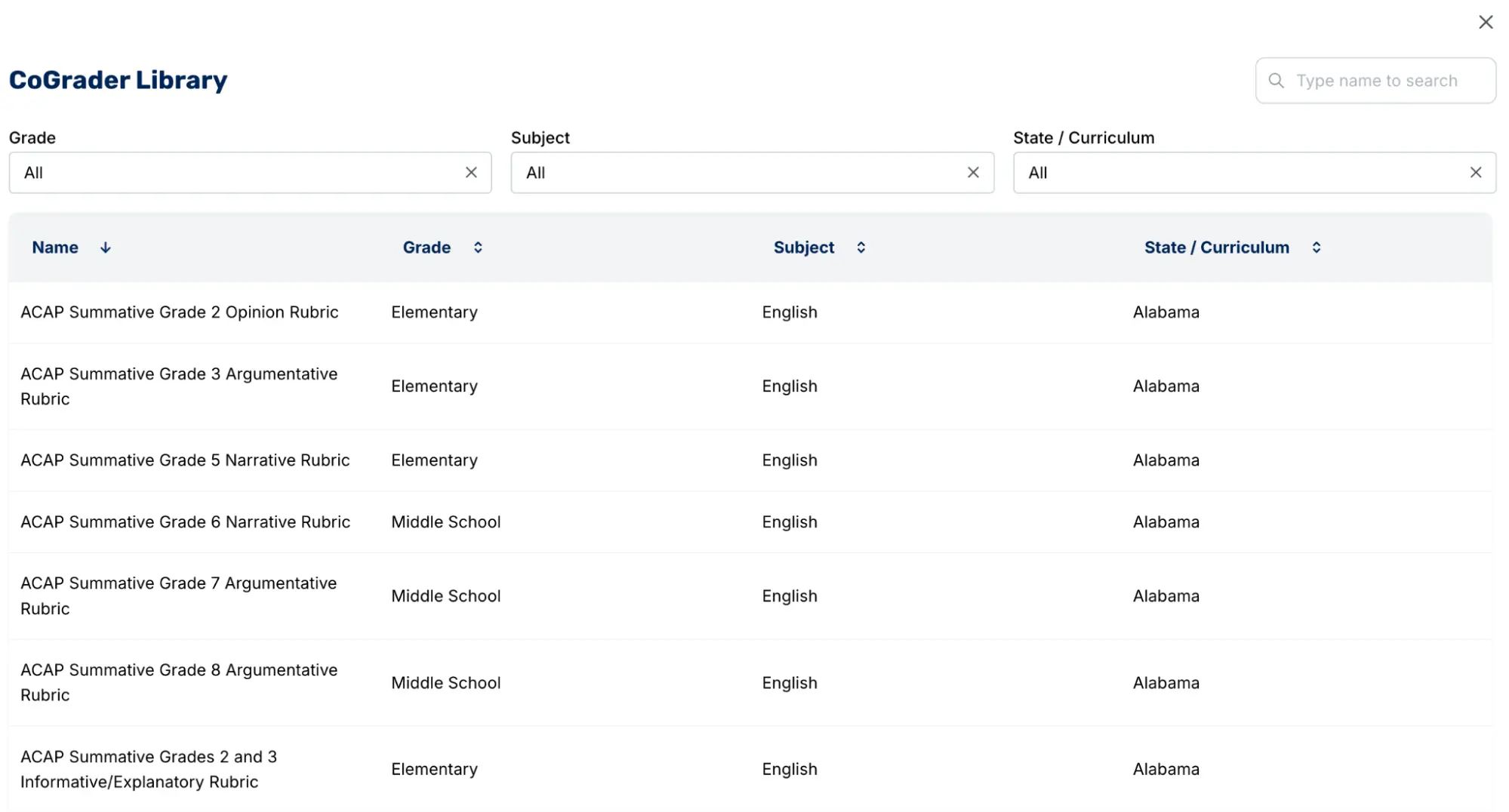
With CoGrader, you can choose a rubric that fits your classroom. Teachers have full access to a rubric library with:
- Standards for all 50 U.S. states
- Curriculum and test frameworks like AP, IB, Smarter Balanced, Cambridge, and MSAA
- International standards, including Australia, England, New Zealand, and the UK
- Every major subject, from English and Social Studies to Math, Science, Arts, and World Languages
- All grade levels, from elementary through higher ed
There are a few ways to set up a rubric in CoGrader:
- Upload a rubric you already use as a document, file, or image
- Select a ready-made one from CoGrader’s library (the standards, subjects, and levels above)
- Generate a brand new rubric with CoGrader’s AI Rubric Generator
CoGrader’s Rubric Generator is highly intuitive. You can either choose a few criteria, including essay type, grade level, and an optional standard, and let it build the rubric from there. Or you can skip the menus and just describe what you want in plain language, like “Create a rubric for a 10th-grade compare-and-contrast essay on two poems, weighting theme, literary devices, and organization.”
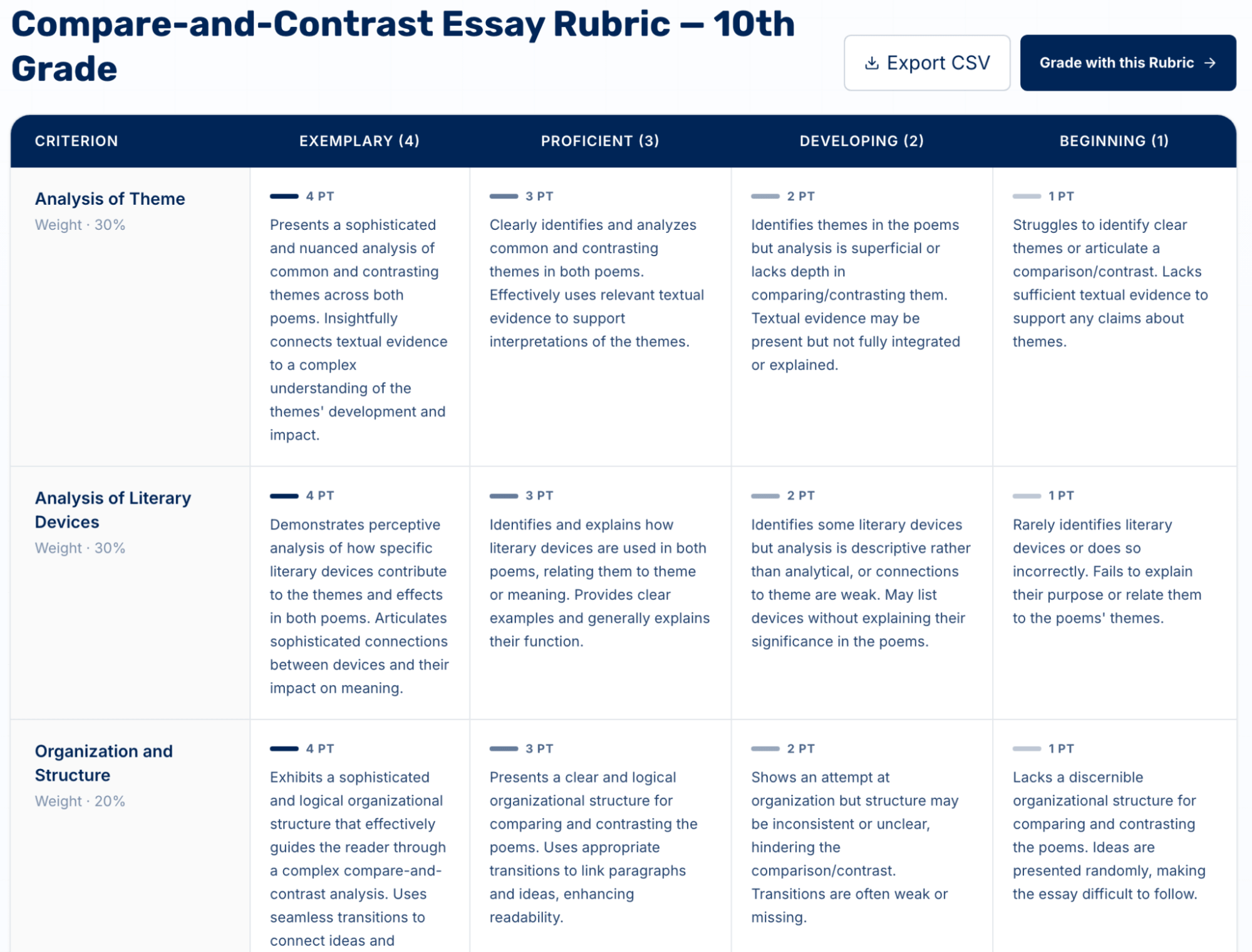
Either way, CoGrader reads what you’ve given it and produces a working rubric matched to the assignment in seconds. It’s also flexible for teachers throughout the entire process. If you change the rubric after you have already begun grading, CoGrader regrades the entire class automatically, without entering anything manually again.
Grade a Full Class Set of Assignments in Minutes
Grading is usually the most time-consuming task for teachers, especially when it comes to grading writing assignments. It usually takes between 15 and 30 minutes to grade a single essay, so if you’re grading a class size of 100 students, it can take anywhere between 25 and 50 hours to finish grading one assignment.
This is exactly why we built CoGrader. Our tool integrates with your LMS and works directly in your web browser, so you can grade entire class sets 80% faster.
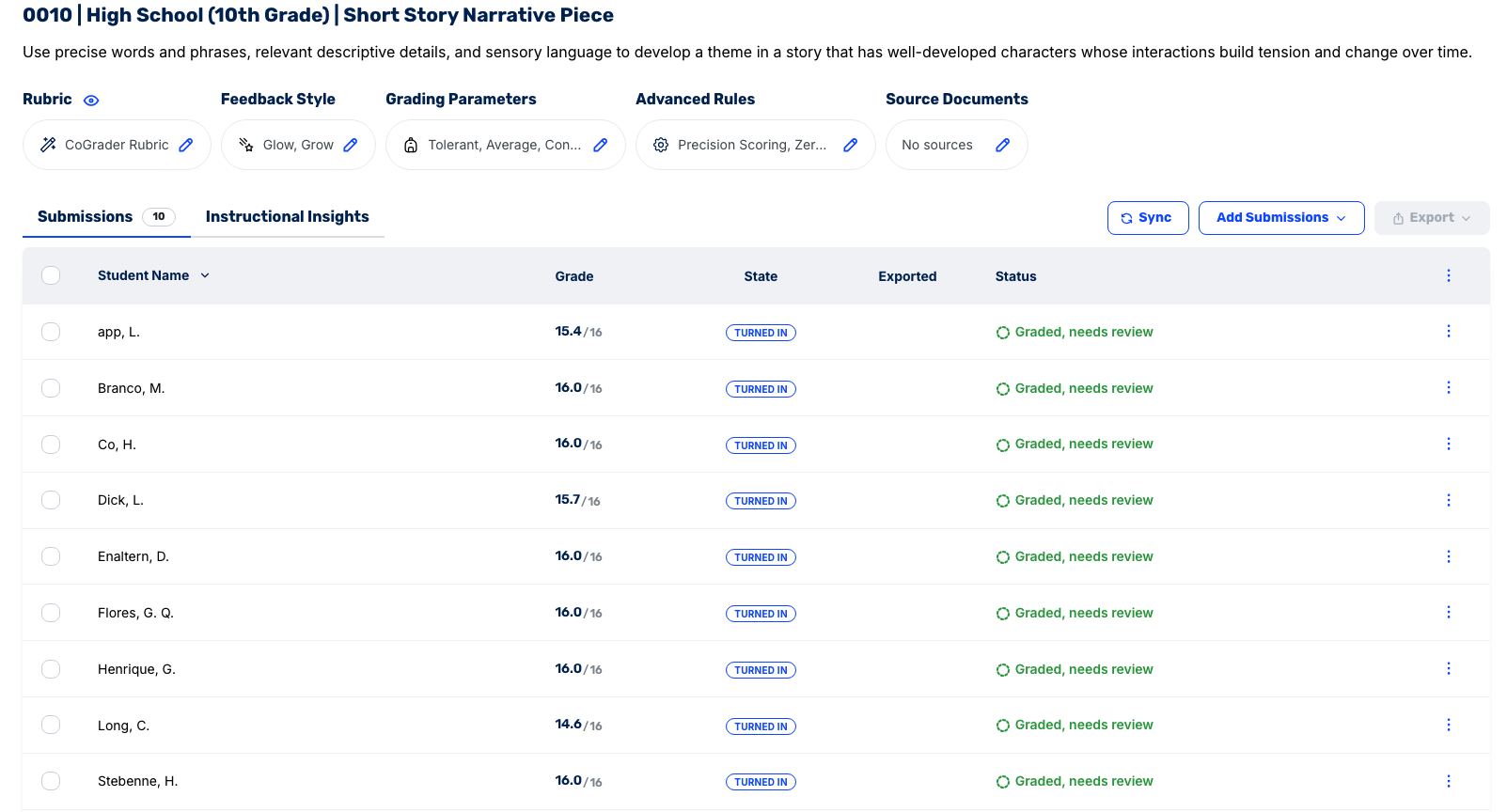
The grading process happens in four steps:
- Import assignments. Open an assignment and pull every student submission into CoGrader, with no downloading, uploading, or sorting through folders.
- Choose your rubric. Choose a saved rubric, pick one from the library, or generate one on the spot, then set the grade level so scoring is calibrated to what you’re actually teaching.
- Grade the entire class. CoGrader evaluates every submission against your rubric simultaneously and drafts feedback tied to specific highlighted passages in each student’s writing.
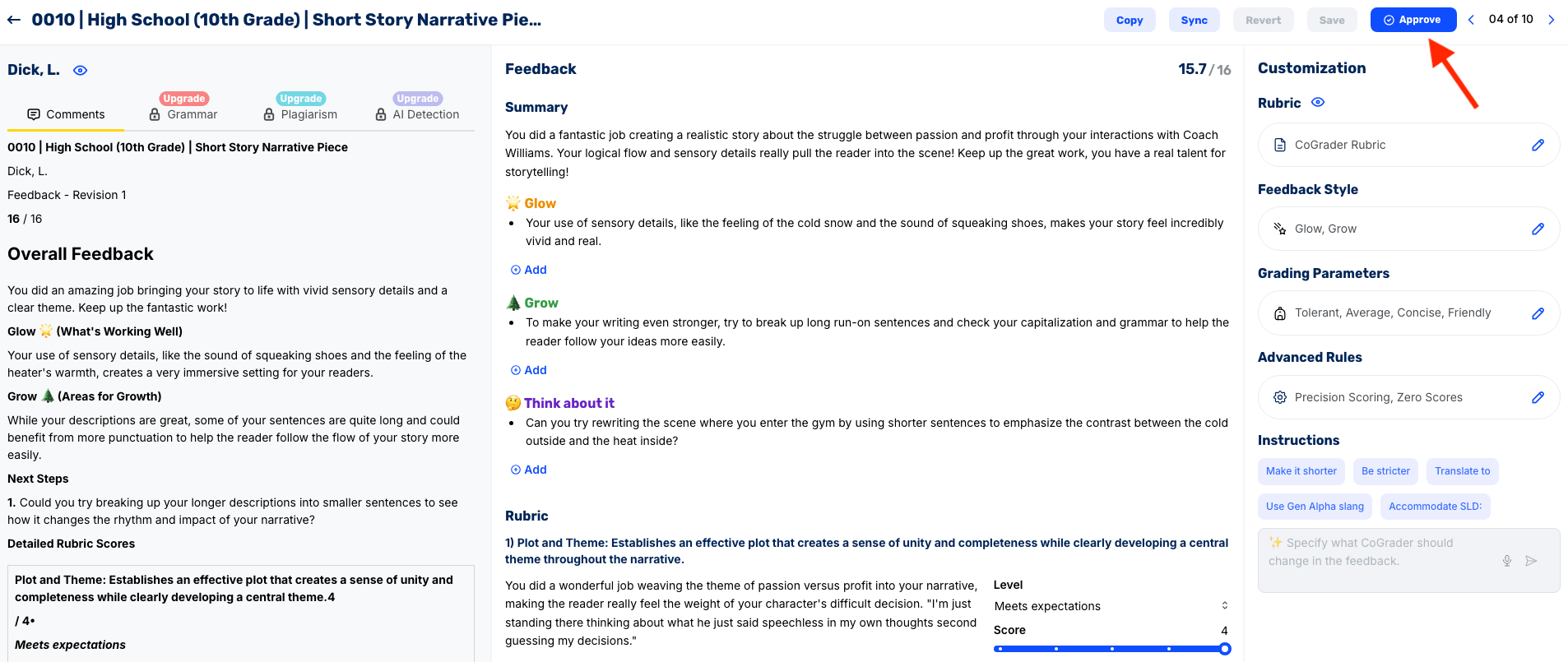
- Review and send back. Submissions land in a review queue for your sign-off, then approved grades and comments return to students through Canvas or Schoology instantly.
CoGrader also allows teachers to customize various aspects of grading. You can adjust the settings to change the feedback style (like Glow and Grow, Two Stars and a Wish, or WWW/EBI) and grading parameters (such as strictness, tone, reading level, and depth) before grading.
One thing CoGrader won’t do is bulk approve student assignments. Every essay needs an individual sign-off before it reaches a student, which keeps teacher judgment in the process, no matter how fast the grading goes.
Know What to Teach Next with Class-Wide Analytics and Insights
After a long grading session, teachers usually make lesson-planning decisions based on overall grades or on a gut feeling from a few assignments that stood out.
For example, say you grade a set of argumentative essays and notice that five students never backed up their thesis with real evidence. Those papers tend to be most memorable, so you walk away assuming the whole class struggles with evidence and plan to reteach the concept in class.
In reality, it was only those five students, and the other twenty-five were ready to move on, now stuck sitting through a lesson they didn’t need.
CoGrader automatically tracks this and displays the key analytics and insights in a dashboard for teachers.
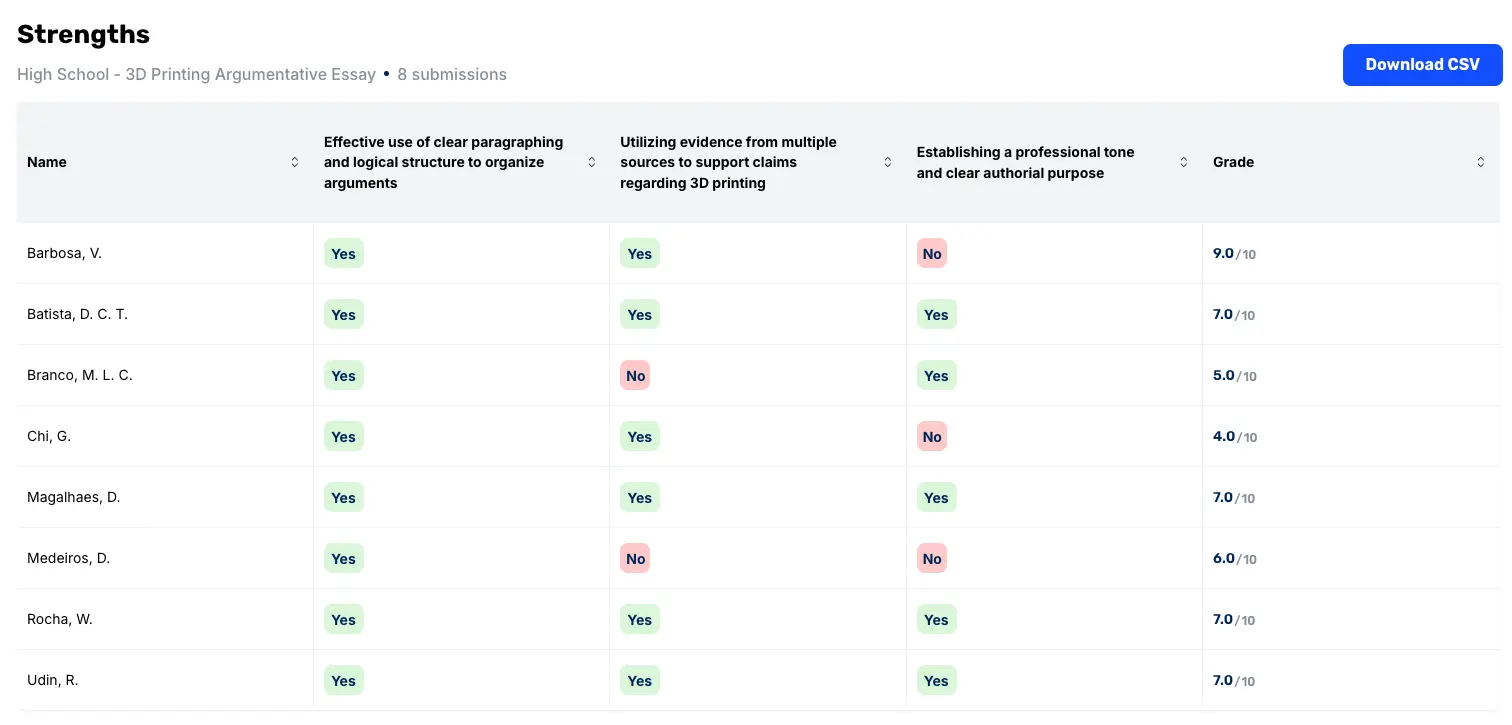
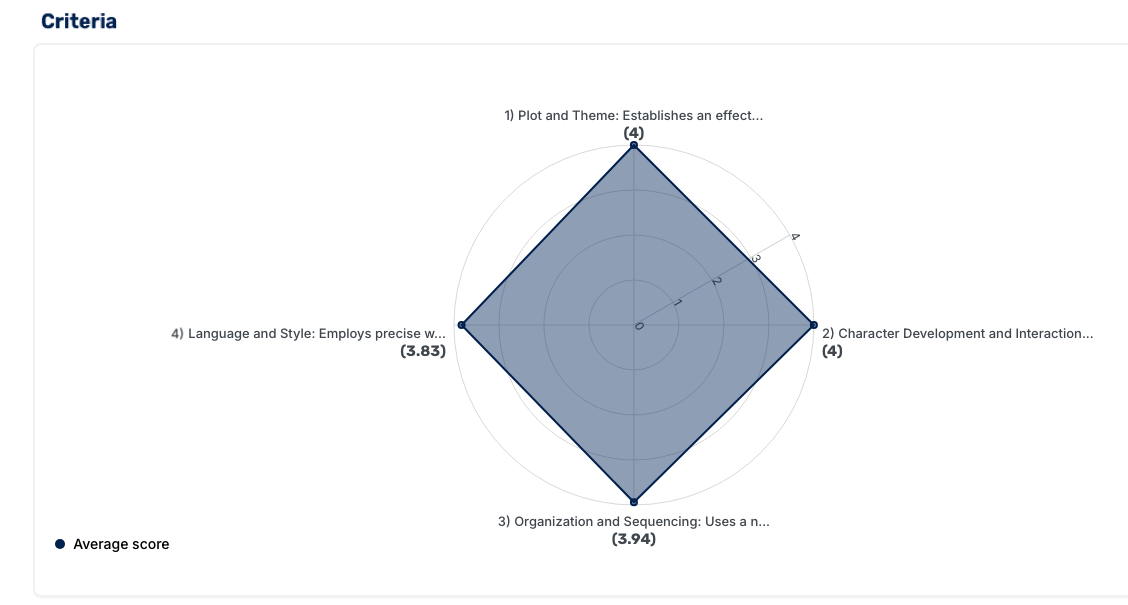
Once grading is complete, you get several views into how your class actually performed:
- Student view: Open up any single student and see how they performed on each rubric criterion, so support goes to the right students on the right skills rather than a vague sense of who’s behind.
- Criteria charts: A view that plots the whole class against every criterion at once, making it obvious at a glance which skill held up and which one fell apart.
- Score distributions: See how many students landed below, at, or above expectations, instead of hiding behind a class average.
You can also generate future lessons using the class-wide analytics. This allows teachers to automatically generate a ready-made teaching plan based on class strengths and areas for growth.
CoGrader Pricing
CoGrader offers four plans, with a generous free tier and a 14-day free trial for premium access.
- Starter (Free): 100 student submissions per month, rubric building and sharing, FERPA compliance, and 14 days of premium access to start.
- Standard ($15/month, billed annually): Everything in Starter plus 350 submissions per month, Google Classroom integration, handwritten assignments, grammar checking, and a class performance dashboard.
- Schools & Districts (custom): Everything in Standard plus unlimited submissions, Canvas and Schoology integration, AI plagiarism detection, bulk user management, and institution-wide analytics.
- Higher Ed & Enterprise (custom): Everything above plus API access, custom integrations, a dedicated account manager, and custom support SLAs.
See why 100,000+ teachers grade with CoGrader. Sign up for free today!
8 Additional Chrome Extensions for Teachers Worth Trying
If you’re looking for a Chrome extension that can handle something other than grading, these eight options below are worth considering. They work in the Chrome browser and cover everything from feedback and lesson planning to classroom management, plus most are free to try.
1. Mote: Best for Providing Fast Voice Feedback to Students
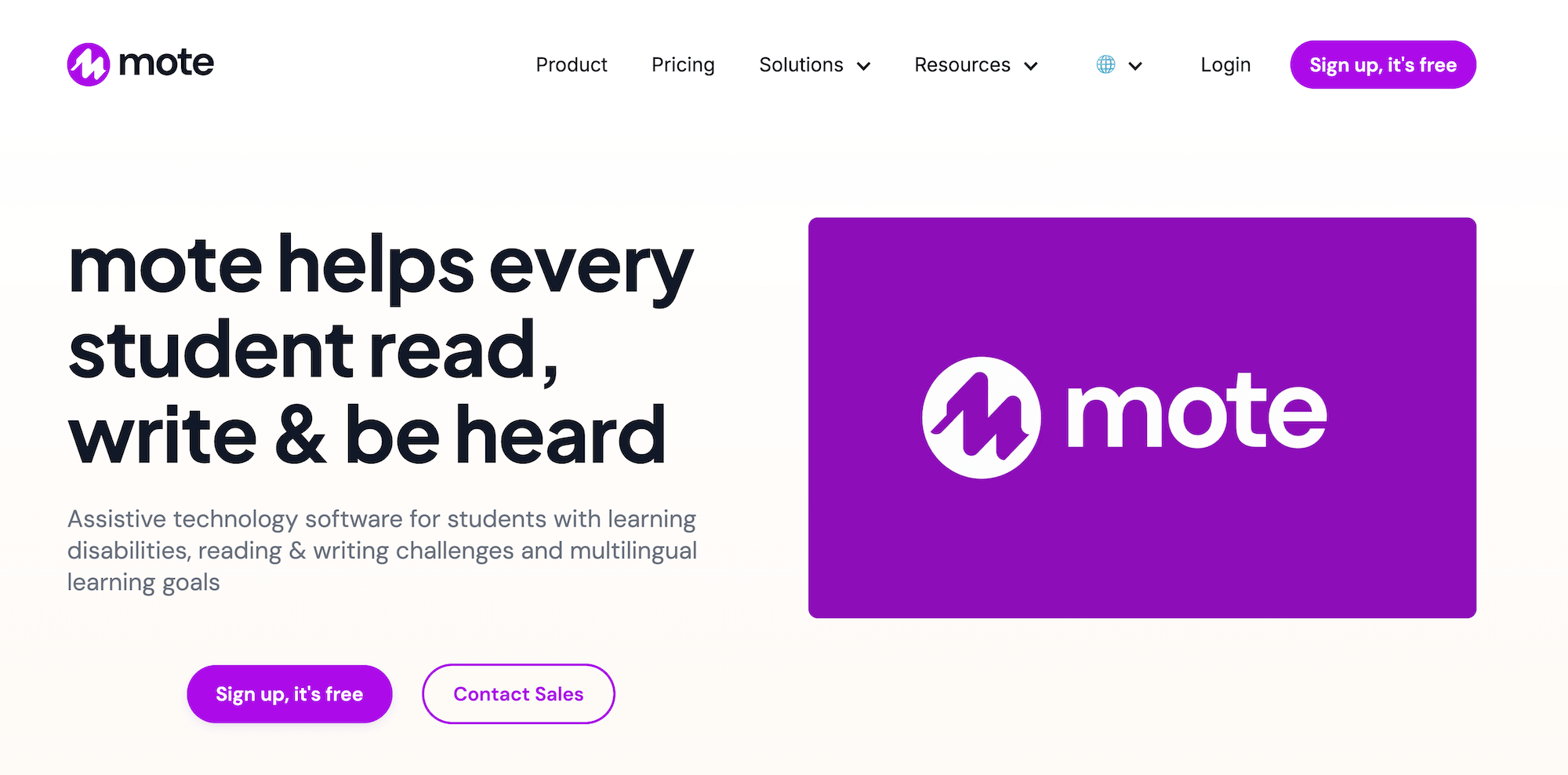
Mote makes it so teachers don’t have to type the same comments manually on student assignments. The tool lets instructors leave voice comments directly in Google Docs, Classroom, Slides, and Gmail.
With Mote, teachers can talk through a student’s work in about the time it takes to read it. It also uses AI-powered transcription to read text aloud in 50+ languages for multilingual students.
Key features
- Voice comments embedded in Docs, Slides, Classroom, and Gmail
- Text-to-speech read aloud in 50+ languages
- Transcription so students get audio and text together
- Student engagement analytics and tracking
- Focus mode with built-in picture dictionary for vocabulary building
Mote is free for educators with core features included. Unlimited plans cost $59.40 per year (free trial included) for individual teachers to unlock additional features like moteSidebar accessibility tools, longer recordings, and more advanced controls like language translations.
2. InsertLearning: Best for Converting Webpages Into Lessons
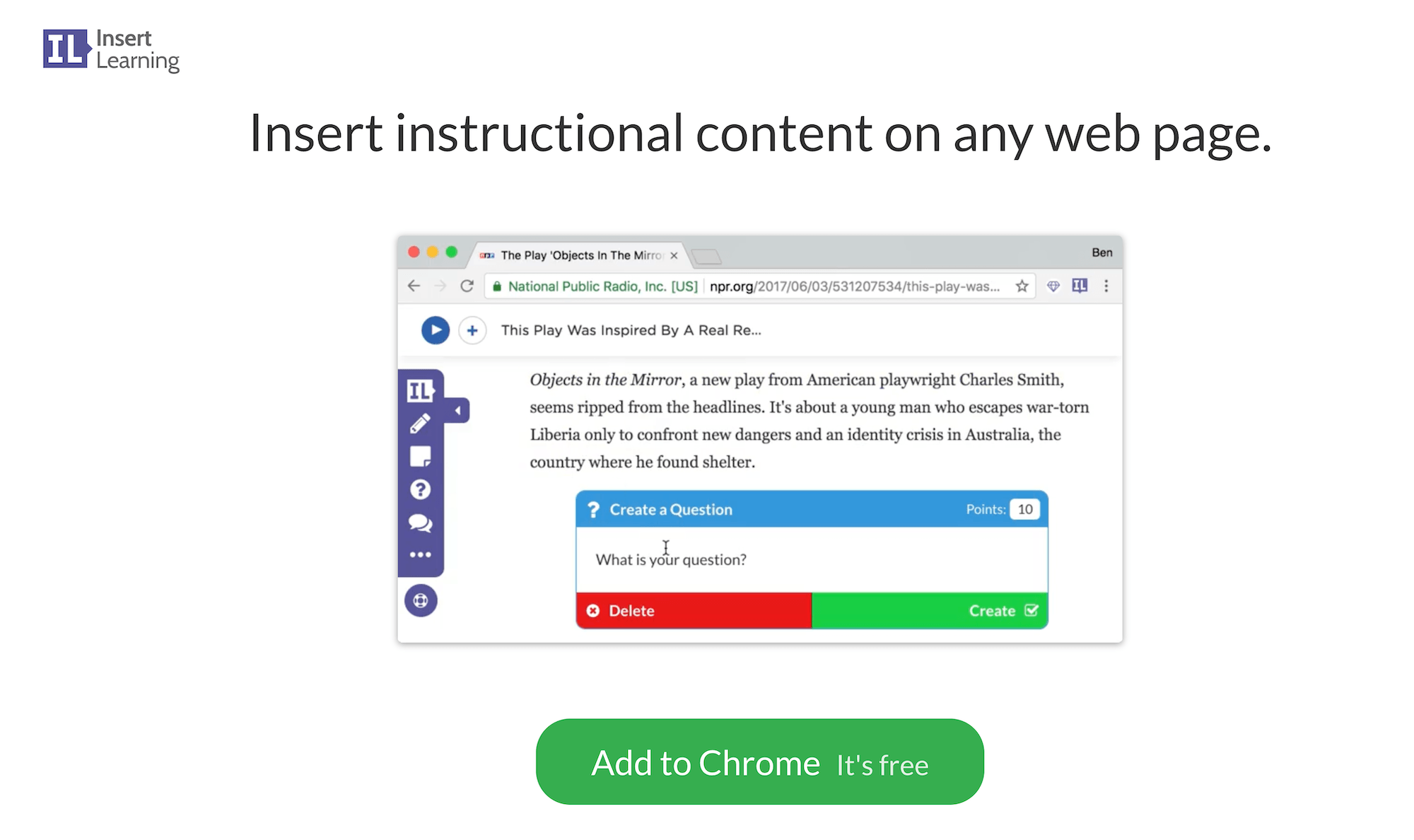
InsertLearning lets teachers teach directly on top of the open web instead of building materials from scratch. The extension turns any webpage into an interactive lesson, letting instructors insert questions, discussions, sticky notes, and videos right into the page.
It lets you assign a page through Google Classroom and watch responses come in as students read. Students answer questions and take notes in the margin, while you track who’s engaging and where they’re getting stuck.
Key features
- Insert questions, discussions, and sticky notes into any webpage
- Highlight text and embed videos at the moment they’re relevant
- Assign pages and import rosters straight from Google Classroom
- Track student responses and progress from a single dashboard
- Layer in scaffolded questions to differentiate the same reading
InsertLearning is free to try for 2 lessons. The individual teacher plan costs $99 per year (or $19.99/mo) for unlimited lessons and students. School licenses (which include staff training) are custom-priced.
3. Kami: Best for Annotating PDFs and Documents
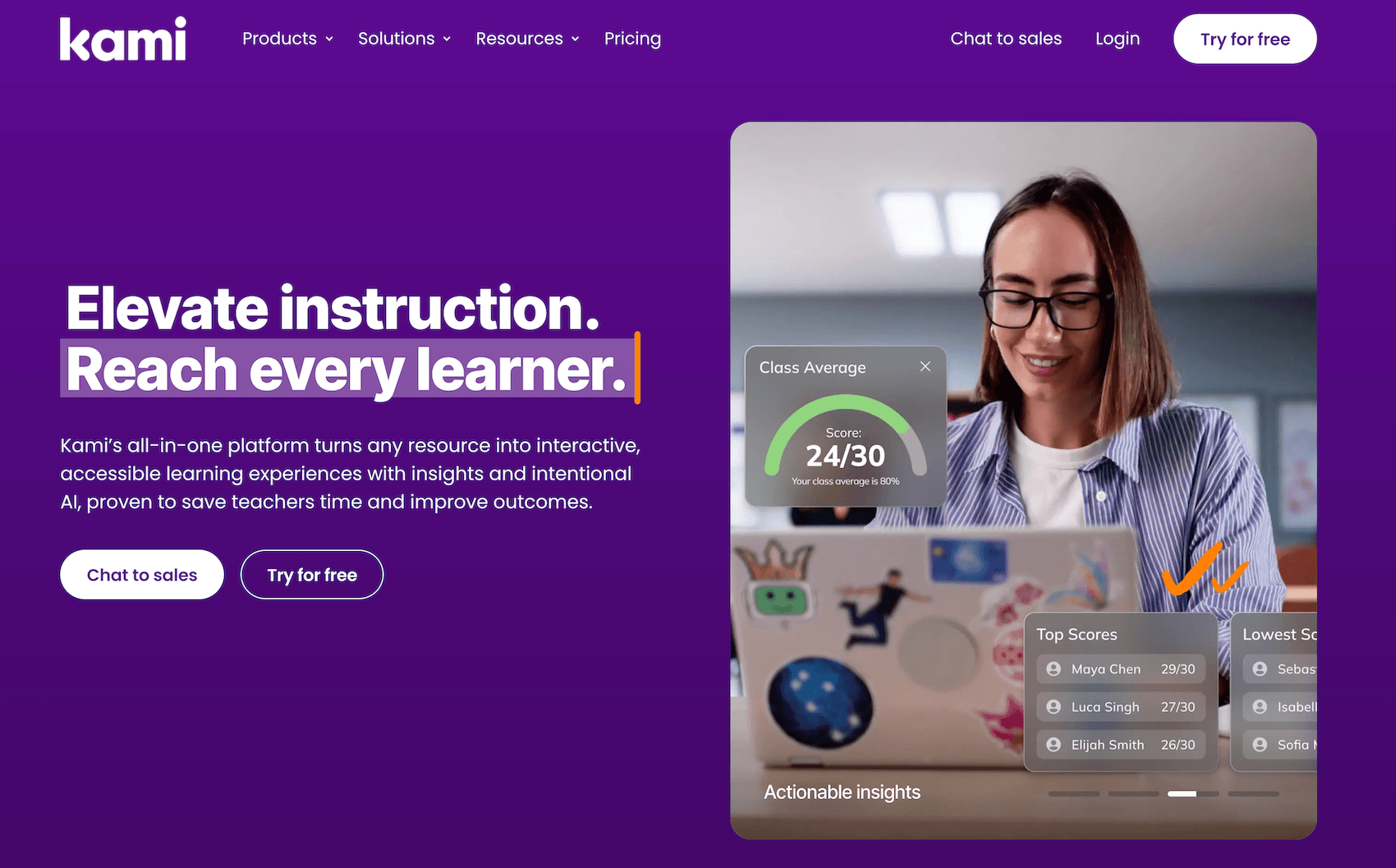
Kami turns any PDF or document into an interactive workspace, which makes it a natural fit for close reading, worksheets, and anything you’d otherwise print.
Students can highlight, draw, type, and add comments directly on the file, with real-time collaboration that lets a whole class work on the same document at once. The tool makes it easy for teachers to leave voice or video annotations instead of scribbling in margins. It also offers split-and-merge functionality that breaks long PDFs into manageable assignments.
Key features
- Highlight, draw, and add text and comments to any PDF, document, or screenshot
- Voice and video annotations for richer, more personal feedback
- Split, merge, and rearrange PDF pages into clean assignments
- Built-in whiteboard for live instruction and annotation
- Integrates with Google Classroom, Canvas, and Schoology
Kami’s Basic plan is free and includes 10+ core tools, 1,000+ templates, unlimited collaborators, and Google Drive and OneDrive integration.
The Teacher plan costs $149 and unlocks all 40+ tools plus LMS integrations for Google Classroom, Schoology, Canvas, and Microsoft Teams. School and district plans are custom pricing only.
4. Read&Write: Best for Text-to-Speech and Reading Support
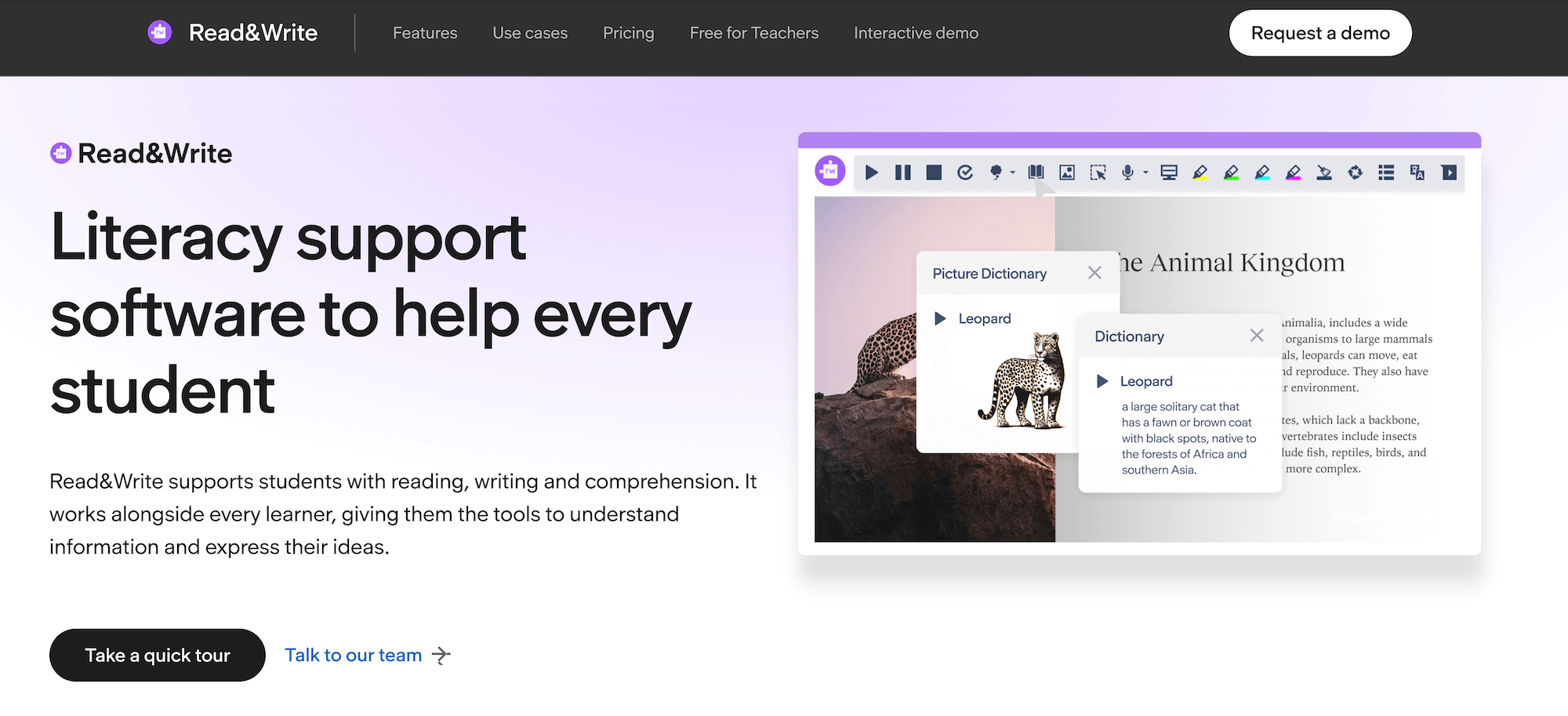
Read&Write adds text-to-speech with dual-color highlighting, picture and text dictionaries, word prediction, and a grammar checker to almost any webpage or Google Doc. It’s used by both teachers and learners to handle reading and writing tasks more efficiently.
Key features
- Text-to-speech with dual-color highlighting
- Picture and text dictionaries
- Word prediction and vocabulary lists
- Rewordify to simplify difficult text
Individual licenses cost $184 per year. For schools, K-12 group plans run $18.30 per seat (150-seat minimum). District plans are cheaper at $2.75 per seat based on volume, while higher-ed pricing is based on student enrollment.
5. MagicSchool AI: Largest Selection of AI Teaching Tools

MagicSchool AI provides teachers with an extensive library of AI tools built specifically for teaching, including lesson plans, parent communication, and student engagement.
With MagicSchool, teachers can draft a unit plan, a rubric, or a set of IEP accommodations in minutes, then refine the output to fit their class. Its Chrome extension brings those tools onto any webpage or Google file, so they’re available wherever you’re working.
Key features
- 80+ AI generators for lesson plans, rubrics, summaries, and assessments
- Drafting support for IEP accommodations and modifications
- Parent emails, newsletters, and other admin writing
- “Raina” AI assistant for quick planning questions
- Chrome extension that works across Google tools and the web
MagicSchool’s free plan covers most core tools. MagicSchool Plus costs about $8.33 per month, billed annually for higher limits and premium features.
6. Brisk Teaching: All-in-One AI Assistant for Teachers
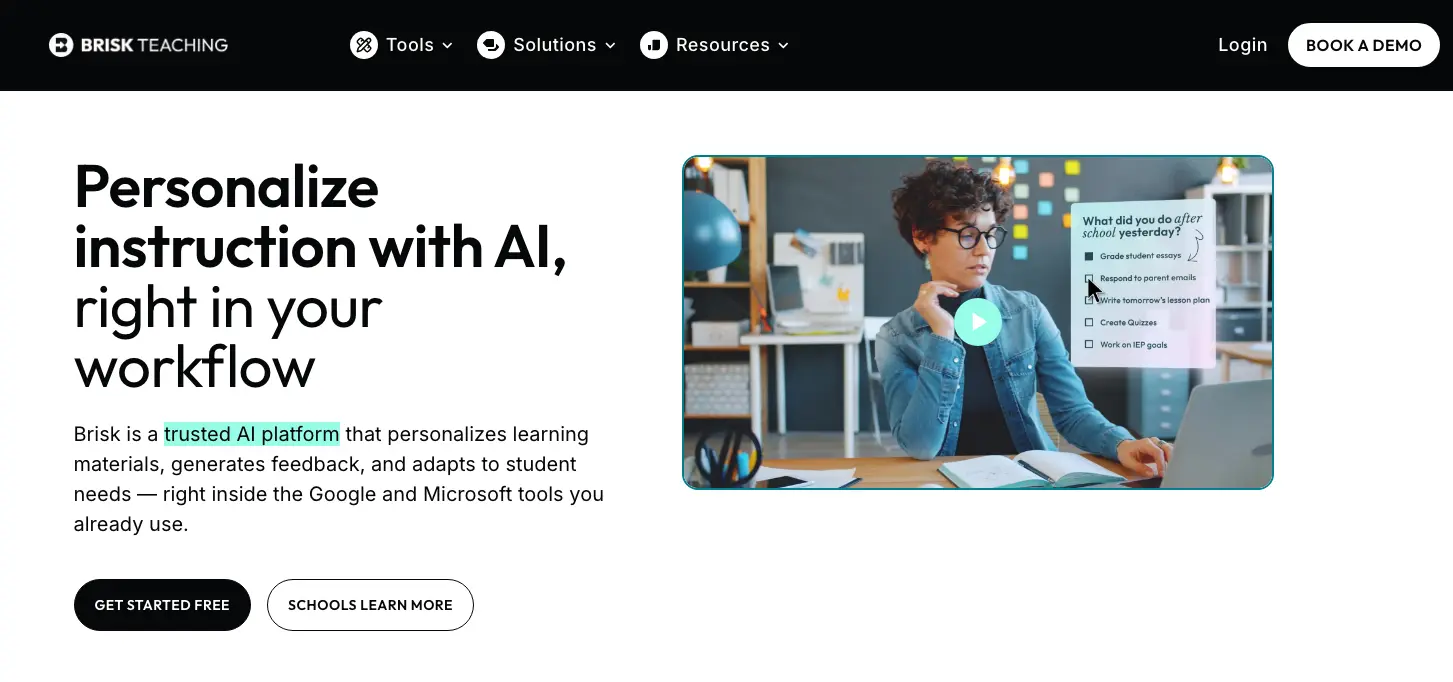
Brisk Teaching works directly in Google Workspace, including Docs, Slides, and even YouTube. It allows teachers to generate feedback, quizzes, and lesson materials without leaving the page they’re on. The platform’s “Inspect Writing” tool can also replay a document’s revision history to help flag likely AI use.
Key features
- Generate feedback, quizzes, and lesson plans from any page
- Raise or lower a text’s reading level for differentiation
- “Inspect Writing” replays a document’s revision history
- Create slide decks and instructional materials instantly
- Works inline across Google Docs, Slides, and the web
Brisk Teaching’s free Chrome extension is available to individual teachers and includes 20+ tools. A paid Educator Pro plan is available for teachers, along with custom plans for Schools & Districts.
7. Revision History: Best for Monitoring Academic Integrity and Student Writing
With the rise of AI usage in classrooms, teachers need a way to monitor students. Revision History reveals the full writing process behind any Google Doc or Slides file, replaying a document from start to finish and flagging large pastes, deletions, and unusual patterns.
It’s meant to support authentic writing and academic integrity without storing a shred of student data, since all the analysis runs locally.
Key features
- Video replay of a document being written from start to finish
- Copy and paste detection that surfaces content pulled from outside sources
- A complete writing timeline showing editing sessions and time spent
- Unusual-pattern flags that point you toward conversations, not conclusions
- Works in Google Docs and Slides, including assignments submitted through Google Classroom
Revision History’s free tier covers analysis of 150 unique documents per month. A Plus subscription costs $2.67/month (billed annually) and unlocks unlimited document analysis and advanced analytics.
8. Edpuzzle: Best for Interactive Learning & Video-Based Lessons
Edpuzzle makes it so that any video or tutorial can become an accountable lesson. You can choose a clip from YouTube, Khan Academy, or your own upload, trim it to the part that matters, and embed questions into the video.
Because students can’t skip ahead, you see exactly who watched, who understood, and where the class got stuck, which makes it a fast way to flip a lesson or, with the click of a button, run a check for understanding without grading a stack of worksheets.
Key features
- Embed multiple-choice, true/false, and open-ended questions in any video
- Pull videos from YouTube and other sources, or upload your own
- Add voiceover and audio notes to guide students through content
- Track student progress and auto-grade question responses
- Integrates with Google Classroom, Canvas, and Schoology
Edpuzzle is free for teachers on its Basic plan, which saves up to 20 videos (you can earn more through referrals). Pro Teacher plans cost $13.75/mo and are billed annually.
Save Time in the Classroom with the Right Chrome Extensions
The best Chrome extensions help teachers remove bottlenecks in their day-to-day so you can focus more on instruction and your students.
CoGrader does exactly that and helps streamline essay grading. If you struggle with a heavy grading workload, try CoGrader for free or request a custom quote to learn more.