


Canvas has finally added AI grading to the platform, with Instructure integrating IgniteAI Grading Assistance in 2026. It can draft scores and feedback inside SpeedGrader based on your rubric, ready for you to review and confirm before anything posts.
While this is a useful feature for many teachers, there are some notable downsides worth mentioning. First, the feature is turned off by default, and only your institution’s admin can enable it. It’s also tied to paid Canvas tiers now that the free preview has ended, and it still grades one submission at a time with no batch scoring capabilities.
If these limitations get in the way of how you grade, a dedicated AI grading tool is the workaround. These tools can potentially connect to Canvas without admin approval and allow you to:
- Grade every submission at once: Import a Canvas assignment and get the whole stack scored against your rubric in minutes, then spend your time reviewing instead of grading from scratch.
- Bring your own rubric: Drop in the PDF, Word doc, or scoring guide you already use, without having to rebuild it in Canvas’s Enhanced Rubrics format first.
- Export grades in one click: Approved scores and comments land in your Canvas gradebook on their own, and students see feedback where they already look for it.
In this guide, we’ll explain what Canvas AI grading can do, where it falls short, and how it compares to third-party AI grading tools. We’ll also walk through the six best tools that connect to Canvas and who each one is built for, starting with CoGrader, our own AI grading tool built for essays and written assignments.
Does Canvas Have Built-In AI Grading?
Canvas has a built-in AI grading tool, called IgniteAI Grading Assistance for SpeedGrader, which began rolling out to institutions in Spring 2026.
When enabled, it generates suggested scores and feedback for written assignments based on the attached rubric. You review each suggestion inside SpeedGrader, edit it, and decide what gets posted.
Grading Assistance is part of the broader IgniteAI suite, which includes several other AI features that sit near grading without scoring student work:
- Generator for Rubrics: Drafts a rubric from your assignment description, which you edit and refine before publishing. It requires the Enhanced Rubrics feature option to be enabled first.
- Insights for Discussions: Scans student discussion replies and flags how relevant and substantive each one is compared to the original prompt.
- Question Authoring for Quizzes: Generates quiz questions from your course content, which you review and edit before assigning.
- Discussion Summaries: Condenses a long discussion thread into its main ideas and themes.
Canvas can also auto-grade New Quizzes questions with fixed answers, like multiple choice and matching. Overall, Canvas offers built-in grading capabilities, along with several other AI features that support grading without doing it.
Adding third-party integrations gives teachers much-needed features like bulk grading and academic integrity checks that IgniteAI doesn’t have.
Canvas Built-In AI Grading vs. Third-Party AI Grading Tools
Since Canvas offers built-in AI grading, it’s worth comparing how it functions with available third-party AI grading tools.
Instructure even mentions other tools, such as TimelyGrader, a third-party platform, as an option for AI-assisted grading rather than IgniteAI. We took a closer look at this tool and compared it to what the third-party tools can offer.
Here’s a closer look at how they compare:
| Canvas Built-In (IgniteAI Grading Assistance) | Dedicated AI Grading Tools | |
|---|---|---|
| Who integrates it | Institution admin, account level | Individual teacher, same day |
| Grading workflow | One submission at a time in SpeedGrader | Full class set scored in one batch |
| Rubric input | Must be rebuilt in Enhanced Rubrics format | Upload any PDF, doc, image, or spreadsheet as-is |
| Rubric library | None built in | Prebuilt AP, IB, and state testing frameworks |
| Cost | Canvas Plus / Canvas Next institutional licensing | Free tiers, paid plans from roughly $12-20/month |
| AI and plagiarism detection | Not included | Built into most tools |
| Class analytics | Grade averages and engagement via New Analytics | Criterion-level skill breakdowns generated during grading |
______________
6 Best AI Grading Tools for Canvas LMS
Each of the tools below connects to Canvas and adds the grading capabilities the built-in features can’t cover. They differ in what they grade best, from essays to handwritten exams and problem sets, and in whether an individual teacher can set them up or the institution has to be involved.
The right pick depends on what you assign most and what level you teach. K-12 teachers grading writing will want a different tool than a university department grading 400 midterms. This list has been updated for the 2026-2027 school year, with current pricing, integration details, and features as they stand now.
We start with our own essay grading tool, CoGrader, then cover five alternatives and who each one fits.
1. CoGrader
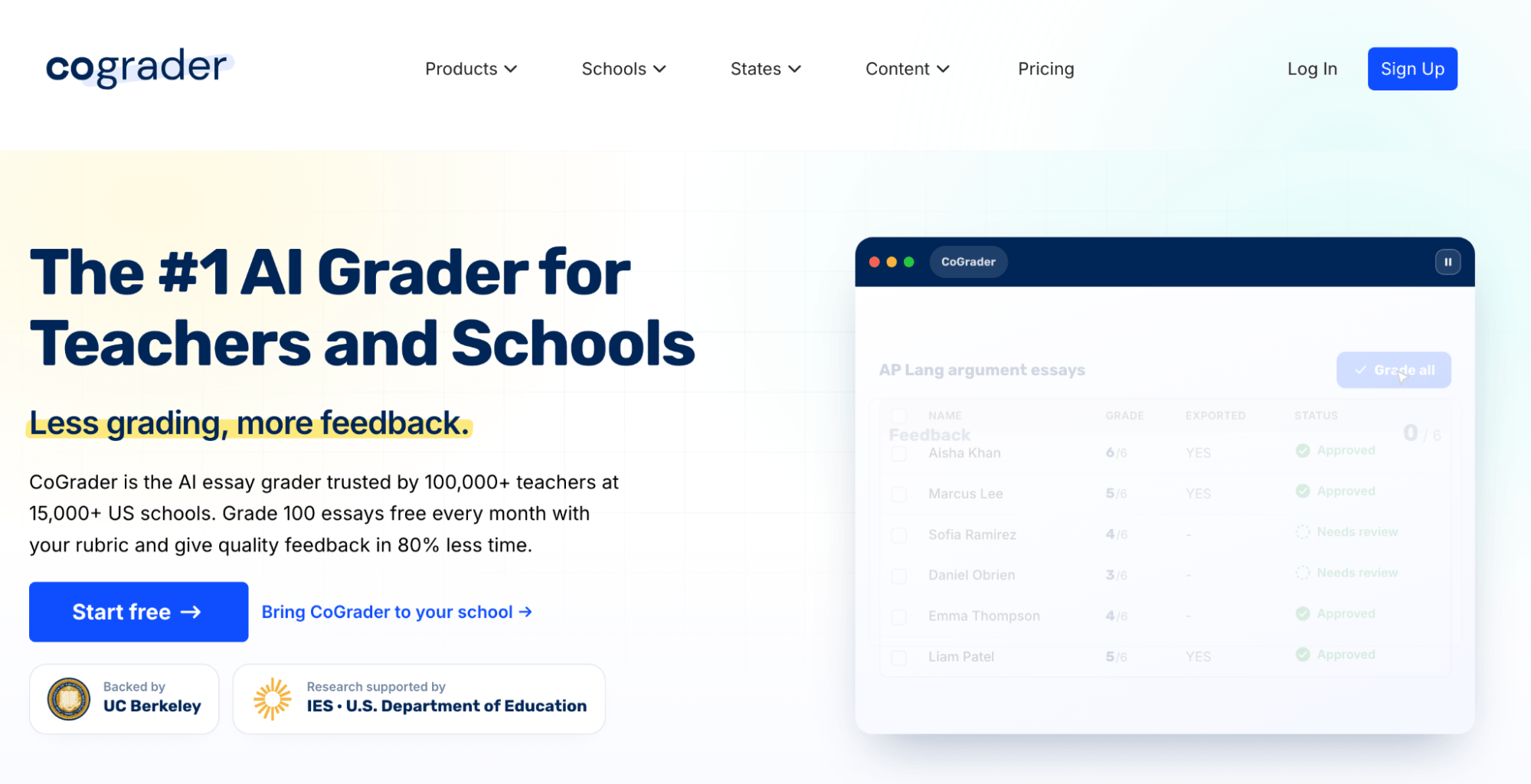
CoGrader is an AI essay grading tool that can score student writing and provide personalized feedback on assignments. It connects directly to Canvas LMS, so you can instantly import your entire class, batch grade new assignments against your custom rubrics, and analyze overall student or class performance.
Everything CoGrader offers is meant to make classroom management and grading faster and easier. You can sync all of your assignments into CoGrader once you connect Canvas, so there’s no need to upload documents or export grades manually.
Our software also includes additional features like AI writing detection, plagiarism detection, grammar assistance, rubric libraries, and more.
Below, we’ll show you how teachers integrate CoGrader into Canvas LMS to upload writing assignments, return feedback to students, and reduce the amount of time they spend grading.
Connect CoGrader to Canvas LMS
To connect CoGrader to Canvas LMS, go to the dashboard and select Essays or Quizzes. Once you click there, you will see a list of LMS options where you can choose Canvas.
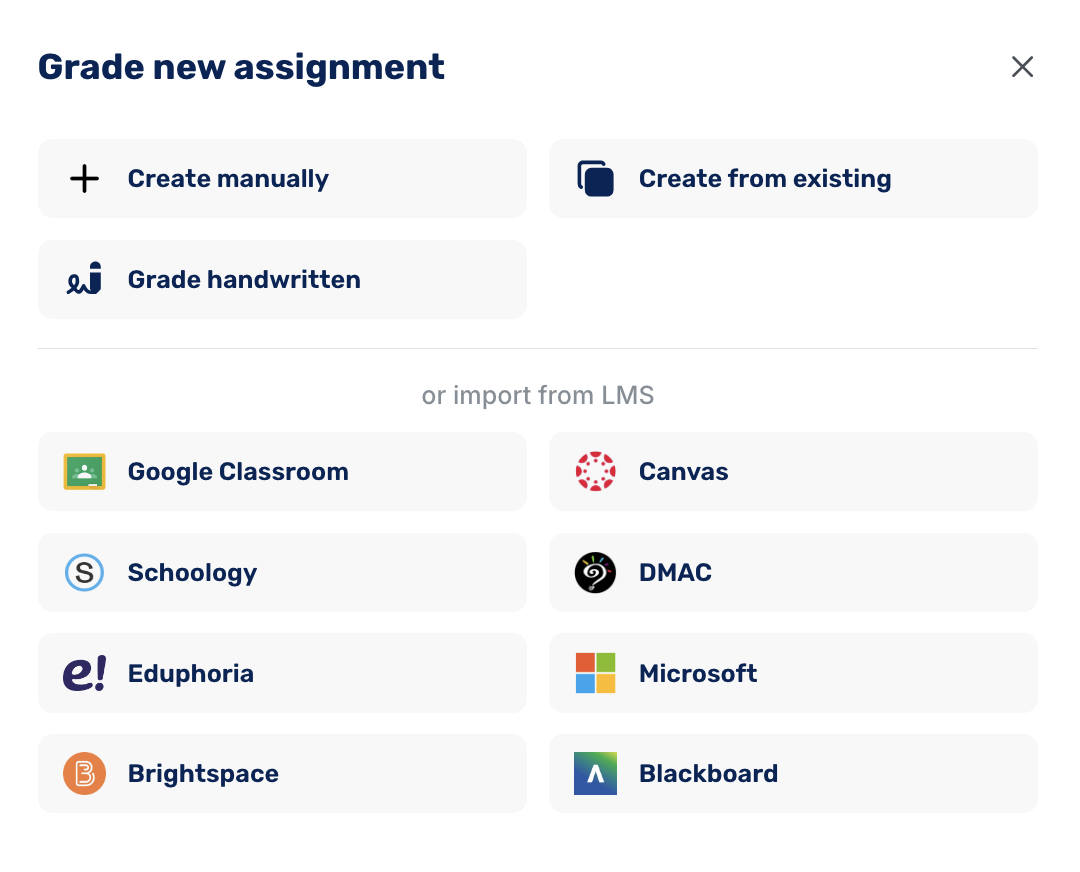
CoGrader also imports from Google Classroom, Schoology, Brightspace, Blackboard, Microsoft, DMAC, and Eduphoria, or you can create an assignment manually or upload handwritten work.
Canvas integrates with CoGrader through a free Chrome extension, which puts CoGrader’s grades directly into your Canvas fields.
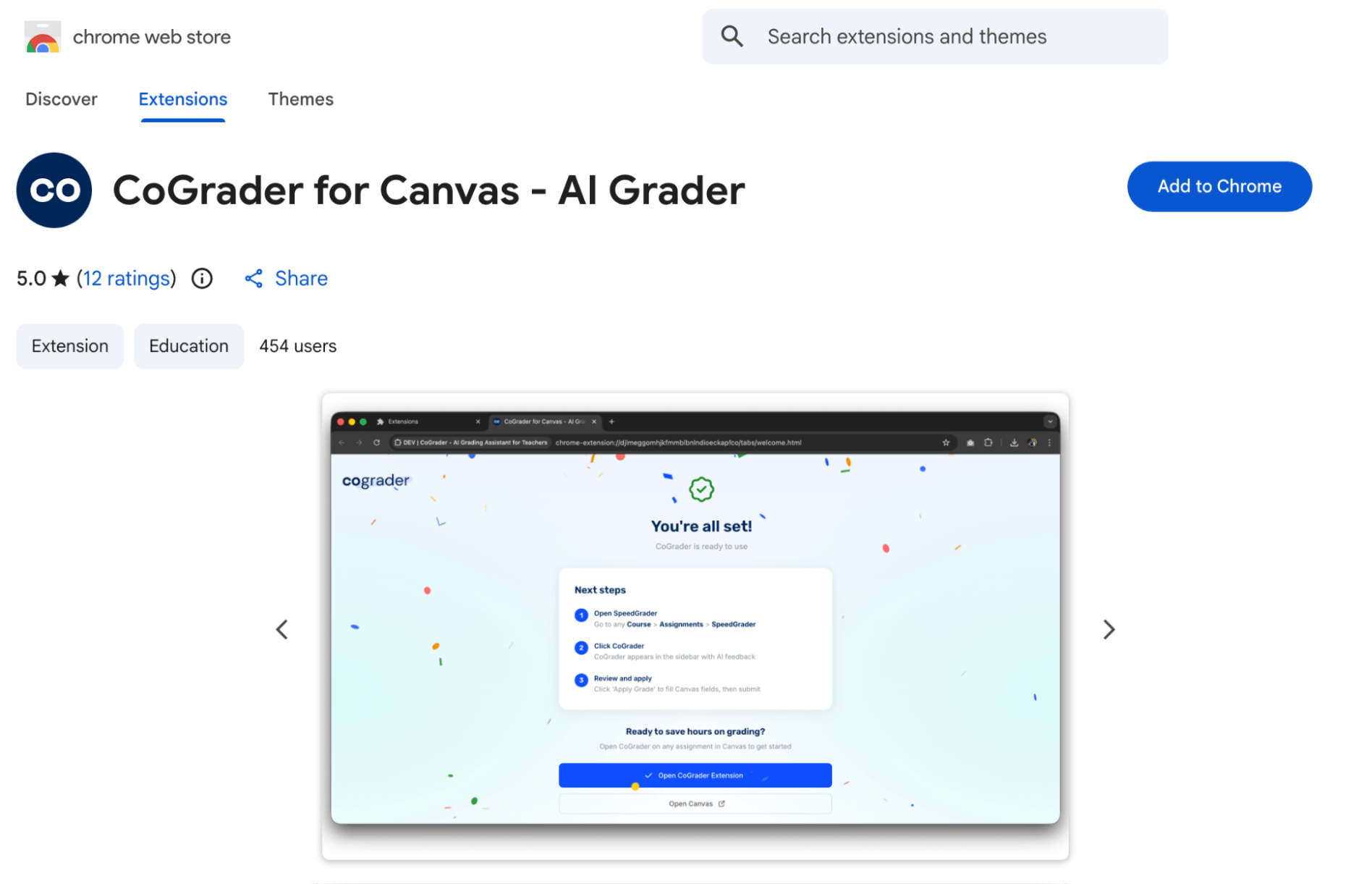
Setup can be done in three steps:
- Add the extension from the Chrome Web Store
- Open any assignment in SpeedGrader, where CoGrader appears in the sidebar with AI feedback
- Review and apply, which fills the Canvas grade fields for you to submit
Once you connect Canvas, you can start grading assignments. Nothing reaches students without your approval. Your Canvas credentials stay with Canvas, student data never trains AI models, and the whole setup complies with FERPA.
Sync your existing rubrics or standards instantly
Canvas can only offer AI grading against rubrics that you build or upload into its system. With CoGrader, you can grade against a wider range of rubrics in whatever form you already have them.
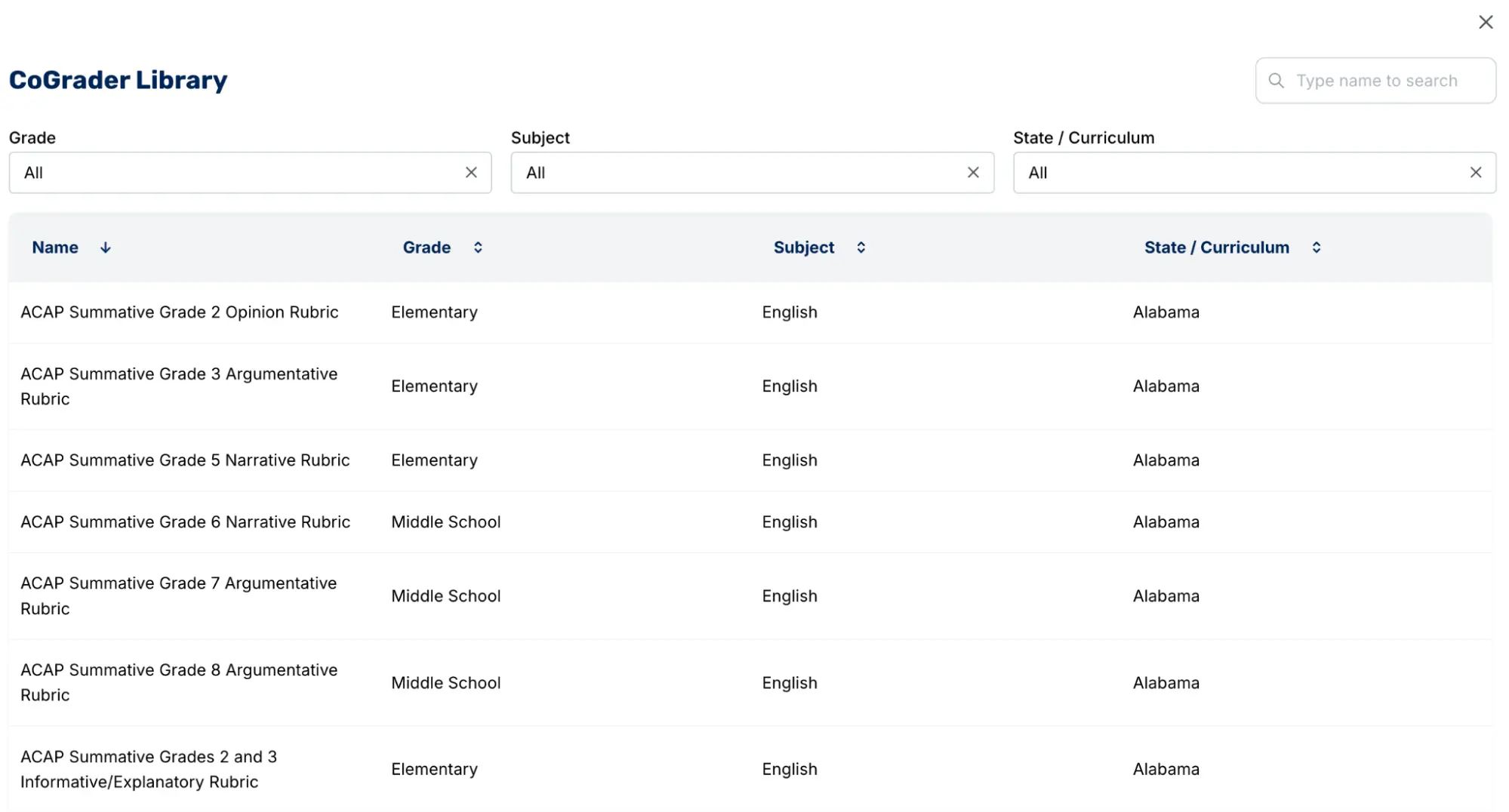
Some of your options include:
- Uploading your own. PDF, image, Word doc, Excel sheet, .txt, .csv, or .md files from your device or Google Drive are all accepted. They can be synced right to existing assignments after they’re uploaded.
- Pulling from the library. CoGrader comes preloaded with Common Core, TEKS, Florida B.E.S.T., California Smarter Balanced, Texas STAAR, New York Regents, and AP/IB rubrics. You can filter by grade, subject, state, or curriculum to find the one you need.
- Building new rubrics from your existing standards. Select your state, grade level, and subject, then check off the specific standards you’re assessing. CoGrader assembles those into a working rubric.
- Generating a new rubric using CoGrader’s AI. Describe the assignment and grade level, and the generator builds a rubric around it. You can pull in vetted criteria like thesis statement or essay organization rather than writing each one from scratch.
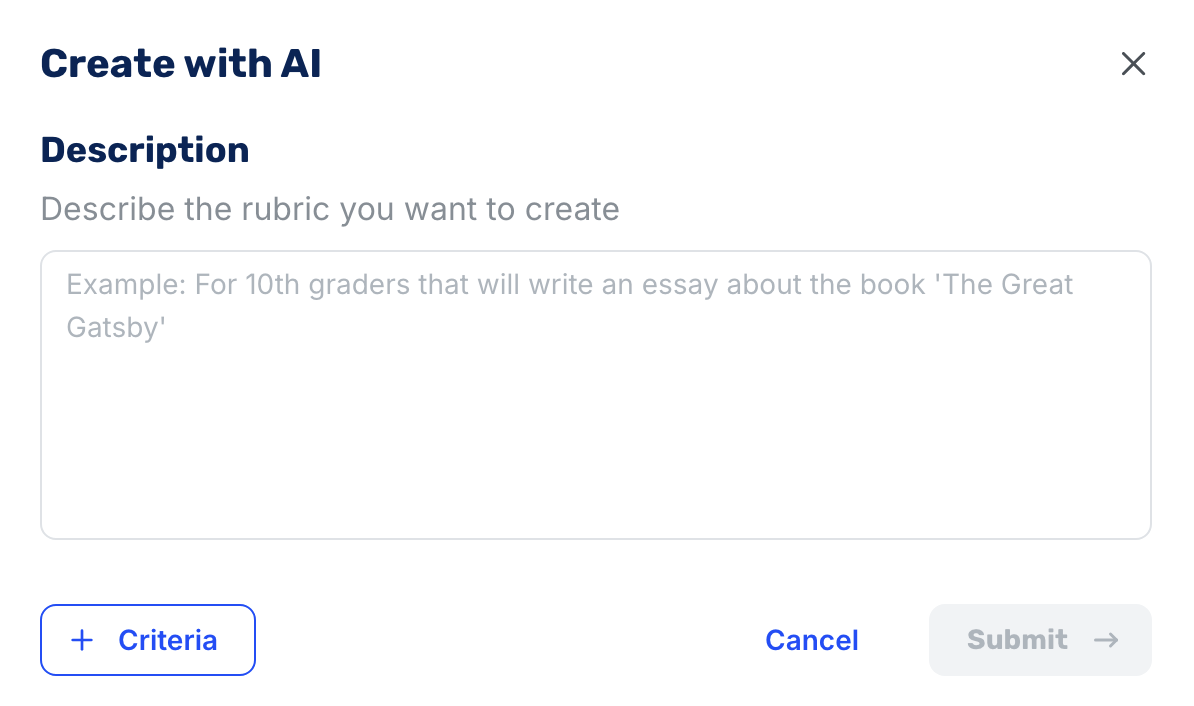
Every rubric remains editable after you choose it. You can still rename criteria, reorder or remove them, rewrite performance band descriptions, switch between fixed and variable scoring, and set partial-point values.
CoGrader also allows teachers to change the rubric mid-assignment, and the system then re-grades the class against the new criteria if needed.
Grade student assignments in bulk with personalized feedback
The biggest thing teachers grading with Canvas will notice is that it only grades one submission at a time. Even with IgniteAI enabled, you open a student, review the suggestion, post it, and click through to the next.
CoGrader makes the process much easier by importing the whole Canvas assignment and scoring every submission at once. When this occurs, feedback is also applied throughout the assignments to highlight strong areas or areas that need improvement in each student’s writing.
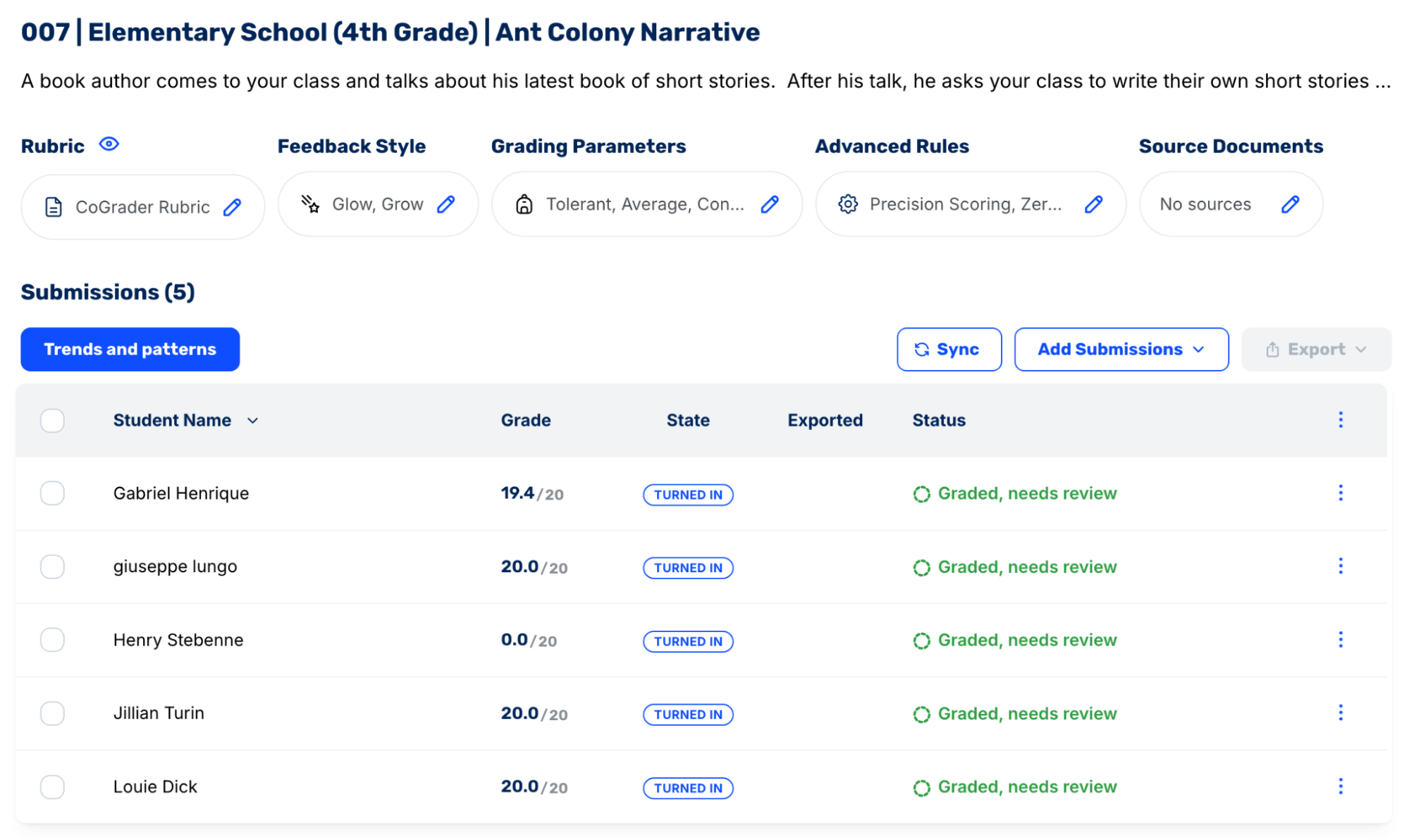
The assignment dashboard shows every student in one list with their grade, submission state, and a status reading “Graded, needs review.” The full set is scored, but nothing posts to Canvas or gets sent back to students until you manually approve it.
When you’re ready to review student assignments, click their name or the assignment name to open their work. You’ll see their writing with comments anchored to the exact passages they refer to, alongside the rubric scores and your grading controls.
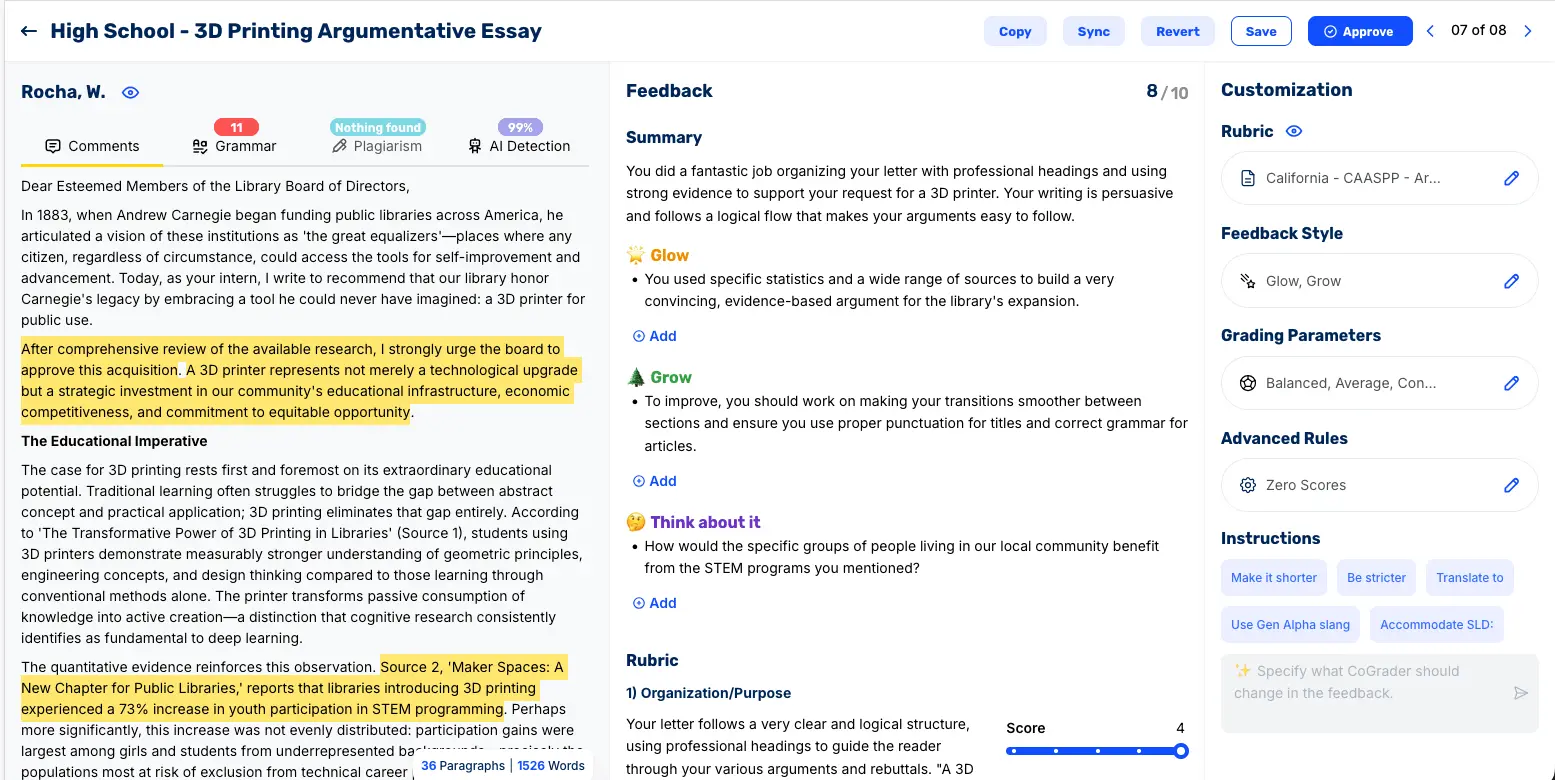
Adjust anything manually by editing a comment, changing a rubric score, or adding your own note. Or change the grading itself by swapping the rubric, feedback style, or parameters, then regenerate so the feedback comes back rewritten to match.
Approved grades and feedback go back to Canvas through the extension, which fills the grading fields for you to submit. There’s no bulk approve button, so every essay gets your sign-off before a student sees it.
The CoGrader Canvas extension is especially easy for teachers who have already tried using SpeedGrader in the past but found it to be too slow because of the bulk grading and feedback restrictions. With our tool integrated, you can stay in the same interface but spend much less time scoring papers.
Monitor class performance and plan future lessons
Canvas’s New Analytics reports grades and engagement, like who scored what and who hasn’t opened the assignment. It won’t tell you more nuanced information like which rubric criteria the class actually struggled with, since that requires outcomes tagged on every assignment and every criterion hand-scored first.
CoGrader is a bit more advanced with granular dashboards that highlight class-wide and individual student performance. All of this data is produced automatically while it grades.
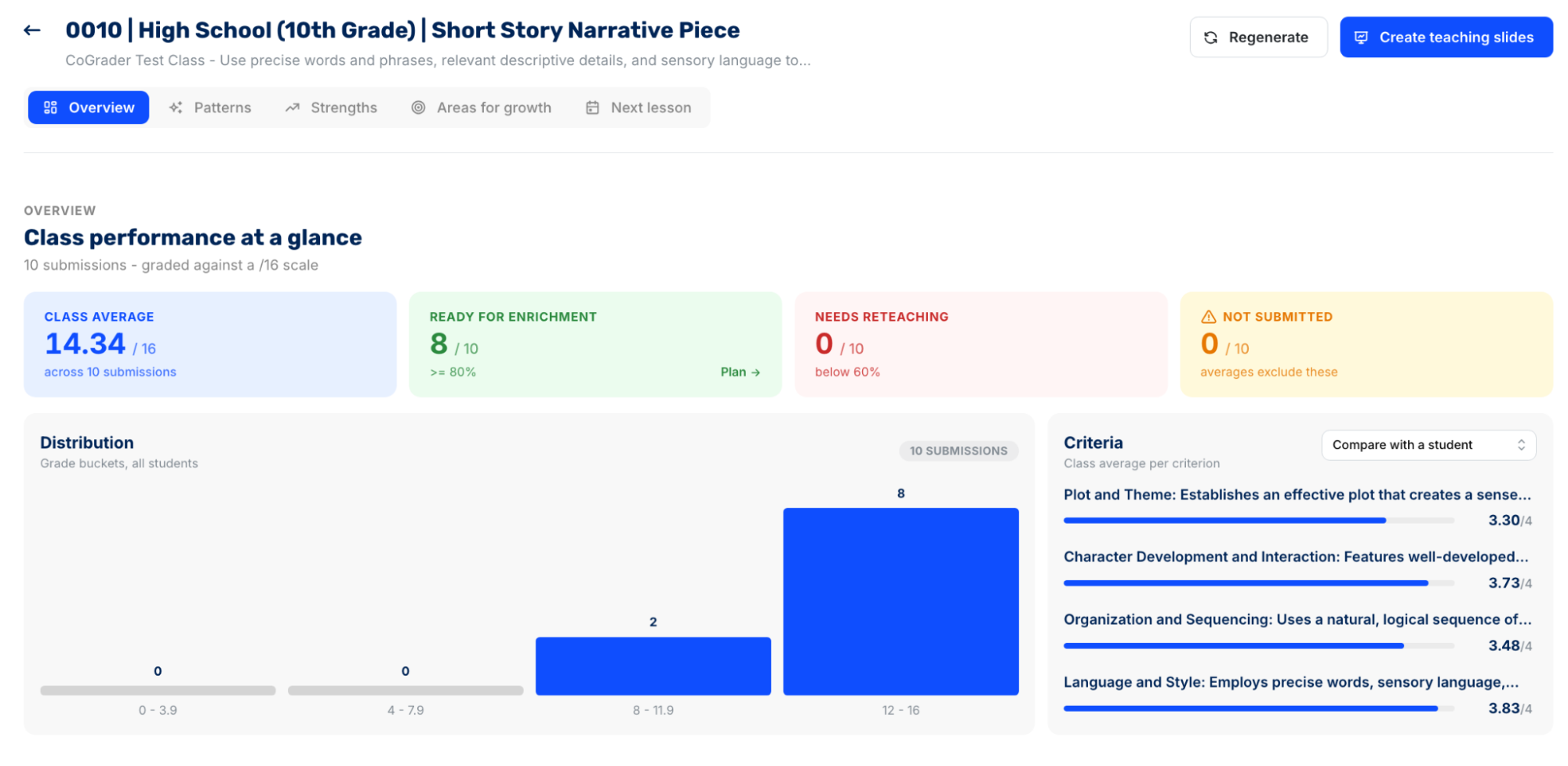
The Overview highlights the entire class average, the number of students who need reteaching, and how many haven’t submitted yet. A grade distribution chart and per-criterion breakdown are displayed alongside it, so you can compare the class average on any rubric criterion against an individual student.
From there, the tabs sort the results into different views:
- Patterns groups students by how they performed instead of listing them one by one, so trends across the class are easier to spot.
- Strengths ranks what the group handled well and shows which students exemplify each one.
- Areas for growth flags where students need work, from capitalization to run-on sentences, and sorts who falls into each level of need.
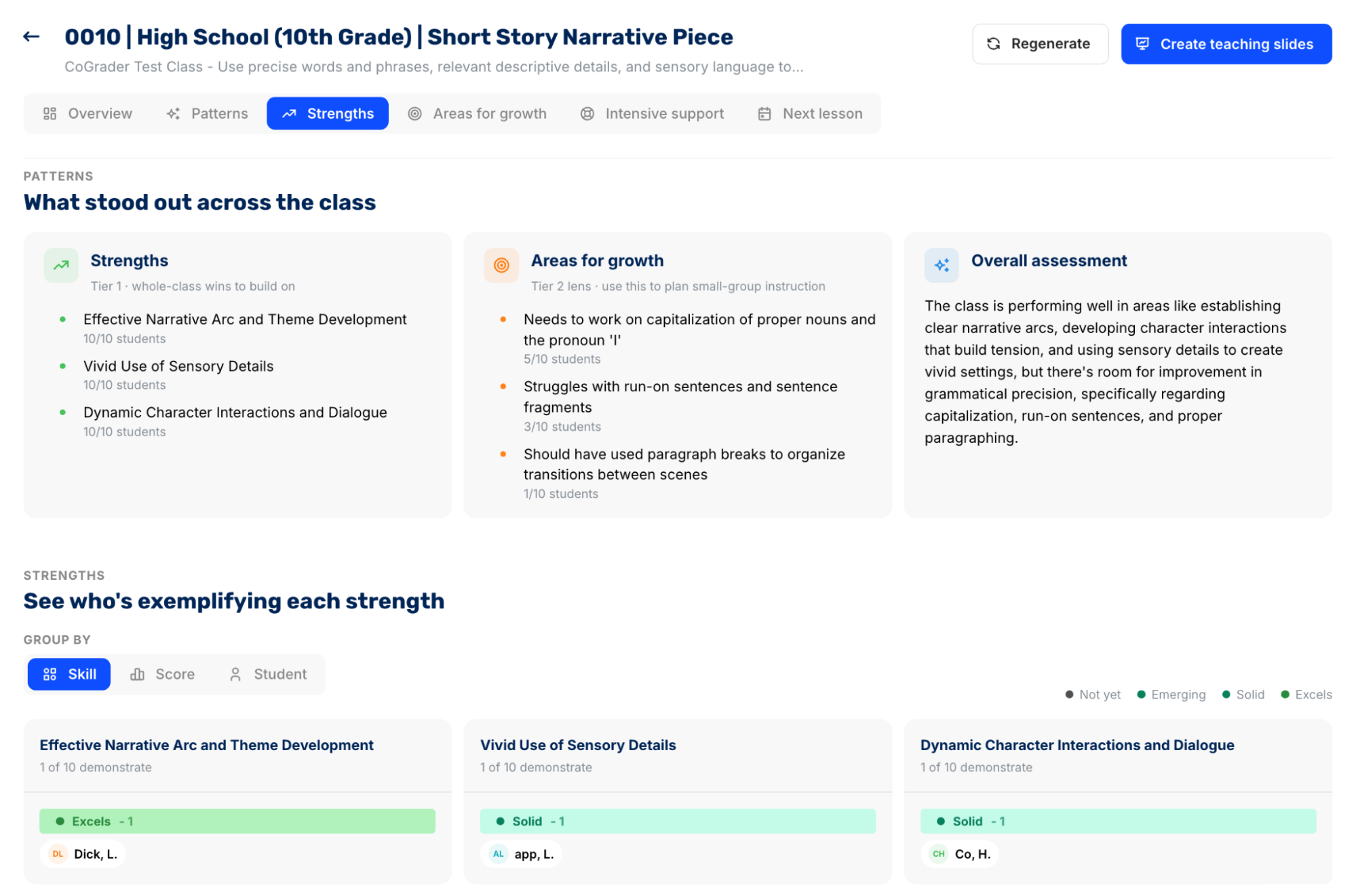
Teachers can use this data to decide what to reteach and to whom. You can also prompt CoGrader to build teaching slides, and it generates a ready-to-teach deck from your class results.
Detect AI writing or plagiarism with built-in academic integrity capabilities
Canvas has no native AI detection, so integrity checks usually force teachers to sign up for a separate tool to check writing. The same is true for grammar and plagiarism. CoGrader simplifies this by adding it right where you do your grading.
On the same screen as your grades and feedback, you can open a student’s Originality tab, and you’ll get a rating on a three-point scale, from Probably Human to Possibly AI-assisted to Possibly AI-generated, with a short explanation of what triggered it.
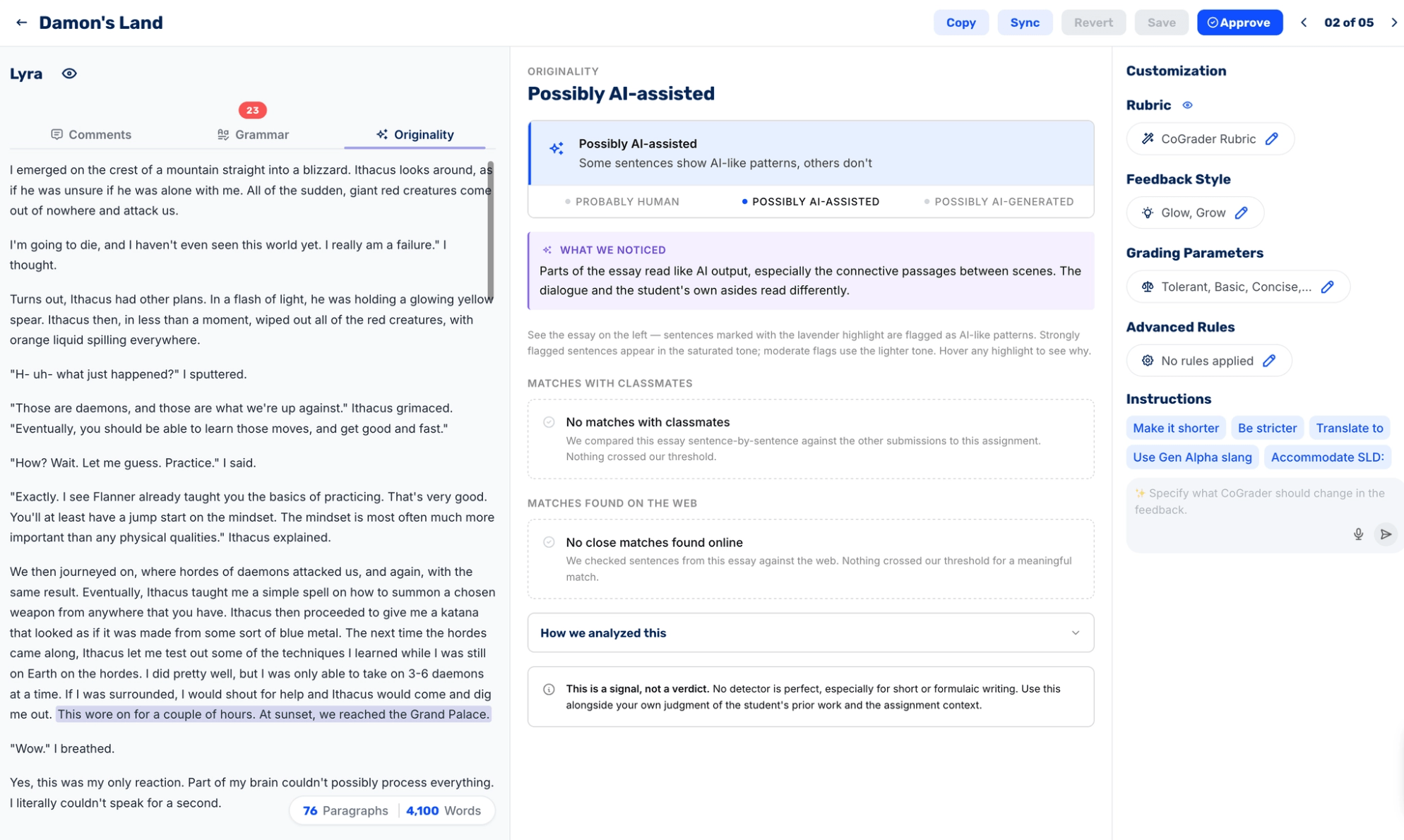
Each essay gets checked three ways:
- Suspected AI passages are highlighted in the text itself. Strongly flagged sentences get heavier shading and moderate ones get lighter shading, and you can hover over any of them to see why it was marked.
- Every submission is compared against the rest of the class. CoGrader checks the essay sentence by sentence against the other students’ work on the same assignment to catch shared or copied passages.
- The web is scanned for matches to outside sources. Any close overlap with published material gets surfaced so you can see where the wording came from.
It’s important to treat this as a signal only rather than a final verdict of cheating. This allows teachers and administrators to start a conversation with the student under your school’s policy about whether they used AI or plagiarized their writing.
Originality checking is included with the Schools & Districts plan, which is the same tier that unlocks the Canvas integration.
CoGrader pricing
Teachers can start on the free plan without a credit card. Our pricing tiers are listed below:
- Starter (Free): Grade 150 student submissions each month, including handwritten work, build rubrics, and get 90 days of premium access.
- Standard ($19/month, or $15/month billed annually): Grades up to 350 submissions per month and adds grammar checking, and the class performance dashboard.
- Schools & Districts (priced by size): Unlimited grading submissions and unlocks Canvas and Schoology integration, a shared rubric library, AI and plagiarism detection, and institution-wide analytics.
- Higher Ed & Enterprise (custom): Adds API access, custom LMS integrations, and a dedicated account manager on top of everything above.
Ready to stop grading Canvas essays one at a time? Sign up for a free account today or schedule a demo for Canvas access at your school.
2. TimelyGrader
TimelyGrader is an AI-assisted grading platform built for higher education. The platform keeps instructors in control of the grading process with written rationales attached to every AI-suggested score and a confirmation step before anything posts to the gradebook.
It supports various assignment types other than essays, including reports, end-of-term projects, presentations, and even spreadsheets. TimelyGrader can process batches of up to 600 submissions at once, which is most valuable for higher education instructors teaching large lecture sections.
Key features
- One-click Canvas course, roster, and submission sync with single sign-on
- AI grade suggestions with a written rationale for each score
- Rubrics that sync in both directions between Canvas and TimelyGrader
- Support for essays, reports, presentations, spreadsheets, and visual content
- Batch processing for up to 600 submissions at a time
How it connects to Canvas
TimelyGrader integrates with Canvas through an API connection with single sign-on, so you launch it directly from Canvas without separate credentials.
It pulls assignment descriptions and rubrics straight from Canvas, syncs student submissions automatically so students keep submitting exactly as they do now, and pushes confirmed grades and feedback back to the Canvas gradebook with no copying or pasting.
Pricing
TimelyGrader offers a free tier for instructors to test the platform, with paid plans starting around $12/month. Institutional pricing is quote-based with custom plans.
Best for
College and university instructors teaching large lecture sections will get the most out of TimelyGrader, especially anyone grading assignment types beyond essays.
The 600-submission batch capacity and the Canvas API connection are a strong fit for larger class sizes. K-12 teachers can use it, but the higher-ed focus means paying for capacity most classrooms won’t touch.
3. Gradescope
Gradescope is a Turnitin-owned assessment platform used in higher education for grading exams and problem sets. It scores assignments by grouping similar student answers together so you grade the group once and the score applies to everyone in it.
The platform performs best when grading handwritten exams, bubble sheets, and programming assignments, primarily because these assignments produce nearly identical answers from most students.
Key features
- AI-assisted answer grouping for short-answer and multiple-choice questions
- Support for scanned handwritten exams, bubble sheets, and code submissions with an autograder
- Dynamic rubrics that retroactively update every affected score when you change a point value
- Anonymous grading and multi-grader workflows for teaching teams
- Regrade requests handled inside the platform with a full audit trail
How it connects to Canvas
Gradescope connects through LTI 1.3, and at many institutions it’s already available without any setup on your part. You enable it in your course under Settings and then Navigation, launch it from the course menu, and link your Canvas course from Gradescope’s settings.
Once linked, your class roster syncs automatically and grades post back to the Canvas gradebook when you publish them. If Gradescope doesn’t appear in your course navigation, your Canvas admin has to install it first.
Pricing
A limited free tier is available for individual instructors. Full features require a paid course or institutional license, typically quoted per student per year.
Best for
University STEM departments and any program grading exams with a high number of students will feel that Gradescope is the best fit for them. It can handle handwritten problem sets and code better than most AI grading tools.
If you’re grading more writing, the answer-grouping model won’t perform as well. That’s where a dedicated AI essay grader will serve you better.
4. Crowdmark
Crowdmark is a collaborative grading platform for higher education, built to keep a team of instructors and TAs consistent while they grade the same exam.
Student work is organized question by question instead of paper by paper, so one grader can mark question 3 for the entire course while another handles question 4. The platform’s automation covers auto-graded multiple-choice bubble sheets with item analytics, not AI-suggested scores for written work.
Key features
- Team-based grading organized question by question across multiple graders
- Support for both scanned paper exams and digital submissions
- Auto-graded multiple-choice bubble sheets with difficulty and distractor analytics
- Comments, annotations, and points placed directly on student responses
- Markdown and LaTeX support for feedback on math and science work
How it connects to Canvas
Crowdmark integrates with Canvas at the institution level. You sign in with your Canvas credentials through your school’s sign-in page on Crowdmark, or launch it from inside Canvas, then connect your courses and create assessments within them.
The integration syncs your student roster and grading team from Canvas and exports finished grades back to the Canvas gradebook. Your institution needs a Crowdmark license before any of this appears as an option.
Pricing
Crowdmark uses custom institutional pricing, with a free trial available. No public pricing is available for teachers to compare.
Best for
Large university courses grading paper-based exams with teams of TAs will find Crowdmark useful. Since it can integrate well at the institution level, adopting the tool is relatively easy.
However, if you’re a single teacher grading essays, there are other tools on this list that will likely be a better fit for your classroom.
5. GradeWithAI
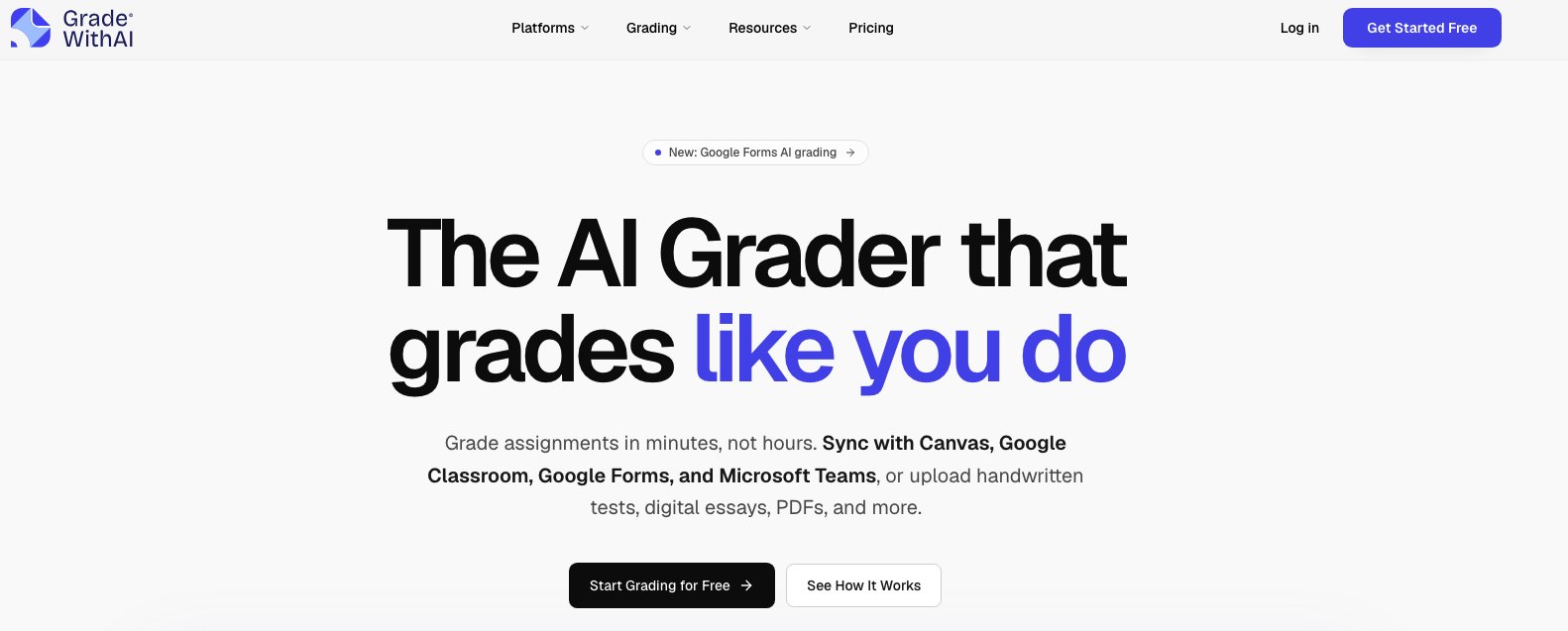
GradeWithAI is an AI grading assistant that pulls assignments from multiple platforms into one grading queue. Alongside Canvas, it connects to Google Classroom, Google Forms, and Microsoft Teams, helping teachers in schools that run more than one system or who teach across buildings with different setups.
Its reasoning-based grading follows a student’s thought process rather than checking answers against a fixed key, so math teachers can award partial credit for sound work with a wrong final answer. Each grade also arrives with an AI-detection score from 0 to 100%.
Key features
- One grading queue pulling from Canvas, Google Classroom, Google Forms, and Microsoft Teams
- Reasoning-based grading that follows a student’s thought process, not just a fixed answer key
- Reads Google Docs, Slides, PDFs, images, and handwritten photos
- AI-detection score from 0 to 100% shown with each grade
- Targeted regrades and student resubmission support
How it connects to Canvas
You connect your Canvas account from inside GradeWithAI, and your Canvas assignments are brought into the same grading queue as everything else.
Submissions import for grading, and results return to Canvas without manual file handling. Because the connection happens at the account level, an individual teacher can set it up without involving IT.
Pricing
GradeWithAI offers a free plan with 25 AI grading requests per month. Paid plans start at $20 per month, and school plans require a custom quote depending on class size and feature requirements.
Best for
Teachers who grade across multiple platforms and want everything in one queue. GradeWithAI does a great job of centralizing all of your grading requirements, and it’s easy to connect to Canvas LMS.
However, the limited free plan of only 25 requests can be a problem for teachers. If you want a tool with a more generous free plan, there are better choices that will help you grade your entire class set before upgrading to a premium plan.
6. EnlightenAI
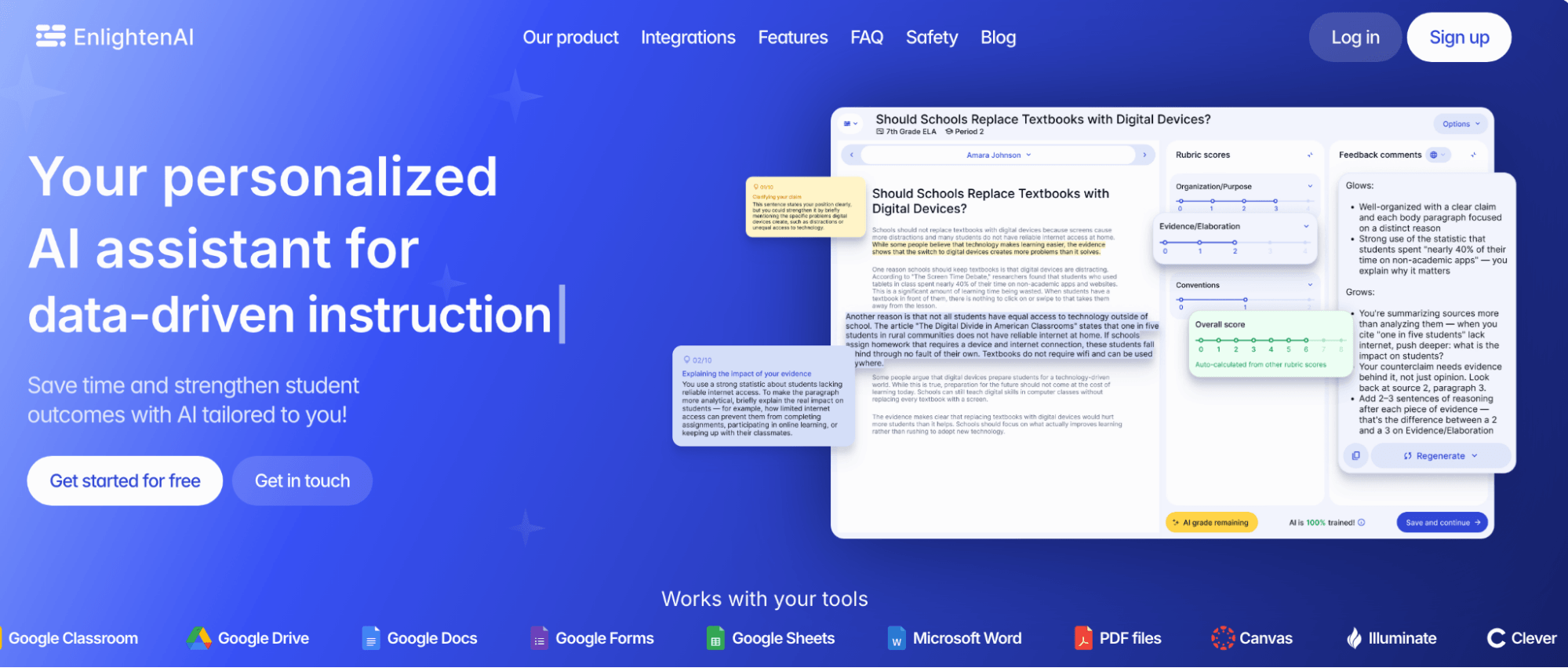
EnlightenAI is an AI grading assistant for K-12 teachers that learns your grading style over time. Teachers hand-grade a few submissions first, and the AI models its scores and feedback on how you mark, what you emphasize, and how you phrase comments.
This approach is a bit different compared to other AI grading tools. It offers additional personalization, and the feedback students receive sounds as if it came from their teacher rather than from a generic AI tool.
Key features
- AI model that trains on graded samples to match your scoring style and feedback voice
- Advanced rubric creation with templates
- Autograde mode that drafts scores and comments
- Feedback delivery in English or Spanish
- Class trends and student reporting
- Resource generation to automatically build custom practice materials
How it connects to Canvas
EnlightenAI can sync your Canvas rosters and coursework, but a teacher can’t set this up alone. Your IT department has to enter two connection codes on the Canvas side to activate the integration. EnlightenAI provides an approval packet to send them, and the company states that the whole setup takes a few minutes.
If IT hasn’t done this yet, you can still grade Canvas assignments by manually downloading the submissions from Canvas, then uploading the files or pasting the text into EnlightenAI. You lose the automatic import and the roster sync, but grading itself works the same.
Pricing
EnlightenAI offers a free tier for teachers with a limited number of graded submissions per month. An unlimited school & district plan is also available with custom pricing on request.
Best for
Upper elementary, middle school, and high school teachers will all find this tool helpful in the classroom. It’s one of the better choices if you’ve already tried AI grading but struggled with personalizing feedback. But the downside is that the setup can be a little more complicated than other tools on this list.
Start grading Canvas LMS assignments faster with CoGrader
Canvas has improved its platform with IgniteAI to add AI grading, but the built-in grading only goes so far. Your admin controls whether it exists, and even with everything enabled, you’re still working through SpeedGrader one student at a time.
A dedicated AI grading tool removes those constraints. For teachers grading essays and written work, CoGrader is the strongest fit because it imports straight from Canvas and scores the entire class against your rubric in one pass. With it, you can:
- Score a full class set in minutes, with feedback tied to specific passages in each student’s writing
- Install a free Chrome extension and apply grades directly in your Canvas fields
- Grade against the rubric you already use, whether that’s a state framework, an AP scoring guide, or a PDF from your district
- Spot which criteria the class struggled with through automatic performance analytics
- Run AI and plagiarism checks in the same place you grade
Sign up for CoGrader for free or request a custom quote to get started.