


Canvas LMS Integrations for Teachers
Canvas integrations are third-party tools that connect to Canvas (by Instructure) so you can teach, assess, and grade without leaving your LMS.
If you teach with Canvas, you have probably only touched the few integrations your district turned on, and you are still spending evenings on the one task none of them handle: grading writing. There are hundreds of tools in the Canvas ecosystem, and the wrong ones waste time without touching the one that costs you the most hours.
In this guide, we will cover the main Canvas integrations and go deep on the one that gives you the most time back. We will start with CoGrader, then move through video, lecture recording, and engagement tools more briefly.
The best Canvas integrations for teachers
These are the integrations teachers reach for most, by category.
| Tool | Category | What it does in Canvas | Free option |
|---|---|---|---|
| CoGrader | AI grading and feedback | Imports submissions, grades them against your rubric, and pushes scores and comments back to your LMS | Yes, up to 100 essays/mo |
| Zoom / Google Meet | Video conferencing | Schedule and launch live classes from inside a course | Yes |
| Panopto / Kaltura | Lecture recording | Record, store, and embed video lessons in course pages | Limited, usually institutional |
| Poll Everywhere / Nearpod | Engagement | Run live polls, quizzes, and interactive lessons | Yes, limited |
Video and engagement tools make a class run more smoothly, but they do not touch the task that eats the most teacher time: grading writing, where a single class set of essays can swallow an evening or a weekend. That is the gap where the right integration gives you back real hours, so it is where this guide goes deep.
CoGrader: AI grading and feedback for Canvas
Many teachers use Canvas as an LMS to manage student essays and grading. Canvas collects essays and stores them, but it does not read student writing or write feedback, so a class set of essays still becomes hours of your evening.
CoGrader is an AI essay grader built for teachers who assign the most writing. More than 100,000 teachers across 16,000+ schools use it to grade written work up to 80% faster, and still give every student detailed feedback on their writing.
It connects to Canvas through a free Chrome extension. Once it is installed, CoGrader shows up right inside your Canvas assignments. You import a whole class of submissions in one click, grade them against your rubric, review the feedback, and push scores back to your LMS.
Feedback students can act on
Most grading tools return a score and a summary paragraph at the top of the essay. Students rarely know what to do with it, because the comment is not tied to anything they wrote.
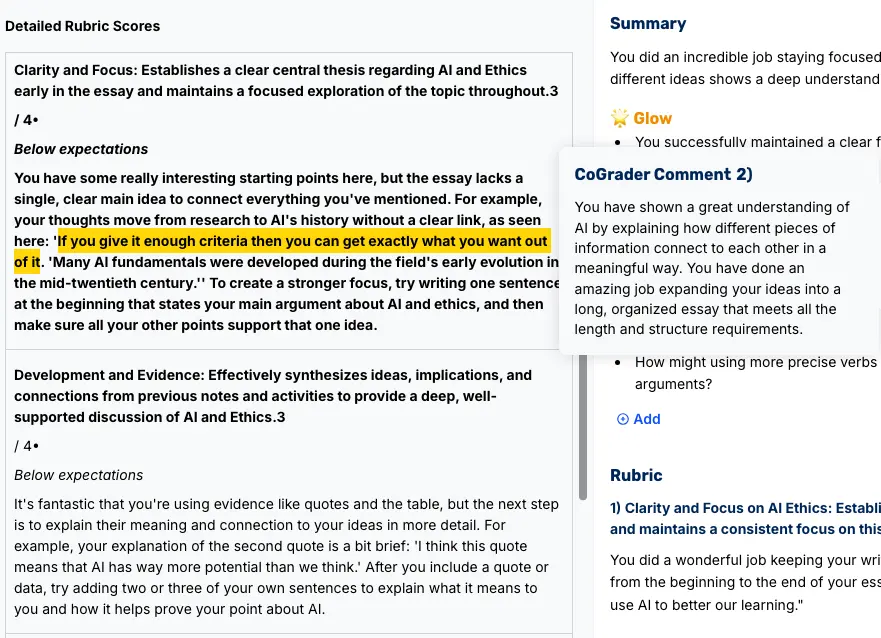
CoGrader anchors feedback to specific, highlighted passages in the student’s own writing. So instead of “your argument lacks development,” a student sees that note attached to the exact paragraph where the reasoning fell apart, with a concrete next step.
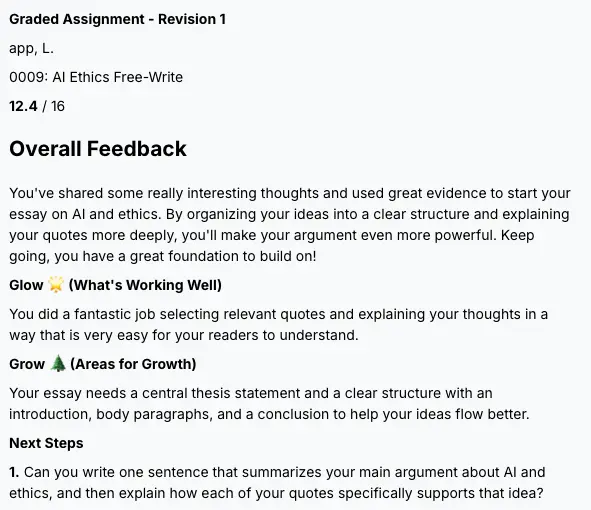
You also choose the feedback format so it matches how your classroom already runs. CoGrader supports eight, including Glow and Grow, Two Stars and a Wish, Rose/Bud/Thorn, WWW/EBI, TAG, 3-2-1, and PQP. If your department already speaks in Glow and Grow, students get feedback in that exact structure.
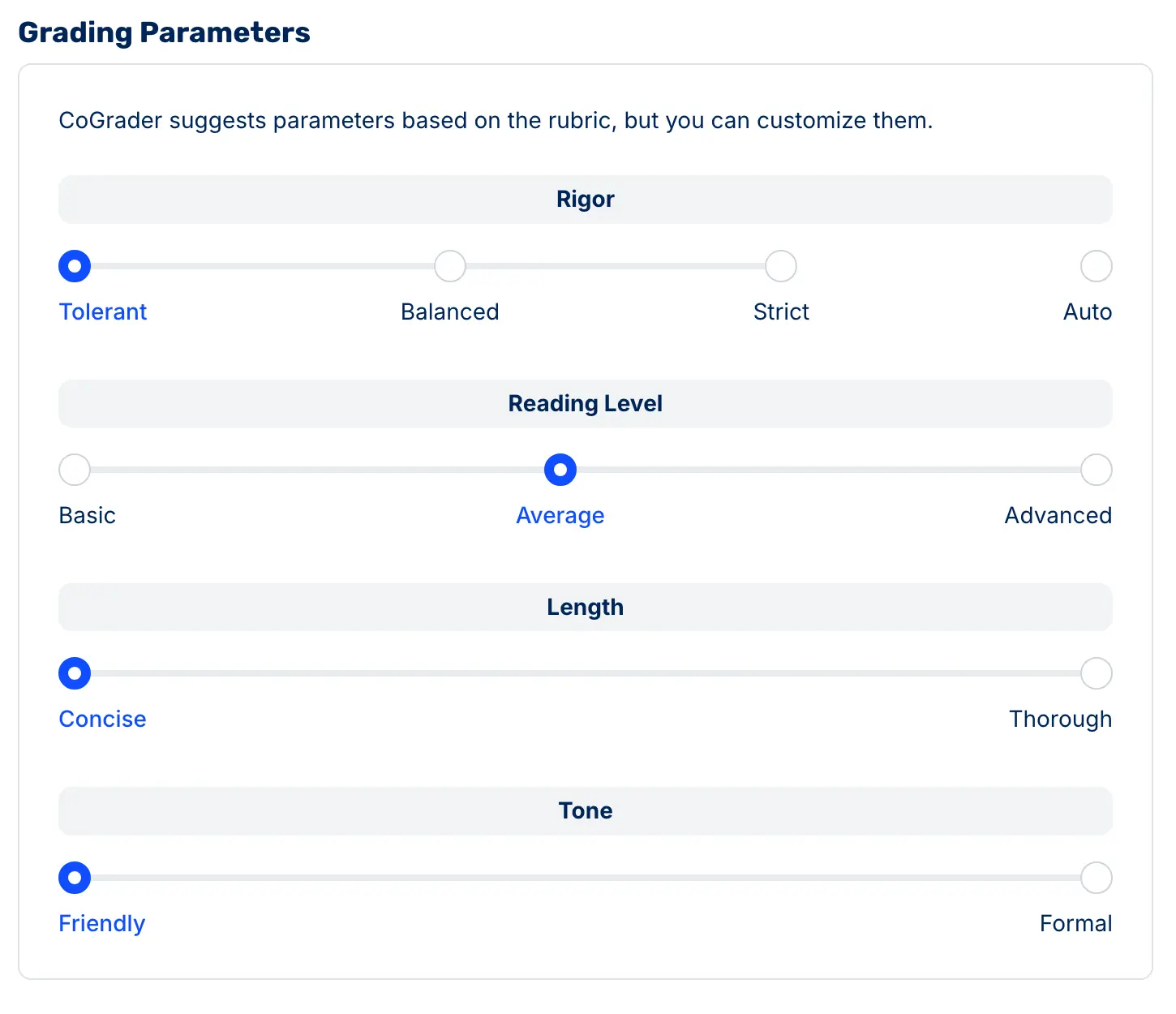
Before grading, you can also set the rigor, reading level, feedback length, and tone, so a 7th-grade reflective journal and a timed AP argument essay come back graded and worded differently. And the teacher stays in control: there is no bulk approve button. Essays have to be opened, reviewed, and approved before a single grade goes back to a student.
Bring any rubric you already use
CoGrader grades against your rubric, not a generic model of good writing. There are four ways to get one in:
- Upload your own as a PDF or document.
- Pick from the built-in library, which covers all 50 state standards plus AP, IB, and Cambridge. If you teach STAAR in Texas, NY Regents, or AP Lang rhetorical analysis, your scoring guide is already there.
- Paste in a standard and CoGrader turns it into a working rubric with criteria and score bands.
- Generate one from a plain-English prompt like “6th-grade argumentative essay focused on supporting a claim with evidence.”
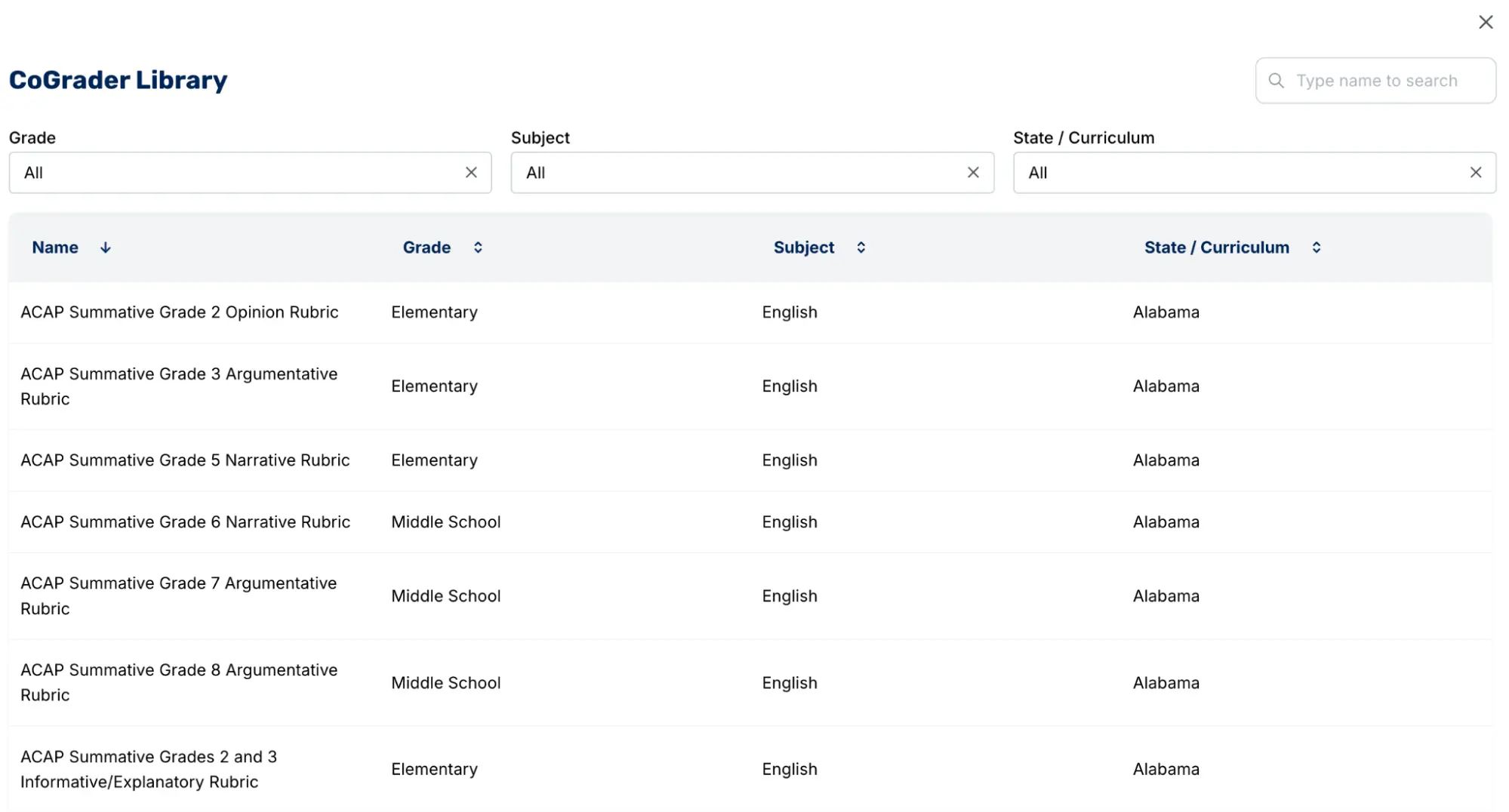
If you realize mid-grading that the rubric is wrong, swap it and CoGrader rescores the whole batch. For deeper rubric setup, see our guide to standards-based grading.
See where your whole class stands
Canvas can tell you a student’s score. But it cannot tell you how many students are struggling. CoGrader can.
After every batch, CoGrader generates a class performance snapshot mapped to each rubric criterion: which skills the class hit, which they missed, and how many students sit at each performance level. That turns a stack of grades into a decision about what to reteach next.
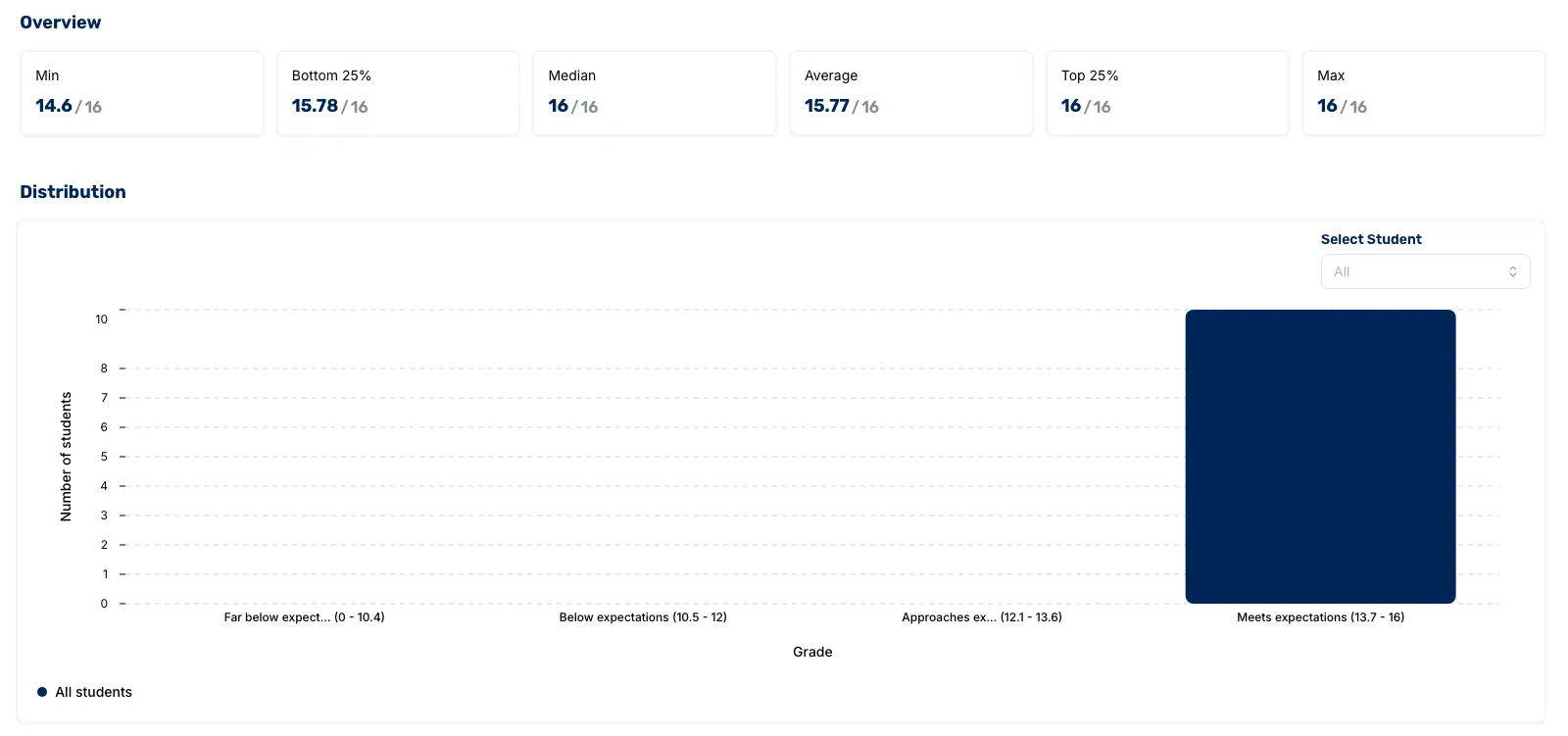
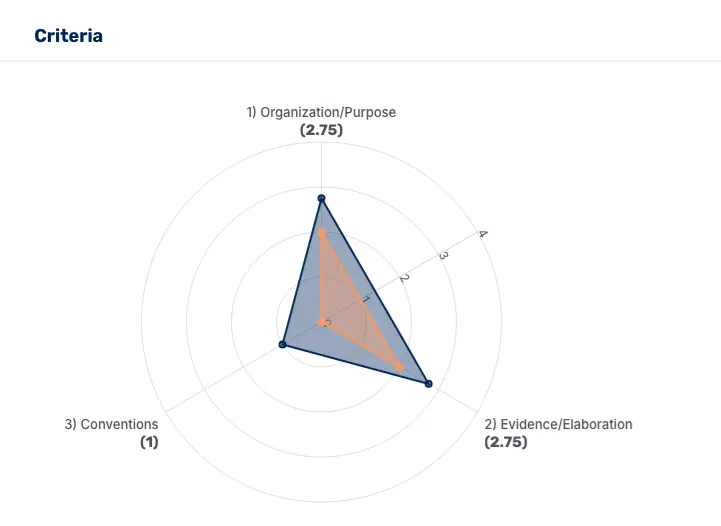
You can drill in further with a per-criterion radar, score distributions across performance bands, and a student view that shows exactly where an individual is strongest and weakest.
Built-in plagiarism and AI-writing detection
Because AI-written submissions are now common, CoGrader flags possible plagiarism and AI-generated writing inside the same workflow. You do not have to run essays through a separate tool before you grade them, which is one less thing to check manually.
How to add AI essay grading to Canvas (step by step)
Step 1: Install the CoGrader Chrome extension
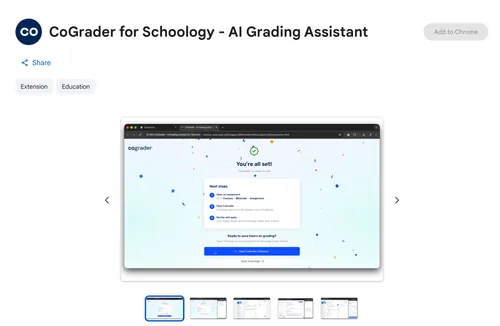
Add the CoGrader for Canvas extension from the Chrome Web Store, then sign in to your CoGrader account.
Step 2: Connect your Canvas account
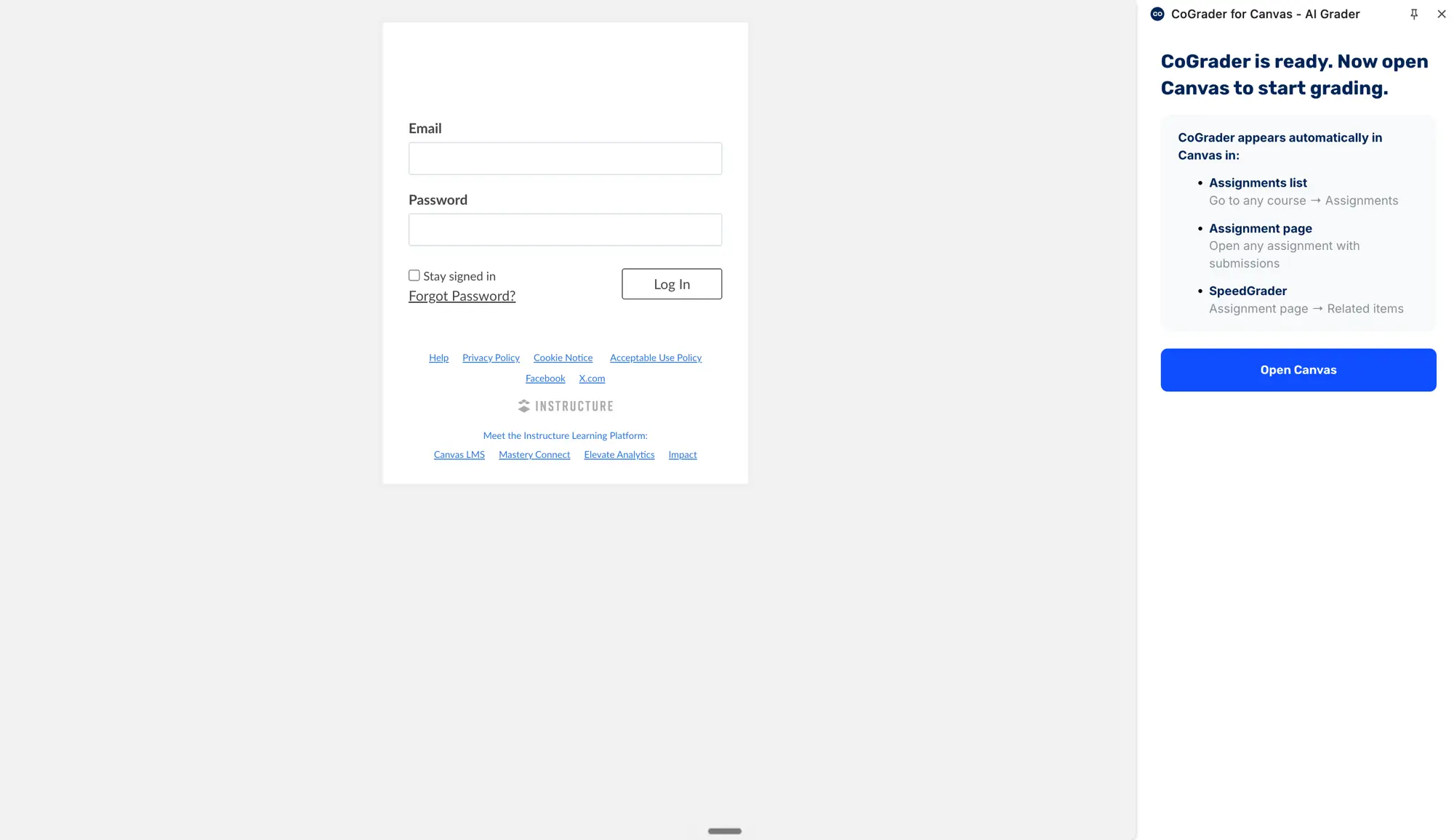
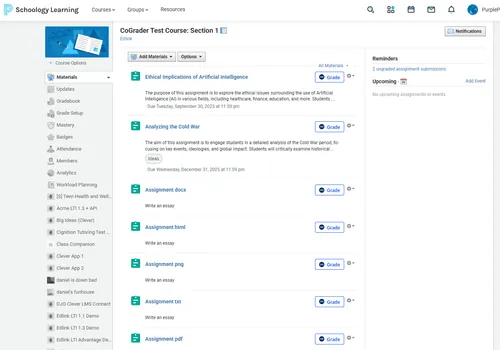
After you install the extension and sign in, open Canvas. CoGrader connects to your account automatically and appears in three places: your Assignments list, any assignment page with submissions, and SpeedGrader. There is no access token to generate or paste (more on why that matters below).
Step 3: Import submissions with one click
Open the assignment you want to grade in Canvas and import every student submission into CoGrader in one click. No downloading files, no copy and paste.
Step 4: Pick a rubric and generate feedback
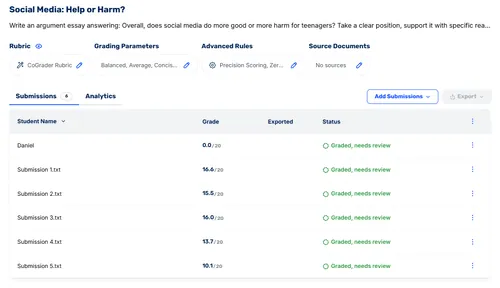
Choose the rubric you want to grade against. CoGrader scores each submission, writes detailed rubric-aligned feedback, and flags possible plagiarism and AI-generated writing.
Step 5: Push scores and comments back to Canvas
Review the results and adjust any score or comment you want. When everything looks right, send scores and comments back to your LMS with one click. Students see their feedback in Canvas, right where they already check grades.
Ready to try it? Install CoGrader for Canvas and grade your next class set without leaving Canvas.
Other popular Canvas integrations
Grading is the gap CoGrader fills, but a full Canvas setup usually includes a few other tools. These are the ones teachers reach for most.
Zoom and Google Meet: video conferencing
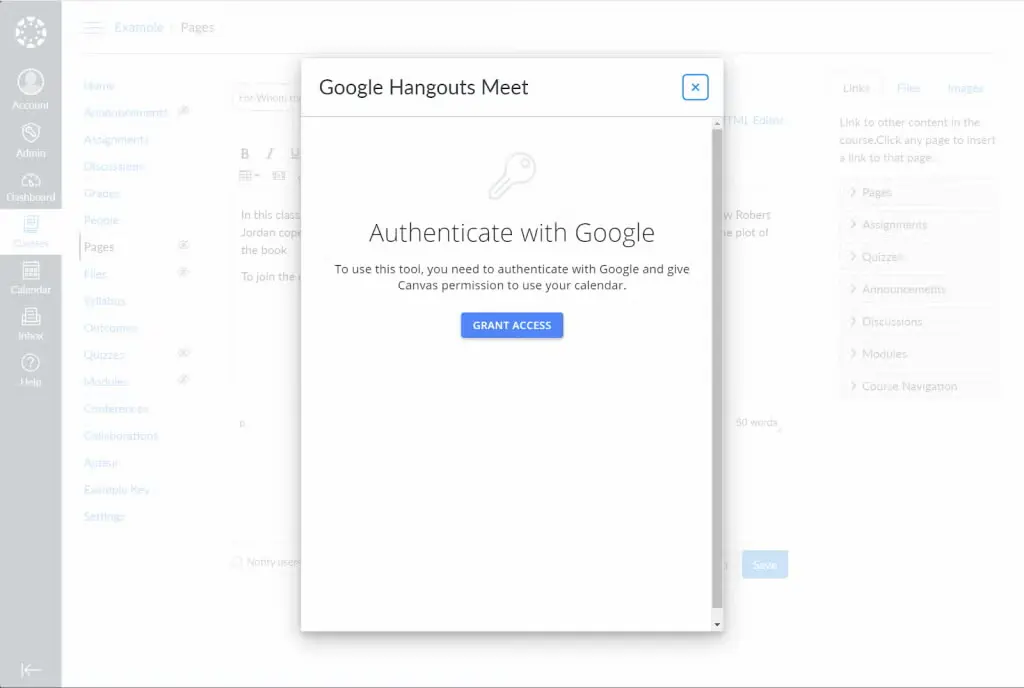
Zoom and Google Meet are the most common Canvas video integrations, and for many teachers they were the first one their school turned on. Once an admin enables the integration, a Zoom or Meet tab appears in the course, so you can schedule recurring class sessions, start a meeting, and share the link without emailing it around or posting it in an announcement.
It also keeps your live class in the same place as everything else. Students join from the course, recordings can post back automatically, and you are not juggling a separate calendar. For most K-12 and higher-ed teachers running live or hybrid classes, this is the integration teachers use every day.
Panopto and Kaltura: lecture recording
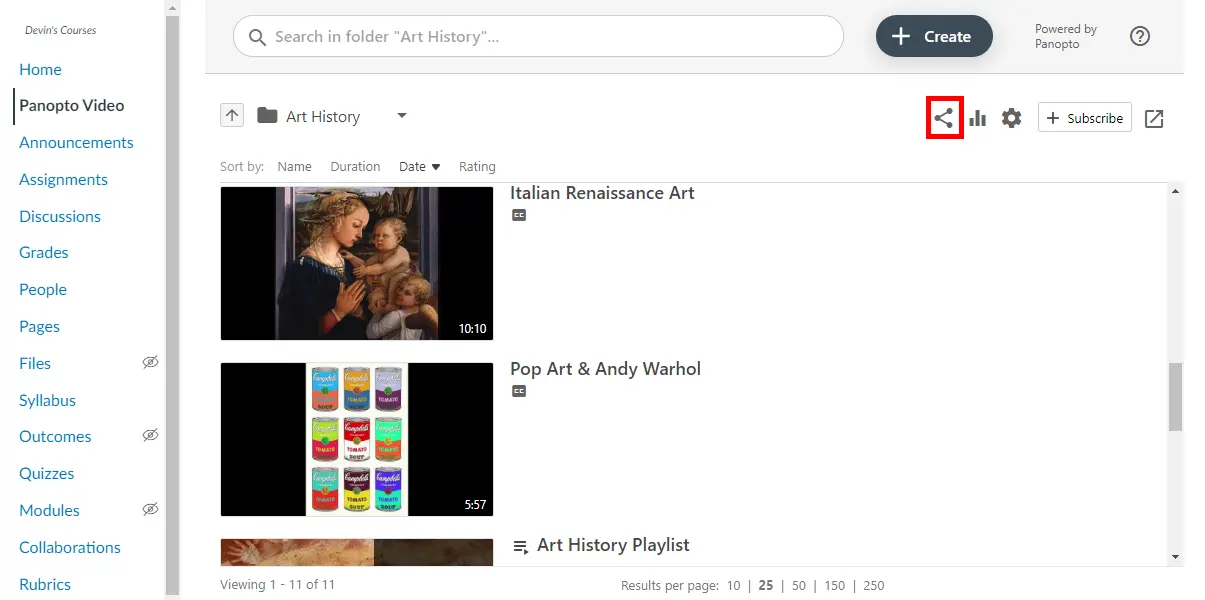
Panopto and Kaltura are video platforms built for capturing and managing lessons, and they are most common at the college and university level where lecture capture is standard. They let you record a lecture, store it in a searchable library, and embed it directly in a Canvas page or assignment.
What sets them apart from just dropping a YouTube link is the classroom layer: in-video quizzing, viewing analytics that show how far students watched, and captions for accessibility. If you flip your classroom or post recordings for students who miss class, a dedicated lecture-recording integration keeps that video tied to the right course instead of scattered across your drive.
Poll Everywhere and Nearpod: engagement
Poll Everywhere and Nearpod add live polls, quizzes, and interactive slides to a lesson, which is how teachers keep a synchronous class active instead of one-directional. Launched through Canvas, they can pull your roster automatically and send participation or quiz results back so you are not retyping scores.
These are the tools teachers use to check for understanding in the moment: a quick poll to see who followed the lesson, a competitive quiz to review before a test, or an interactive slide deck students click through at their own pace. Because the results sync to Canvas, those scores land in your LMS instead of a separate app.
What to look for in a Canvas grading integration
Not every tool that connects to Canvas is built for daily classroom grading. Before you commit to one, run it through these questions.
Does it connect to Canvas the right way?
Watch how a tool connects. Some grading tools ask you to generate a personal Canvas API access token and paste it in. Instructure’s own API policy does not allow that for apps used by more than one person, because an access token is password-equivalent: it hands a third party broad access to FERPA-protected course data like rosters, discussion posts, and grades.
CoGrader does not work that way. You authorize the connection through the extension instead of pasting a token, scores still flow back to your LMS automatically, and your district can review the integration before a school-wide rollout.
Does it keep teachers in control?
A grading tool should support your judgment, not replace it. Confirm that you review and approve every score and comment before anything reaches a student. A tool that returns feedback to students with no review step removes the most important part of the process.
Does it protect student data?
Most districts require a tool to be FERPA compliant before it can be used with students. Check how student data is stored, whether it is used to train AI models, and whether the tool is SOC 2 certified and COPPA compliant. If a tool is vague about its data practices, treat it as not district-approved until you confirm otherwise.
Frequently asked questions
Does CoGrader replace Canvas?
No. Canvas stays your course hub for assignments, submissions, and grades. CoGrader adds AI rubric-aligned grading and feedback on top, then sends scores back into Canvas. Most teachers use both together.
Is the Canvas integration free?
Individual teachers can use CoGrader free for up to 100 essays per month with the Chrome extension. Account-level Canvas integration for a whole school or district is available on school and district plans.
Do I need my admin or IT department to set it up?
Not for the Chrome extension. Any teacher can install it and connect their own Canvas account in a couple of minutes, with no IT ticket. Account-level Canvas integration for an entire school or district is set up with your admin on a school or district plan.
Is student data secure?
Yes. Student submission text goes to CoGrader’s grading engine and scores return through the Canvas API, with anonymized identifiers used to match work to students rather than student personal information. CoGrader is SOC 2 Type 1 certified, FERPA compliant, and COPPA compliant, follows the NIST 1.1 framework, and stores and processes data in the United States. You can read the specifics on our data residency and compliance page. If you are rolling it out school-wide, your district will likely want to review it first.
What is the difference between an LTI integration and a Chrome extension?
An LTI integration is embedded inside Canvas itself and is usually enabled by a Canvas administrator for everyone. A Chrome extension runs in your browser and is installed by the individual teacher, so you can start without waiting on IT.
Which other learning management systems does CoGrader work with?
CoGrader provides full integration with Google Classroom for all users and works with Schoology and Brightspace as well. For other platforms like Blackboard or Moodle, you can import and export files directly. If you use DMAC in Texas, see our DMAC and CoGrader guide.
Add AI grading to your Canvas workflow
Canvas is built to deliver assignments and hold grades, not to read writing or coach it.
Install CoGrader for Canvas and grade your next class set without leaving Canvas. It is free for up to 100 essays a month, no credit card required. Running it across a school or district? Request a quote for full, account-level Canvas integration.