


Google Classroom can distribute assignments, collect them, and now even draft feedback with Gemini. But many teachers who use it quickly learn that it can’t automatically read and score essays against a rubric well.
That forces teachers to do the slowest parts of grading manually. They still need to open each paper, work through every criterion, and enter the grade by hand, one student at a time. For a teacher with multiple classes of 20-30 students, that adds up to anywhere between 9-15 hours of grading every week.
The alternative is to connect a dedicated AI grading tool to Classroom to access more advanced features:
- Rubric-based scoring: The tool grades each essay against your exact criteria, so scores stay consistent from the first paper to the last.
- Full-class batch grading: Score an entire class in one pass instead of opening and grading one student at a time.
- Feedback that syncs to your gradebook: Grades and comments export straight back into Classroom without any manual reentry or copy-paste steps.
In this guide, we’ll take a closer look at what Google Classroom offers, a few reasons why teachers should consider an AI-powered grading tool, and the five best tools that integrate with the popular LMS.
Note: This guide is updated for the 2026-2027 school year, including Google Classroom’s newest Gemini features and current pricing for every tool.
Does Google Classroom Have Built-In AI Grading?
Google Classroom does have some built-in AI grading features through Gemini, but teachers can only use them to leave feedback for students. It’s unable to grade student work and produce rubric-aligned scores that can go into your gradebooks.
This is known as AI-suggested feedback, which Google launched in February 2026. When you open a written assignment and start a private comment, you can click “Help me write” and Gemini drafts feedback based on the student’s work, their grade level, and any focus areas you choose, like grammar or argument strength.
From there, you review and edit it before it reaches the student. It writes the first draft of your comments, but it won’t read the assignment and hand back a score.
There are a few limits to Google’s built-in grading tool worth knowing:
- It drafts prose, but it won’t provide grades. You get suggested comment text, rather than a number, letter, or rubric-evaluated score.
- It works for one student at a time. There is no way to point it at a full class set and grade everything at once.
- It is not free for everyone. The broader Gemini in Classroom suite is free with a Workspace for Education account, but this feedback feature requires Education Plus or the Teaching and Learning add-on, which your IT admin controls.
Google Classroom can also auto-grade Google Forms quizzes. It’s able to score multiple-choice and other fixed-answer questions automatically to speed up the process for teachers.
So if you assign a lot of writing, you can rely on Classroom to draft your comments. But they tend to be generic because it has no built-in way to grade essays against a rubric, score a whole class at once, and push those grades back to your gradebook.
4 Reasons Google Classroom Teachers Need a Dedicated AI Grading Tool
Classroom’s built-in tools cover the basics of grading and assignment management, and with Gemini, a first draft of your feedback. For some teachers, that’s not enough, which is why many pair Classroom with a dedicated AI grading tool. These are the main reasons they add one to their teaching workflow.
Scoring Aligned With Your School’s Rubrics and Standards
Classroom’s rubric tool is relatively easy for most teachers to use. You can:
- Build a rubric with multiple criteria
- Set performance levels and point values for each one
- Tag learning standards to individual criteria so the assignment maps to specific skills
- Reuse rubrics across assignments and export them to share with other teachers
So the setup is useful, but grading is where it falls apart for most Classroom users.
For every student, you read the essay and click the performance level that fits under each criterion manually. Gemini will draft your comment text, but it never reads the rubric or assigns a score.
If you do that for an entire class set of assignments, you’ll spend much more time grading every paper individually.
A dedicated AI grading tool reads each essay against your rubric and scores it for you, criterion by criterion. It works with:
- Custom rubrics you build for your own assignments
- AP formats like DBQs and LEQs
- State-aligned standards such as STAAR/TEKS and CAASPP
You still review every grade and make any necessary adjustments to scores before they’re returned to students.
Batch Grading Capabilities That Let Teachers Score Full Class Sets at Once
Google Classroom does offer some bulk grading tools. The “grade all” feature lets you apply a single grade to every student on an assignment at once, which works for completion-based tasks like exit tickets.
But that’s not possible when you’re grading more complex assignments like essays. If you try to use Gemini’s feedback for this, you’ll quickly notice it only works for one student at a time. So any work that needs more detailed evaluation still requires you to open each assignment and score it manually yourself.
With a specialized AI essay grading tool, you can import the whole class set and read every essay against your rubric in one pass. Each student gets:
- Their own score, not a blanket grade applied to the group
- Their own feedback, tied to what they actually wrote
You can also review the full batch of graded essays before anything gets approved. The best tools keep teachers in the grading and feedback loop so you’ll still have full control over everything.
Grades That Sync Straight Back to Your Gradebook
Classroom has a gradebook, and on the right license it can sync grades to your SIS, including PowerSchool, Infinite Campus, Skyward, and Follett Aspen.
What it won’t do is generate the grades for you. If you score essays anywhere outside Classroom, on paper, in a doc, or in another app, you’ll have to re-type everything into the gradebook by hand.
This is something that many AI grading tools address. Teachers often find tools that integrate with Google Classroom so they can grade essays faster, then push scores and feedback back into the Google Classroom gradebook in one click.
Class Analytics That Can Show Where the Whole Class is Struggling and Performing Well
Classroom’s analytics are better than they used to be. The Analytics tab shows assignment completion and average grades, as well as engagement signals, like who hasn’t opened an assignment yet.
It also lets you tag your rubric criteria with learning standards so you can view analytics that visualize performance and identify instructional gaps across the class or by specific learning area.
But this is only useful after you’ve already finished manual grading. To see where the class is weak by criterion, you first have to tag standards on each assignment and hand-score every criterion for every student.
A dedicated AI grading tool produces that criterion-level data automatically as it grades. The breakdown of which skills the class nailed and which ones it missed is easier to identify with no separate tagging or manual scoring required.
The 5 Best AI Grading Tools for Google Classroom
Each of the tools mentioned below connects to Google Classroom and adds the grading Classroom can’t do on its own. They differ in what they grade best, from essays to handwritten math and exams.
The right pick depends on what you assign most in your classroom. We start with our own essay grading tool, CoGrader, then cover four strong alternatives and who each one fits.
1. CoGrader
CoGrader is an AI grading tool built specifically for essays and other written work, used by teachers at more than 1,000 schools. It connects to Google Classroom to import a full class, scores every essay against your rubric, and drafts personalized feedback you review before anything reaches students.
Grading essays is what our software is designed to do, all while staying connected to Google Classroom, so you never need to upload documents or export grades manually. From that same integration, the platform includes tools for AI detection, plagiarism screening, lesson planning, rubric building, and class-wide analytics.
“It integrates with Google Classroom, along with other commonly used classroom programs. When I use a Google Form, CoGrader works to upload and grade each assignment. … If you’re using a program that integrates with CoGrader, exporting graded work and feedback is as simple as clicking a button.” — Angela R., Middle School Teacher
Below, we break down how CoGrader grades and returns feedback inside Google Classroom, walking through the process step by step, from importing a class to rubric setup, analytics, and pricing.
Connect Google Classroom to CoGrader and Import Your Assignments
CoGrader connects directly to Google Classroom, so you can manage grading inside one system that matches how you run your classes. After you link your account, it syncs your roster and pulls in every submission in real time.
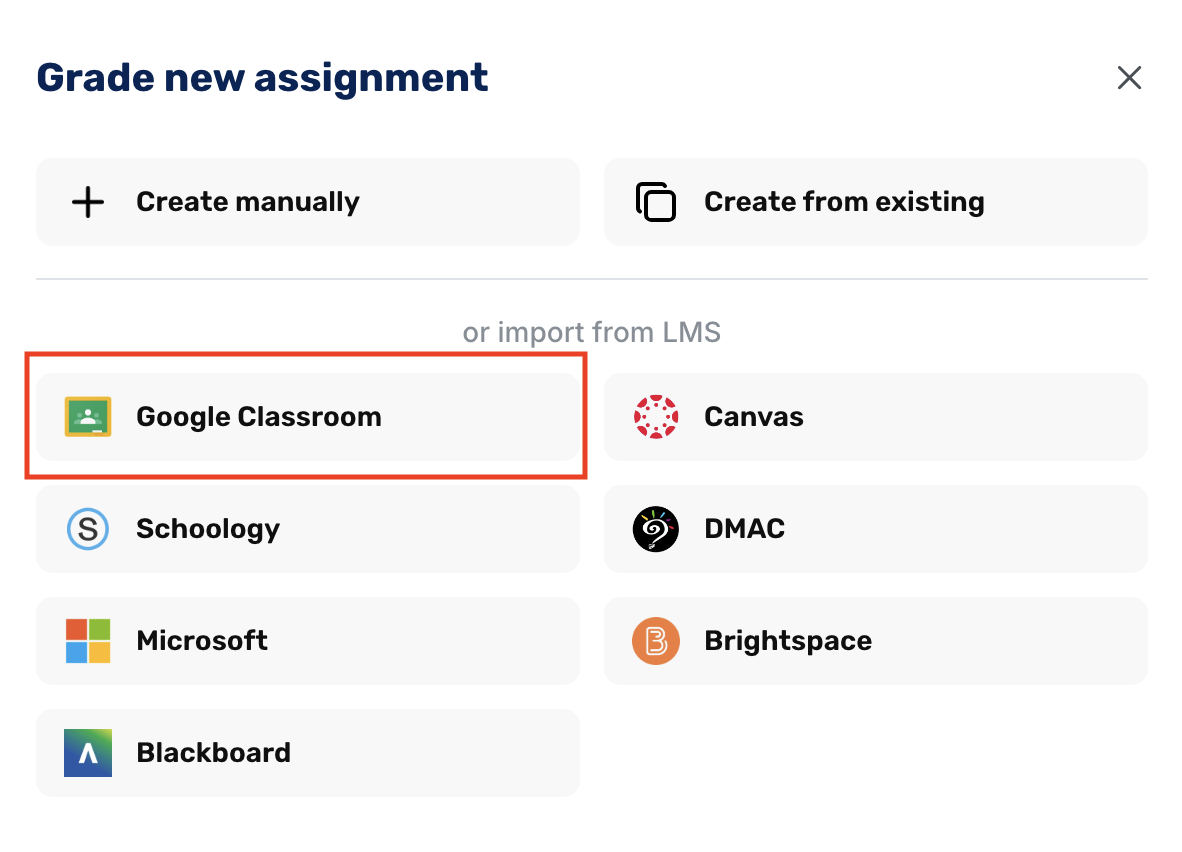
From your dashboard, choose what you’re grading: essays for written work or quizzes for multiple choice and short answer. Select Import from LMS, connect Google Classroom, and pick the class and assignment. CoGrader lets you:
- Choose the grade level, from elementary through higher ed
- Select the assignment and confirm details
- Add any source documents students worked from, including sources, articles, or historical docs
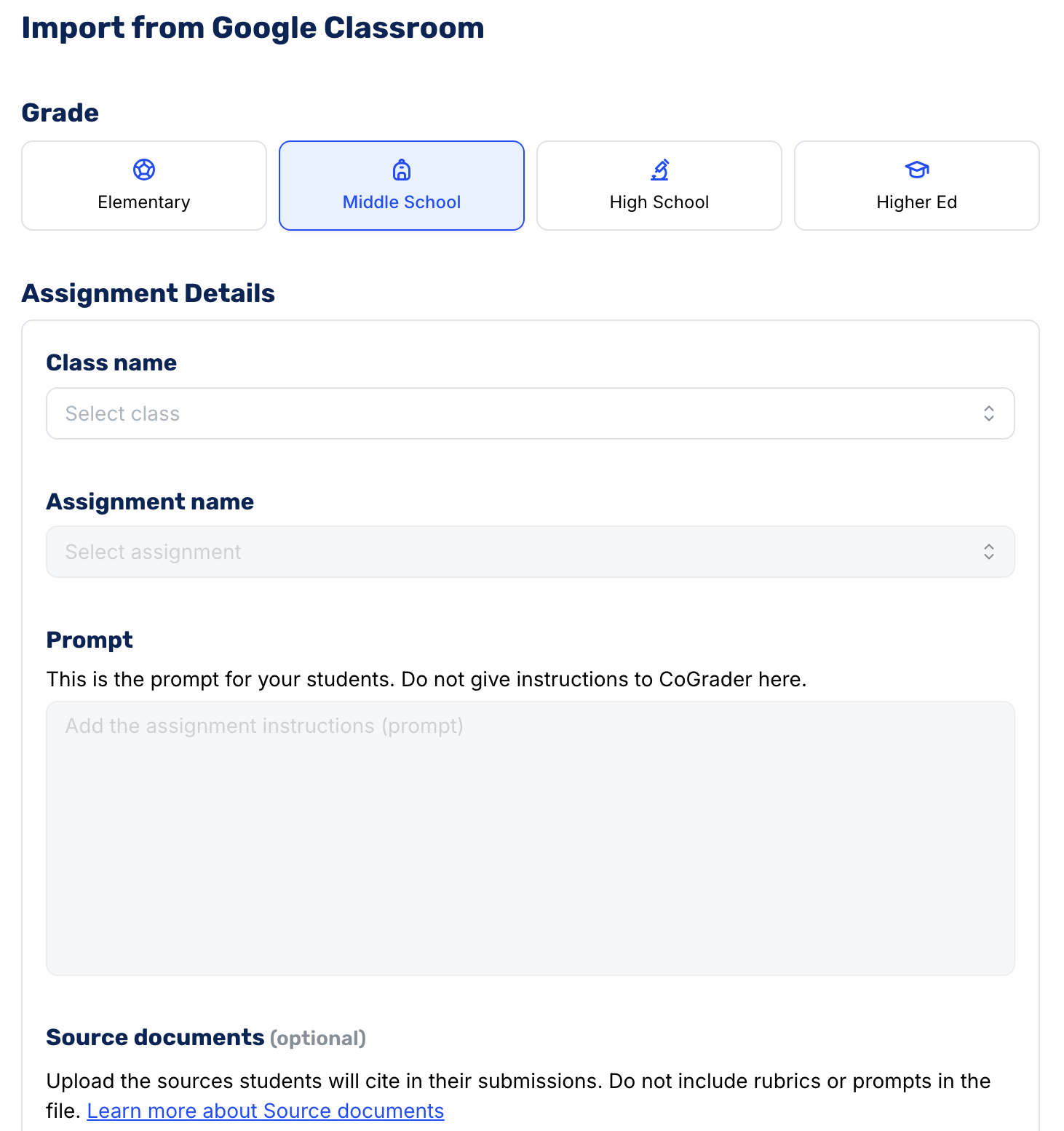
CoGrader reads the original assignment instructions on its own, so it already understands what you asked students to produce before it grades.
Before you finalize your import, CoGrader gives you three sets of controls that determine how it grades. This includes:
- Choose your feedback style: Set how comments are framed, from strengths-first options like Glow, Grow and Two Stars and a Wish to balanced or peer-style approaches like WWW/EBI, TAG, and PQP.
- Set your grading parameters: Modify the grading rules based on assignment type, class level, and other relevant factors. Teachers can adjust the Rigor, Reading Level, Length, and Tone to fit the assignment.
- Change the advanced rules: Toggle settings for specific cases, like turning Assign Score off for formative work, flagging Zero Scores for blank or off-topic submissions, and setting Language and Grammar Strictness.
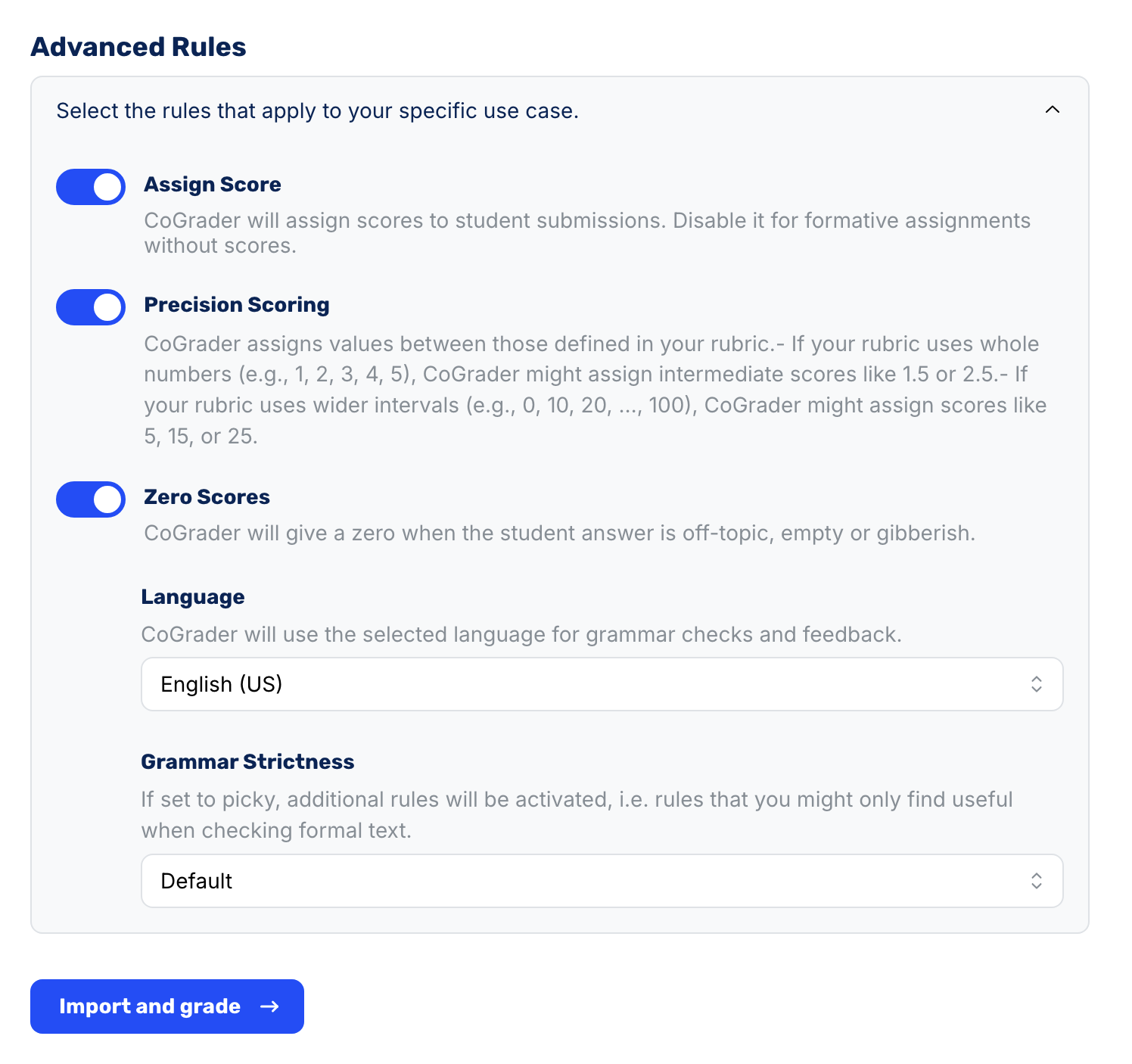
Each of these can be changed after CoGrader grades, so you can regenerate the results with a different style or stricter scoring at any time. Once the settings look right, click Import and grade to score the full class at once.
Grade Essays in Bulk and Draft Feedback to Students
After you import your class and the system grades every submission at once, you’ll land on the assignment dashboard with the whole class graded and waiting.
In this dashboard, every student appears in one list with their grade, submission state, and a status that reads “Graded, needs review.” This means CoGrader has scored the full set of assignments, but nothing is final or sent anywhere until you review and approve it.
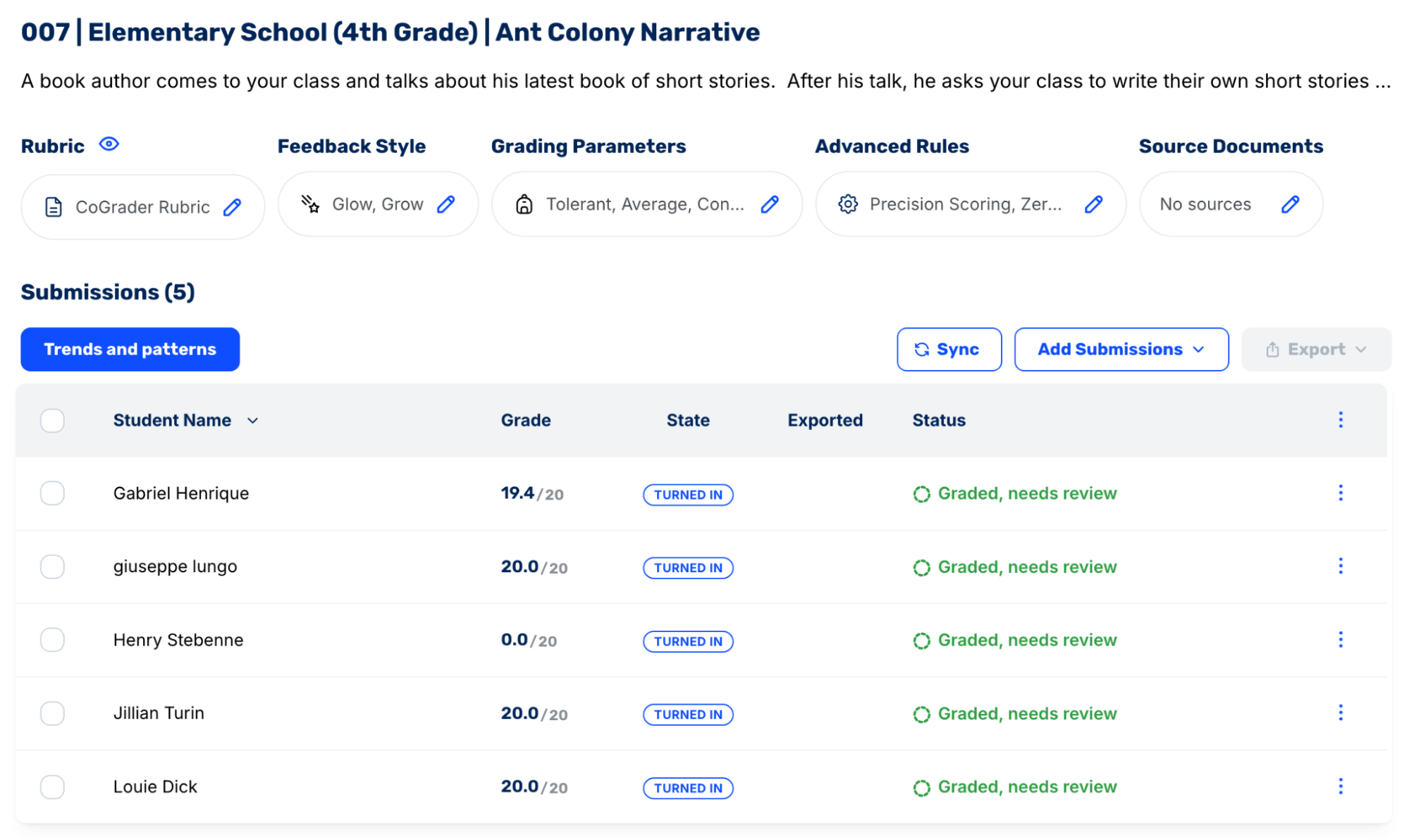
To review a student, click their name to view an individual assignment. This shows their writing, with feedback tied to the exact passages, the comments and rubric scores, and your grading controls.
Inside each assignment, you can make adjustments manually by editing any comment, revising a rubric score, or adding your own note, which ties to the student’s text like the rest. The other option is to change the grading itself by swapping the rubric, feedback style, or parameters, then regenerate the feedback so it comes back rewritten to match.
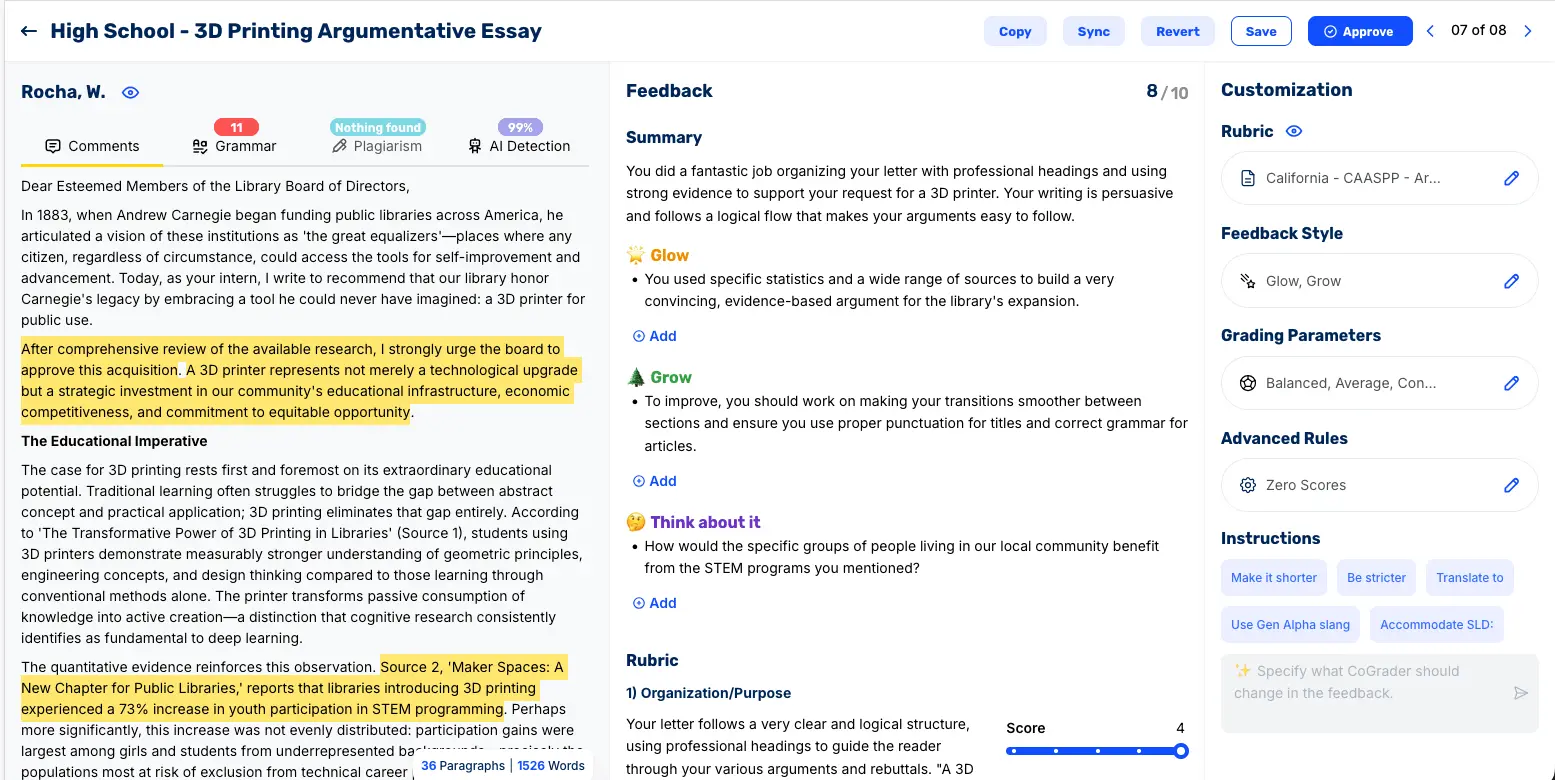
Once a student’s grade and feedback look right, approve it and move to the next. You still review every score before a student sees it, but the process moves much faster because every essay is already scored and has feedback drafted.
“The ease of providing my students with timely and high quality feedback without sacrificing my sanity or personal life has been a welcomed change. The more I learn to utilize this tool, the more I realize how much was missing without it.”
— Jessica Castronovo, English teacher
Set Up Your Rubrics for Consistent, Standards-Aligned Scoring
Your rubric is what CoGrader measures every essay against, and you set it before grading begins. CoGrader defaults to a rubric built on research-based instructional practices, but you can swap it at any point in the process.
There are a few ways for teachers to work with a rubric in CoGrader:
- Upload your existing rubric. Add a PDF, image, Word doc, Excel sheet, or a .txt, .csv, or .md file from your device or Google Drive to CoGrader. The system will read it and grade essays to your exact criteria.
- Select a new rubric from the library. Hundreds of prebuilt frameworks are ready to use. Filter by grade, subject, and state or curriculum to find the right one, from state testing rubrics to AP, IB, and Cambridge.
- Create a new rubric from your standards. Choose your state, grade, and subject, then check off the exact standards you’re assessing. CoGrader turns those into a working rubric that maps to what your district holds students to.
- Ask CoGrader’s AI to generate a new rubric automatically. Describe the assignment and grade level, add the criteria you care about, and you’ll have a structured rubric ready before the first student submits.
The CoGrader rubric library includes hundreds of options with filters for grade, subject, state, and curriculum. A teacher in Texas looking for a Grade 9 literary analysis rubric can filter straight to it instead of rebuilding the state standard by hand. The same is true for any teacher looking for AP, IB, and Cambridge frameworks.
When you build a new rubric or edit an existing one using CoGrader, you can:
- Set the name and scoring type, choosing between fixed or variable levels
- Restructure your criteria, adding new ones, removing others, or changing their order
- Reword any description, both at the criterion level and for each performance band
- Assign the points each level is worth, with partial-point values supported
It’s also possible to let CoGrader’s AI do the hard work for you. The Create with AI feature works from a short description of your assignment, then offers vetted criteria you can pull in, like thesis statement and essay organization. You can build rubrics from tested components rather than writing each one yourself.
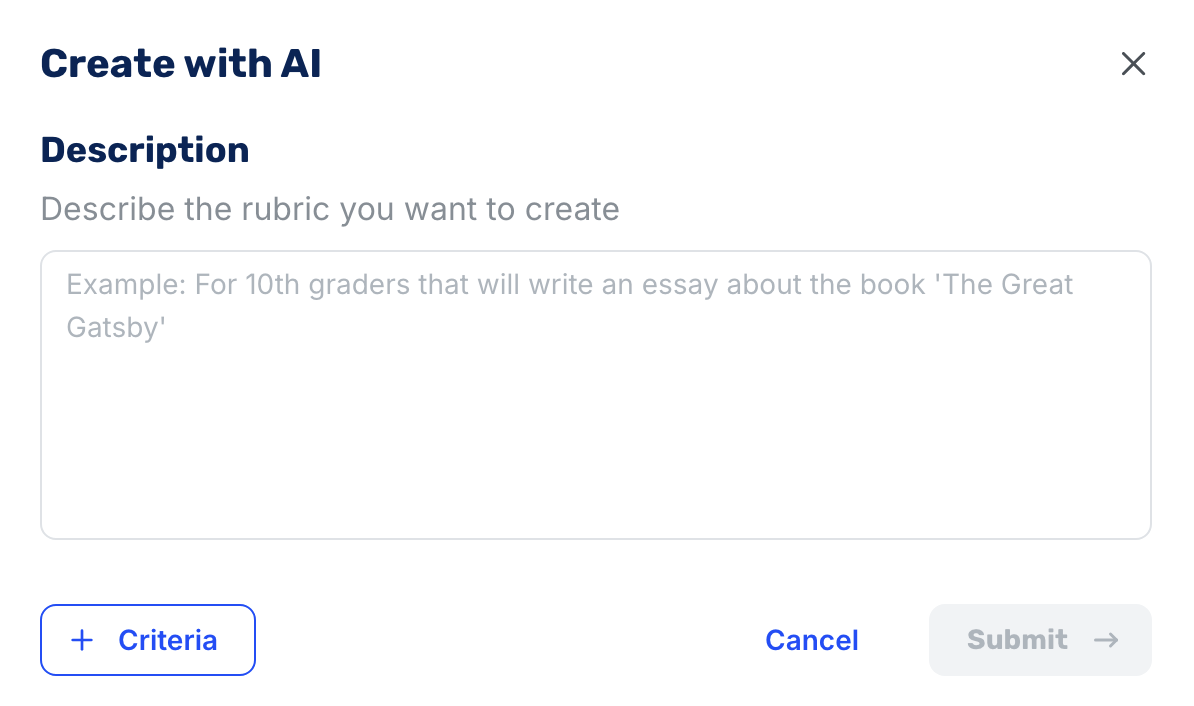
Whatever you upload, select, or generate stays fully editable, and whatever you set is what CoGrader grades against. For example, the library’s AP English Rhetorical Analysis rubric scores three criteria: Thesis, Evidence and Commentary, and Sophistication.
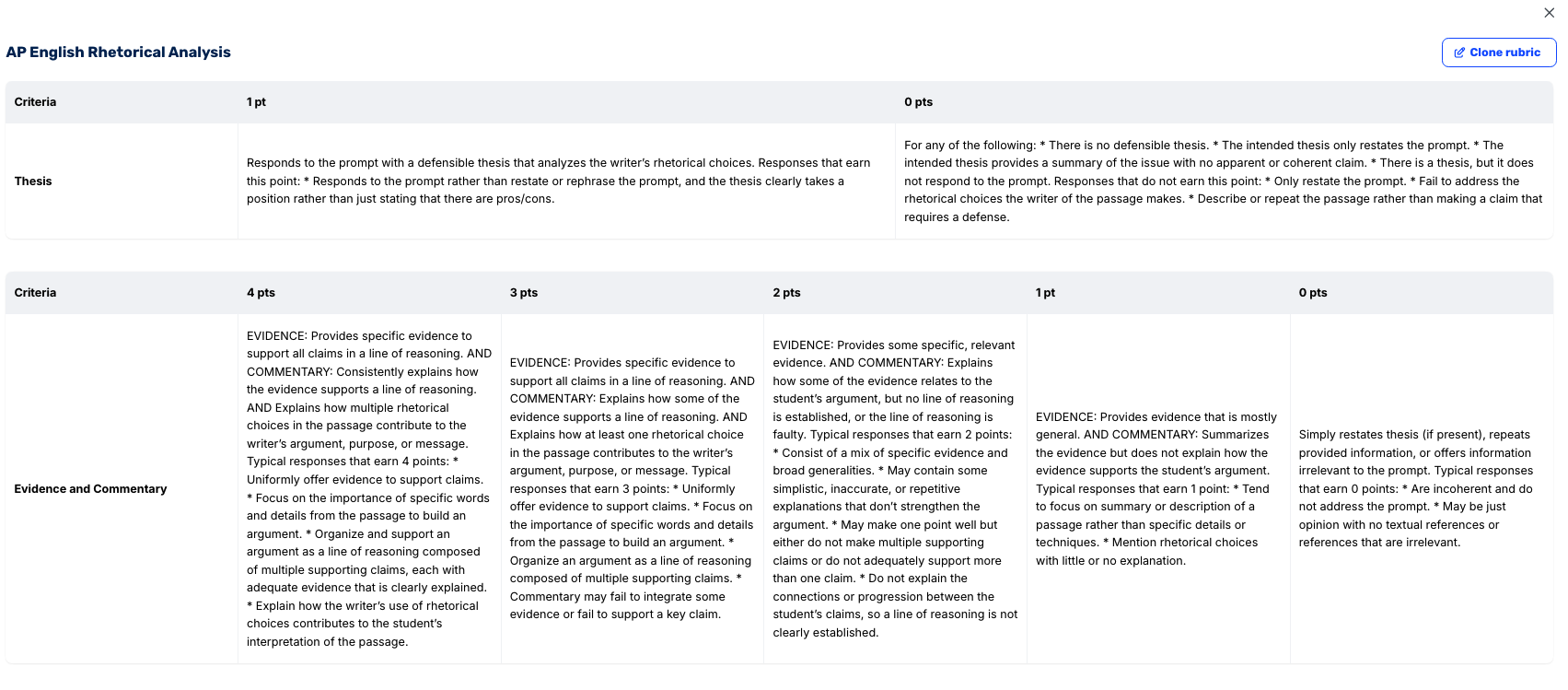
The scoring mirrors the real AP scale, with Thesis and Sophistication worth 1 point each and Evidence and Commentary graded across five levels from 0 to 4, each with a written description of what earns that score.
You can use it as is, or select Clone and edit to change scoring, adjust wording, or add criteria. CoGrader offers plenty of flexibility when it comes to rubric scoring and customizations.
Review Class Analytics to See How Students Are Performing
Grading a class in CoGrader produces more than scores. You can also build analytics views that show how the whole group performed and use them to create a plan for what to teach next.
The dashboard opens on an Overview with performance at a glance.
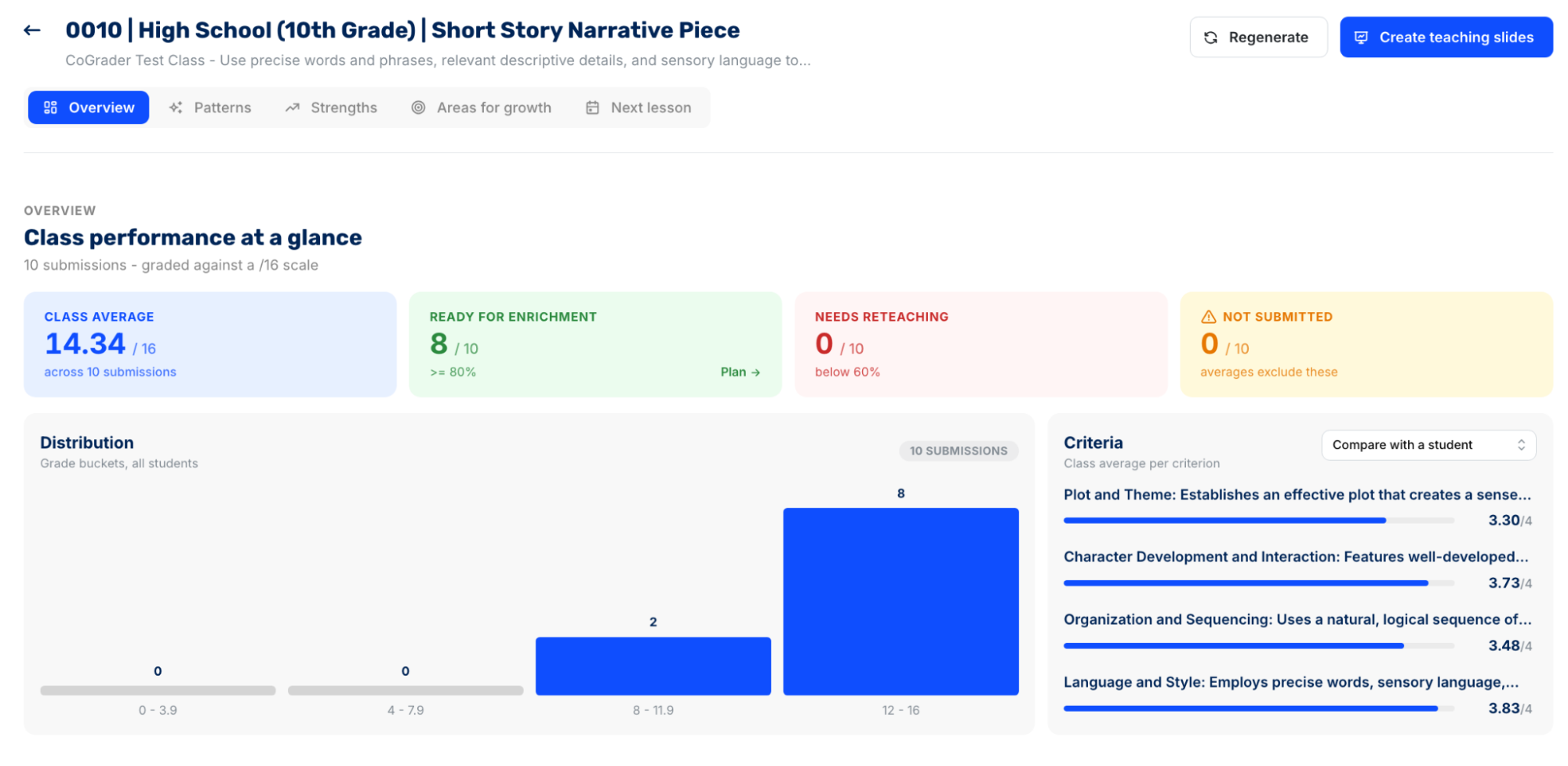
The Overview shows the class average, how many students are ready for enrichment, how many need reteaching, and how many haven’t submitted the assignment yet.
Alongside it, a grade distribution chart and a per-criterion breakdown show the class average on each rubric criterion, so you can quickly see criteria scoring for the class average compared to a selected student.
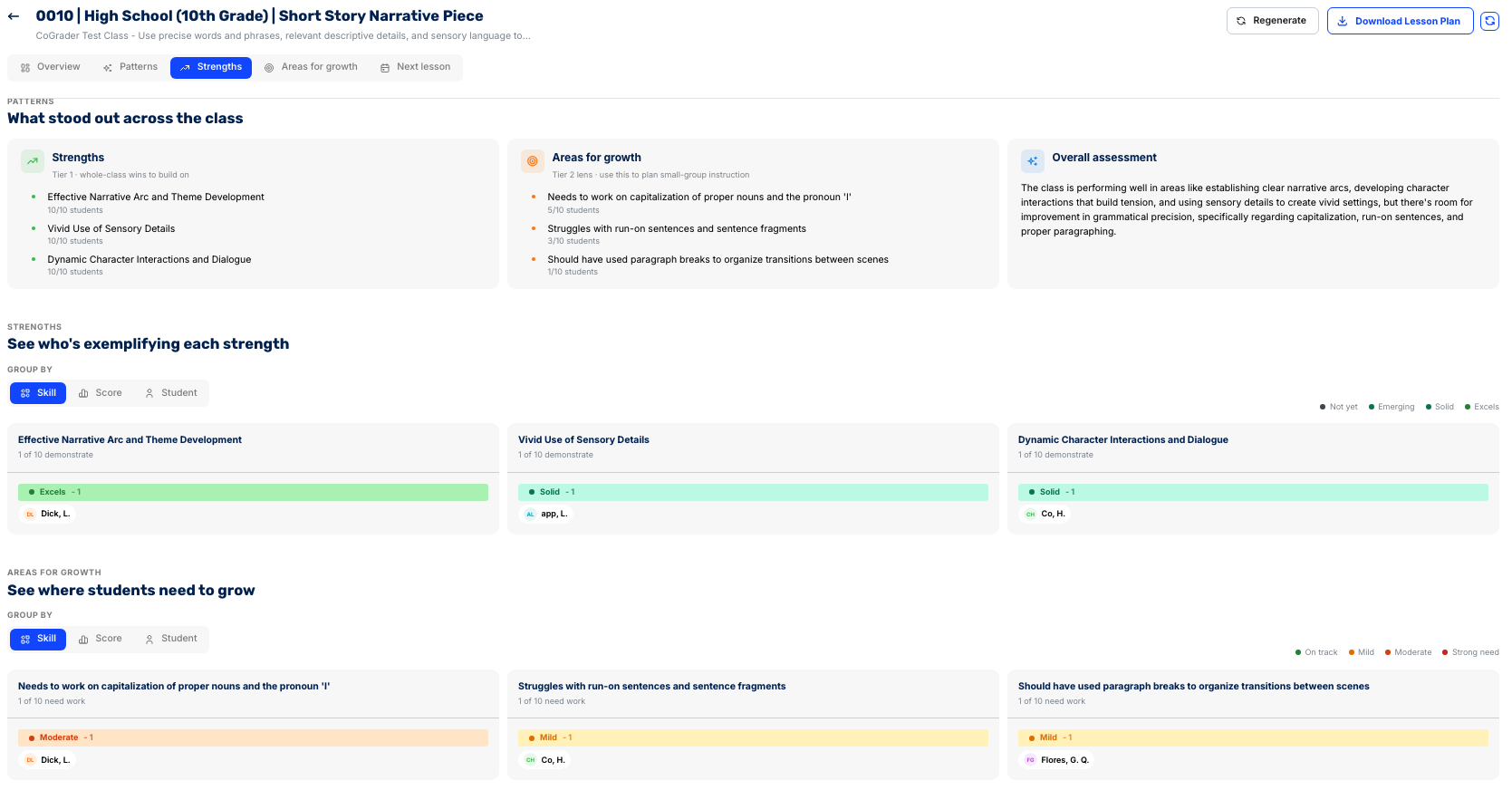
From there, the tabs break the results into different charts:
- Patterns highlights trends across the class, grouping students by how they performed rather than listing them one by one.
- Strengths shows what stood out across the group, ranks the top whole-class wins, and lets you see exactly which students exemplify each one.
- Areas for growth does the same in reverse, flagging where students need work, from capitalization to run-on sentences, and who falls into each level of need.
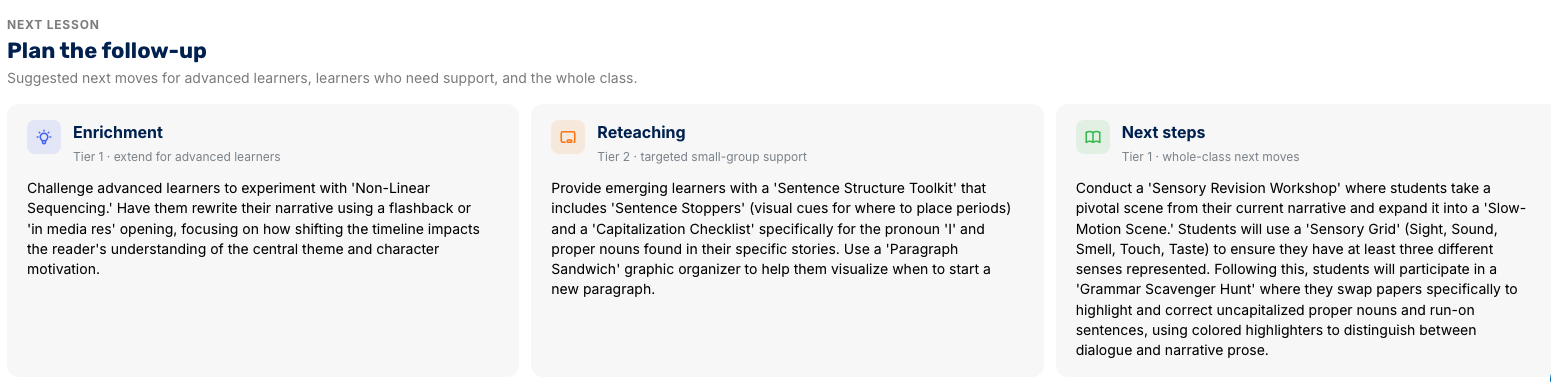
All of this data can be used to gauge student performance and make lesson planning decisions. You can prompt CoGrader to create teaching slides, and it’ll generate a ready-to-teach deck built from your class results.
Check for Plagiarism and AI Use with Built-In Academic Integrity Tools
CoGrader does more than just grade assignments by checking each submission for plagiarism and originality. The tool’s AI content detection lets teachers review work and leave actionable feedback to students using one tool.
When you open a student’s Originality tab, CoGrader rates the work on a three-point scale, from Probably Human to Possibly AI-assisted to Possibly AI-generated, with a short explanation of what it noticed.
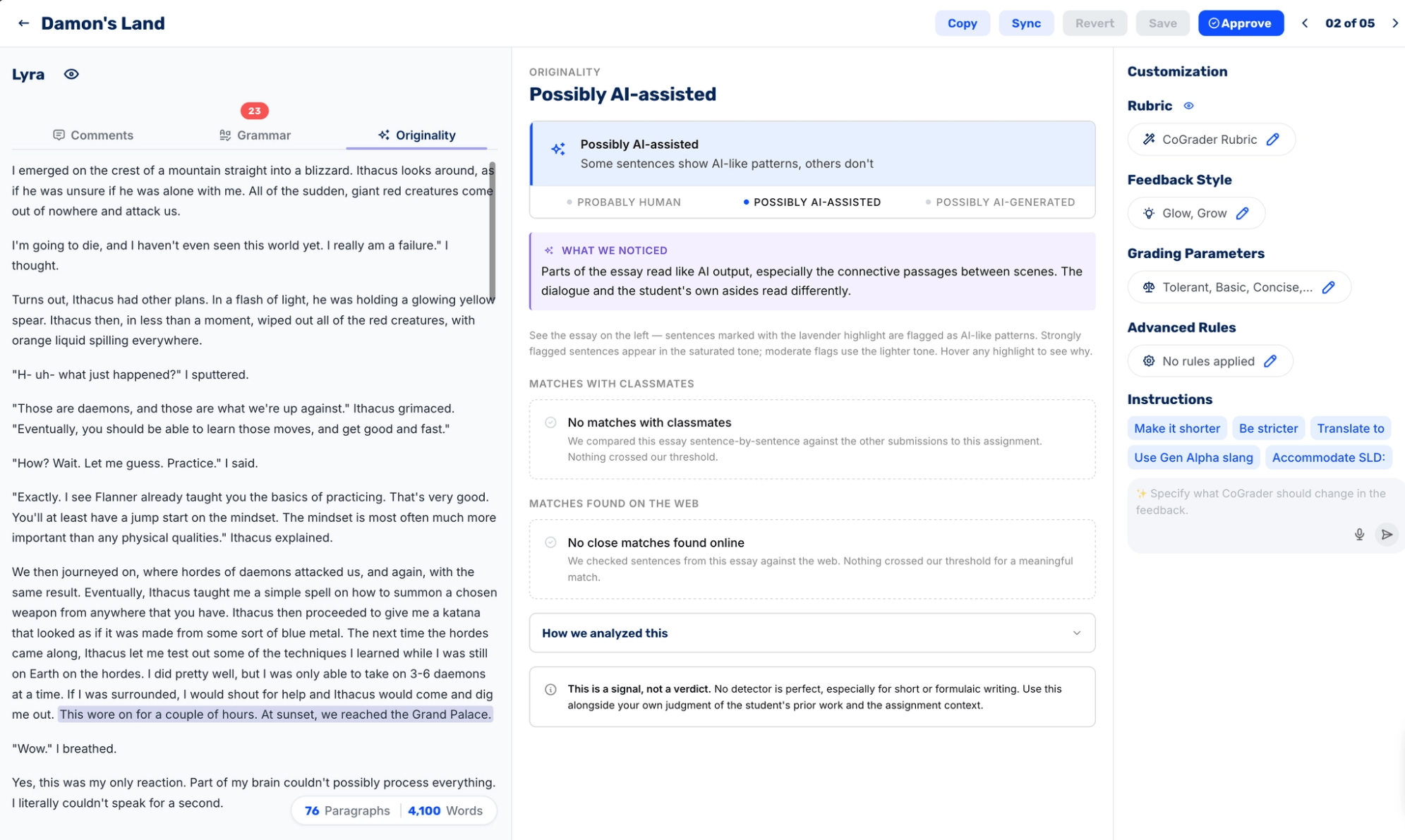
For each essay, CoGrader:
- Flags AI-like passages directly in the text, with heavier highlighting on strongly flagged sentences and lighter shading on moderate ones, so you can hover to see why each was marked
- Compares against classmates, checking the essay sentence by sentence against other submissions to the same assignment
- Checks the web for close matches to outside sources
We make sure to remind teachers that every originality result is a signal only, not a final verdict of whether or not a student used AI to write their work. The tool is built to inform a follow-up conversation with the student and your school’s policy, not to make the final decision for you.
AI plagiarism detection is available on the Schools and Districts plan, alongside Canvas and Schoology integration, a shared rubric library, and institution-wide analytics.
Pricing
CoGrader is free for teachers to start, with no credit card required. Our plans include:
- Starter (Free): 150 student submissions per month, plus handwritten grading, rubric building, and 90 days of premium access.
- Standard ($15/month, billed annually): 350 student submissions per month, plus grammar checking and the class performance dashboard.
- Schools & Districts (based on size): Unlimited student submissions, plus AI plagiarism detection and institution-wide analytics.
- Higher Ed & Enterprise (custom): Everything above, plus API access and a dedicated account manager.
Start grading with CoGrader. Sign up for a free account today or schedule a demo to learn more about our district plans.
2. GradingPal
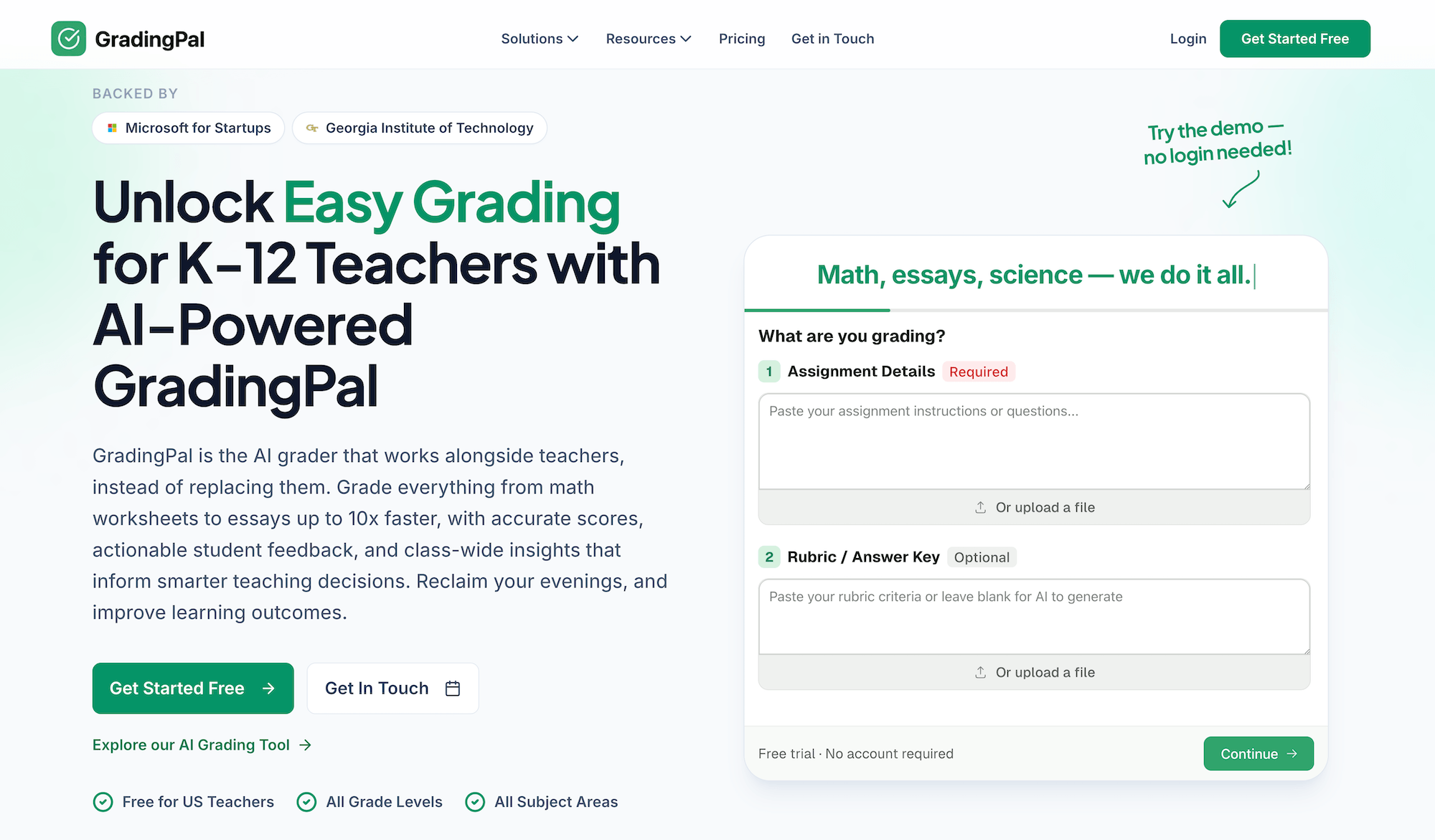
GradingPal is an AI grading tool built for math worksheets, science diagrams, vocabulary quizzes, and handwritten assignments. Its OCR reads student handwriting at roughly 95% accuracy, supporting elementary and middle school teachers whose students still turn in work on paper.
It connects to Google Classroom to import assignments and sync grades back, and applies custom rubrics with prebuilt Common Core and NGSS templates. A class analytics dashboard is also available to track trends and criterion mastery.
Key features
- OCR for handwritten worksheets, math problems, and labeled diagrams at roughly 95% accuracy
- Google Classroom import and grade sync
- Custom rubrics with prebuilt Common Core, NGSS, and state-standard templates
- Support for essays, worksheets, quizzes, exams, and multimedia submissions
- Class analytics with criterion-level mastery tracking
Pricing
GradingPal offers a free plan with 100 submissions per month.
Paid plans start at $14/month (billed annually) for 300 submissions and $26/month (billed annually) for unlimited submissions. Custom school and district plans are also available.
Best for
Elementary and middle school teachers get the most from this tool because it handles paper submissions well. The OCR and format range handle math worksheets, diagrams, and quizzes that essay-first tools can’t handle.
3. GradeLab
GradeLab is an AI grading platform for exams and structured assessments. It connects to Google Classroom to import courses and rosters, grades each submission against your rubric, writes individual feedback, and syncs scores back to the Classroom gradebook.
When using GradeLab, students keep submitting in Classroom exactly as they do now, with no new logins. It can also handle handwritten grading with multi-language OCR, on-screen marking, PDF and Google Docs submissions, and step-wise partial marking.
Key features
- One-click Google Classroom course, roster, and grade sync
- AI handwritten grading with multi-language OCR and on-screen marking
- Rubric-based scoring with step-wise and partial marking
- Question generation from PDFs and online exam proctoring
- Detailed reporting and student historical trends
Pricing
GradeLab uses a pay-as-you-go, pay-per-paper model for smaller usage, with custom Enterprise pricing for large institutions. Many features, such as proctoring and advanced analytics, are paid add-ons rather than included.
Best for
Universities, schools, and coaching centers that grade exams and handwritten assignments at high volumes will find this tool most useful. It’s especially helpful for programs that need OCR, partial marking, or proctoring. For most K-12 teachers grading typed essays, there are better options.
4. GradeWithAI
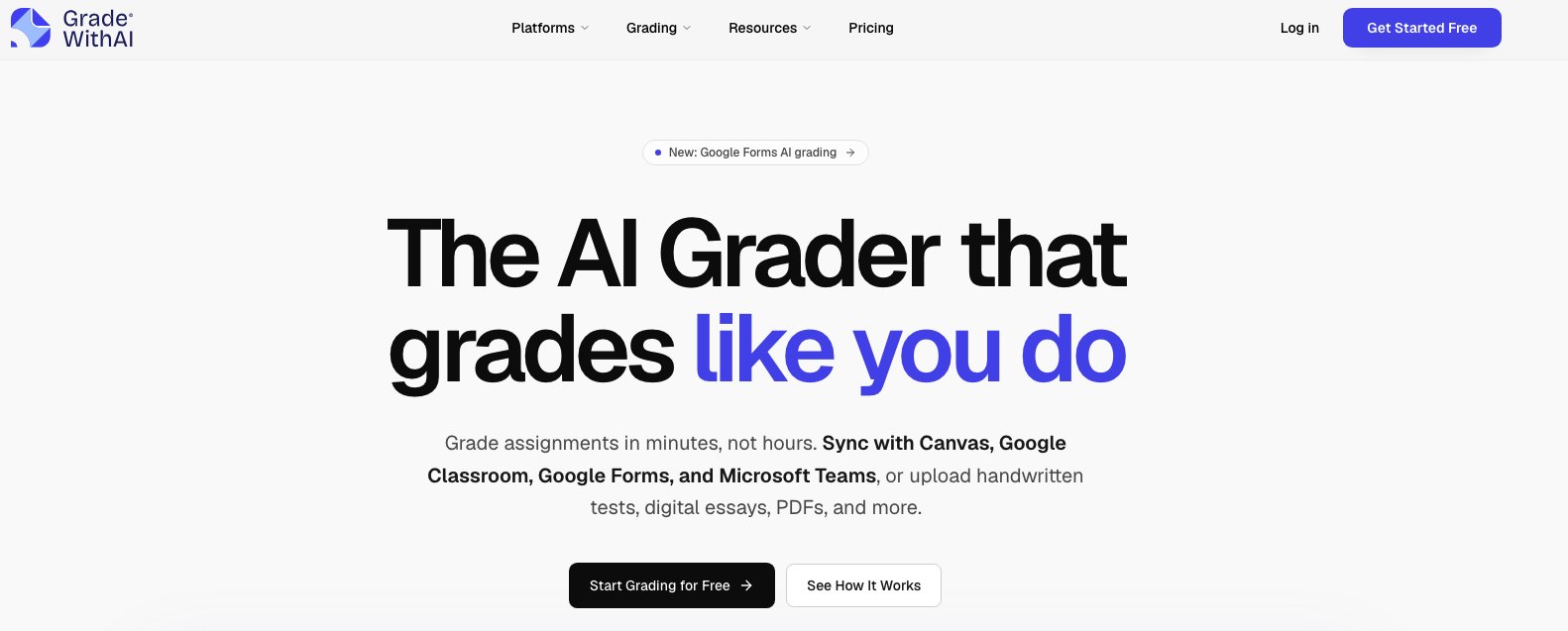
GradeWithAI is an AI grading assistant that can automatically score assignments and generate personalized feedback for students. It mainly works for evaluating essays, projects, and handwritten tests against custom rubrics.
It can also support handwritten work with advanced OCR, and many math teachers will find the partial credit feature helpful when analyzing questions. It connects directly with Google Classroom and other LMSs like Canvas and Schoology.
Key features
- One grading queue pulling from Google Classroom, Canvas, Google Forms, and Microsoft Teams
- Reasoning-based grading that follows a student’s thought process, not just a fixed answer key
- Reads Google Docs, Slides, PDFs, images, and handwritten photos
- AI-detection score from 0 to 100% shown with each grade
- Targeted regrades and student resubmission support
Pricing
GradeWithAI offers a free plan with a limited 25 AI grading requests per month. Paid plans start at $20 per month, while school plans require a custom quote.
Best for
This tool is best for teachers who do a lot of grading and want a platform that can bring everything into one place. The built-in AI detection is a bonus if academic integrity is a regular concern in your classroom.
5. Brisk Teaching
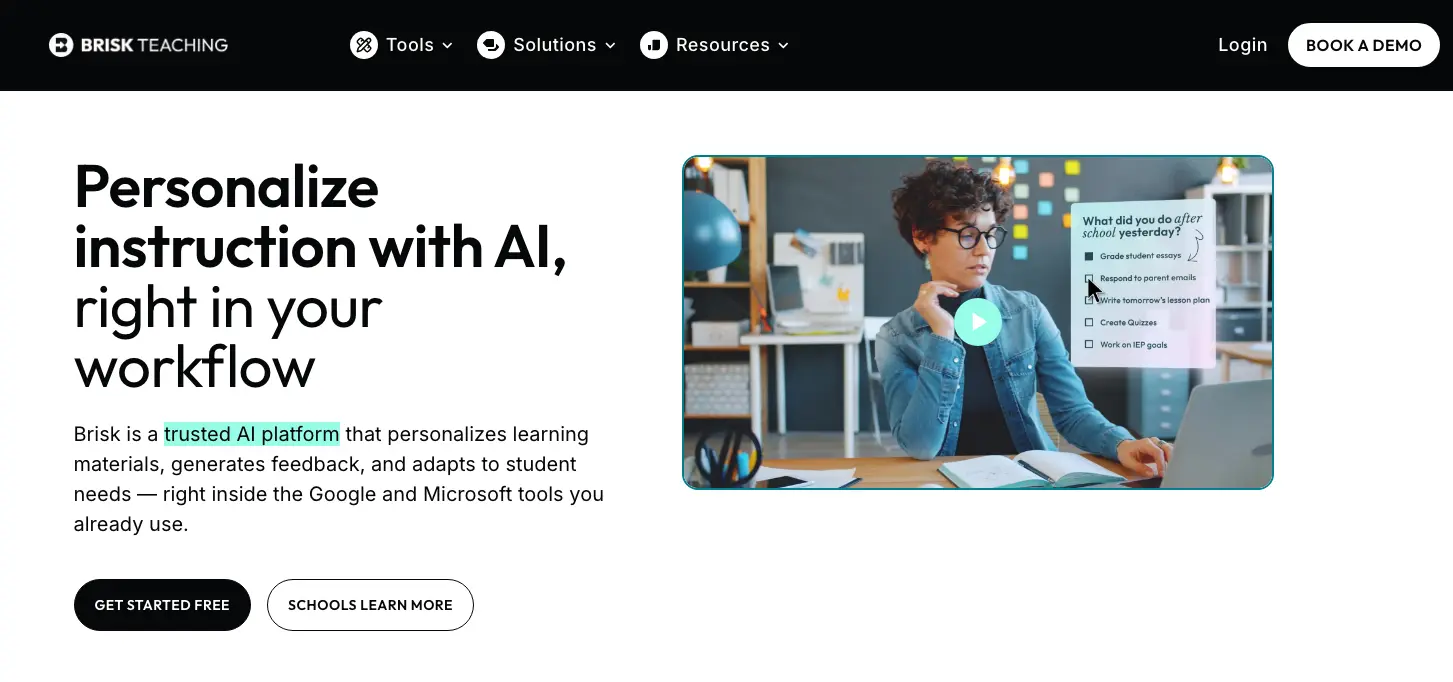
Brisk Teaching is a Chrome extension that integrates directly with Google tools like Docs, Slides, and Classroom. It allows you to grade assignments and leave student feedback within the tools they already write in.
Brisk also offers additional AI tools for content creation, generating lesson plans, quizzes, rubrics, and differentiated materials. The one downside is that it doesn’t automatically sync grades back to the Classroom gradebook.
Key features
- Runs as a browser extension inside Google Docs, Slides, Classroom, and other sites
- Six feedback modes matched to different students and assignments
- Batch feedback for processing a full class in one sitting
- Writing replay and AI detection for academic integrity
- Custom rubrics with access to the free rubric generator
Pricing
Brisk is available for free for teachers to get started. They also offer a premium Educator Pro plan and custom school and district plans.
Best for
Because Brisk is mainly used as a Chrome extension, it’s most suitable for teachers who already use additional tools beyond just Google Classroom, like Google Docs or Slides. It can provide fast feedback and content creation, but you won’t get numerical grades for writing assignments.
Bring AI-Powered Grading into Google Classroom With CoGrader
Google Classroom handles the logistics of assigning and collecting work, but you’ll still need to handle most of the grading yourself. Pairing it with a dedicated AI grading tool changes this so you can turn a full class set of essays into scored, feedback-ready work in minutes instead of hours.
For most teachers grading essays and writing, CoGrader is the best option because it quickly integrates with Classroom and grades a full class against your rubric. With it, you can:
- Grade an entire class set of essays in minutes with personalized, rubric-aligned feedback
- Connect directly to Google Classroom so assignments import and grades export automatically
- Apply any rubric, from AP and IB frameworks to your state standards
- See where students need the most support with built-in performance analytics
- Keep plagiarism and AI-use checks inside the same grading workflow
Try CoGrader free or request a custom quote to get started.
Frequently asked questions about Google Classroom AI grading
Can Google Classroom grade essays automatically?
Classroom does not offer automatic essay grading. It can auto-grade Google Forms quizzes with fixed answers, and Gemini can draft comment text for you, but it won’t read an essay and assign a rubric-based score. For that, you need a dedicated AI grading tool that connects to Classroom.
Does Google Classroom have built-in AI?
Gemini in Google Classroom offers AI capabilities to users. Teachers with the right license can use the “Help me write” feature to draft feedback on written assignments, and Gemini in Classroom offers other tools like generating quizzes and rubrics.
Is there a free AI grader for Google Classroom?
Several tools offer free tiers for teachers to get started. CoGrader, GradingPal, and GradeWithAI all have free plans that cap monthly submissions. CoGrader’s free plan is enough for teachers with smaller classrooms or for those who need a tool to test and determine whether it fits their teaching style before paying.
Will AI grading sync scores with the Google Classroom gradebook?
AI grading tools can sync grades with Google Classroom. They can push grades and feedback into the Classroom gradebook, so you skip manual entry. Not every tool does this, so it’s worth confirming before you commit.
Are AI grades accurate enough to trust?
AI grading works best as a first pass alongside teacher oversight. It’s best used as a tool to improve the grading process, not as something to completely remove human evaluation from grading. With CoGrader, there’s no bulk approval button and teachers are still required to review and adjust every grade before it’s final.