

By Andrew Gitner — Founding Educator at CoGrader & ELA Teacher Read time: ~6 min | Category: AI, Assessment, Education
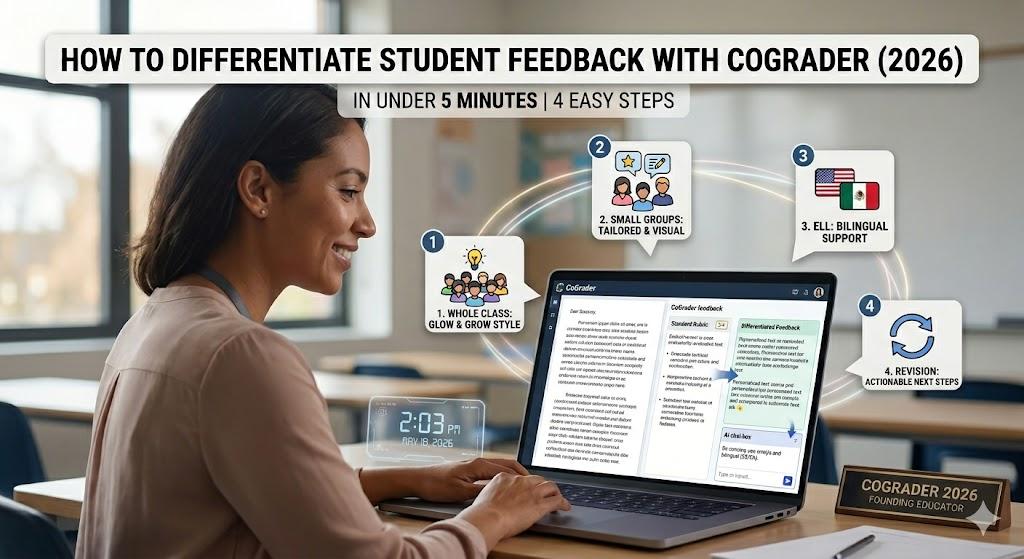
TL;DR: You spent time grading. Now make sure students actually use that feedback. This guide walks through four practical ways to tailor CoGrader’s AI-generated feedback for different learners — whole class, small groups, English Language Learners, and revision-ready students — in a single class period.
Here’s the uncomfortable truth about grading: feedback only works if students read it. And students don’t read feedback that feels too long, too abstract, or simply not written for them.
Most teachers know this. Most teachers also don’t have three extra hours to write individualized comments for every student in every class. So we default to one-size feedback — and then wonder why so few students actually revise.
CoGrader grades faster, and it gives teachers differentiation superpowers! This is the first time teachers could differentiate how that feedback lands for different learners — whole class, small groups, ELL students, and students entering a revision cycle — in the same amount of time it used to take to grade one paper.
Here’s how to do it in four steps.
If you’re already spending more time writing feedback than students spend reading it, create a free CoGrader account → and follow along.
Before You Start
You’ll need:
- A CoGrader account — free to sign up, no credit card required
- An assignment already imported and graded in CoGrader (connected to Google Classroom, Canvas, or Schoology, or uploaded manually)
- About five minutes
Chromebook users: The AI chat box sits in the bottom-right corner of the student feedback screen. You may need to scroll down to see it.
Step 1: Switch Feedback Styles for Your Whole Class
(Approx. time: 1 minute)
After CoGrader grades a class set, the default feedback style is whatever you selected when you set up the assignment — maybe a “Rose, Bud, Thorn” structure, or a straight rubric breakdown. If you want something more concrete for students, you can switch it in one click.
How to do it:
- Open any student’s feedback in the CoGrader dashboard.
- Click the feedback style dropdown at the top of the feedback panel.
- Select your new style — try “Glow and Grow” for most classes. It gives students specific strengths (“Glows”), clear areas for improvement (“Grows”), and reflective questions (“Think About Its”).
- Click “Regrade” to preview the new feedback for that student.
- If it looks right, click “Apply to All” — CoGrader rewrites the feedback for every student in the class automatically.
Why it works: Rubric language is written for teachers. “Glow and Grow” language is written for students. The underlying assessment doesn’t change — just how the result is communicated. For younger students or struggling writers, that translation makes the difference between feedback that gets used and feedback that gets ignored.
Read more: The Research Behind CoGrader
Step 2: Tailor Feedback for Small Groups Using the Chat Box
(Approx. time: 2–3 minutes)
The “Apply to All” button is powerful — but not every student in your class needs the same thing. CoGrader’s built-in AI chat box lets you modify feedback for an individual student or a targeted group without touching anyone else’s comments.
The prompt that works:
“Make it much shorter, more concise, and more concrete. Use emojis in the feedback.”
Type that into the chat box on any student’s feedback screen and CoGrader rewrites the comment in seconds.
How to apply it to specific students only:
- Open the first student whose feedback you want to modify.
- Type your prompt into the chat box (bottom-right of the screen).
- Review the output — delete any lines you don’t want to keep.
- Use the targeted student selector to choose only the students in this group before clicking “Apply.”
Why it works: If a student doesn’t read feedback, they can’t grow from it. For highly visual learners or students who shut down at walls of text, a shorter comment with a 🌟 or a 📝 signals that the feedback is meant for them — not just filed away for the gradebook.
You always have final say. Delete specific lines before applying. CoGrader never bulk-approves feedback without your review.
Step 3: Add Bilingual Support for English Language Learners
(Approx. time: 2–3 minutes)
Differentiated feedback for ELL students doesn’t have to mean a separate grading workflow. Using the same chat box, you can generate bilingual feedback for the specific students who need it — without changing anything for the rest of the class.
The prompt that works:
“Be concise, and use English and Spanish for the feedback.”
How to clean up the output:
Dual-language feedback can run long. After CoGrader generates it, trim down any lines that feel redundant — focus on keeping the essential feedback items (strengths, growth areas) and removing extended explanations that duplicate themselves across both languages. For most students, two to three focused bilingual points land better than five verbose ones.
How to apply it to specific students only:
- Generate the bilingual version for one ELL student using the chat box.
- Review and trim.
- Use the targeted student selector to apply it only to the students in your ELL group.
In a class of 30, you might have two or three students who need this. That’s two or three targeted modifications — not 30.
Why it works: ELL students deserve feedback that meets them where they are. This workflow gives them the same substantive CoGrader assessment as every other student, delivered in a way they can actually access. And it doesn’t add a parallel grading process for the teacher.
Step 4: Reframe Feedback for Revision (Post-Grade Workflow)
(Approx. time: 2–3 minutes)
Here’s a use case that often gets overlooked: what happens after you return grades?
Summative feedback is evaluative — it tells students what happened. But if you’re asking students to revise, they need a different kind of message: not “your thesis was underdeveloped” but “here’s the specific move that would make your thesis stronger.”
Most teachers don’t have time to rewrite 30 sets of comments between returning grades and opening the revision window. CoGrader’s chat box makes it a two-minute job.
The prompt that works:
“Reframe this feedback for revision. Instead of evaluating what the student did, focus on specific, actionable steps they can take to improve each area. Use forward-looking language.”
What the output looks like:
Before: “The thesis lacks a clear argument and doesn’t connect to the supporting evidence.”
After: “Start your revision by rewriting your thesis as a single sentence that makes a specific claim. Then check that each body paragraph opens with a sentence that directly supports that claim.”
How to apply it:
- After grades are returned and you’re ready to open revision, open any student’s feedback.
- Paste the prompt above into the chat box — or customize it for your assignment.
- Review, trim, adjust tone if needed.
- Apply to the students who are participating in the revision cycle (not necessarily the whole class).
Why it works: Summative feedback closes the loop on an assignment. Revision-ready feedback opens the next one. For writing workshop classrooms, for AP courses with mandatory revision, or for any teacher trying to build a genuine revision culture, this is the step that makes feedback functional rather than just filed.
For a deeper look at building feedback loops that students actually use, see Effective Student Feedback Strategies.
Tips and Troubleshooting
Can’t find the chat box? On Chromebooks, the AI chat box sits at the bottom-right of the student feedback screen. Scroll down if you don’t see it immediately.
The bilingual output feels too long. That’s normal — dual-language feedback can expand quickly. Trim it down to two or three key points per section. Fewer, focused items land better than comprehensive but dense feedback.
You want to mix and match. You can. Apply “Glow and Grow” to the whole class first, then use the chat box to further modify specific students. The modifications layer on top of each other — you’re always in control of what gets saved.
Try It on Your Next Assignment
The four workflows above cover the most common differentiation needs teachers face with written feedback: whole-class clarity, small-group engagement, language accessibility, and revision readiness. Combined, they take less time than writing individualized comments for five students by hand.
The difference isn’t just efficiency — it’s that students are more likely to read feedback that was shaped for them. And feedback that gets read is the only kind that works.
- Create a free CoGrader account → (100 submissions/month free, no credit card required)
Schools and districts: Request a custom quote →